Billing
Billing is where you manage your licences and subscriptions: see what you hold, buy a new licence, change a licence's plan and add-ons, and open the secure billing portal for payment methods and invoices.
How to get here: Account menu (top right) > Billing. See Getting started.
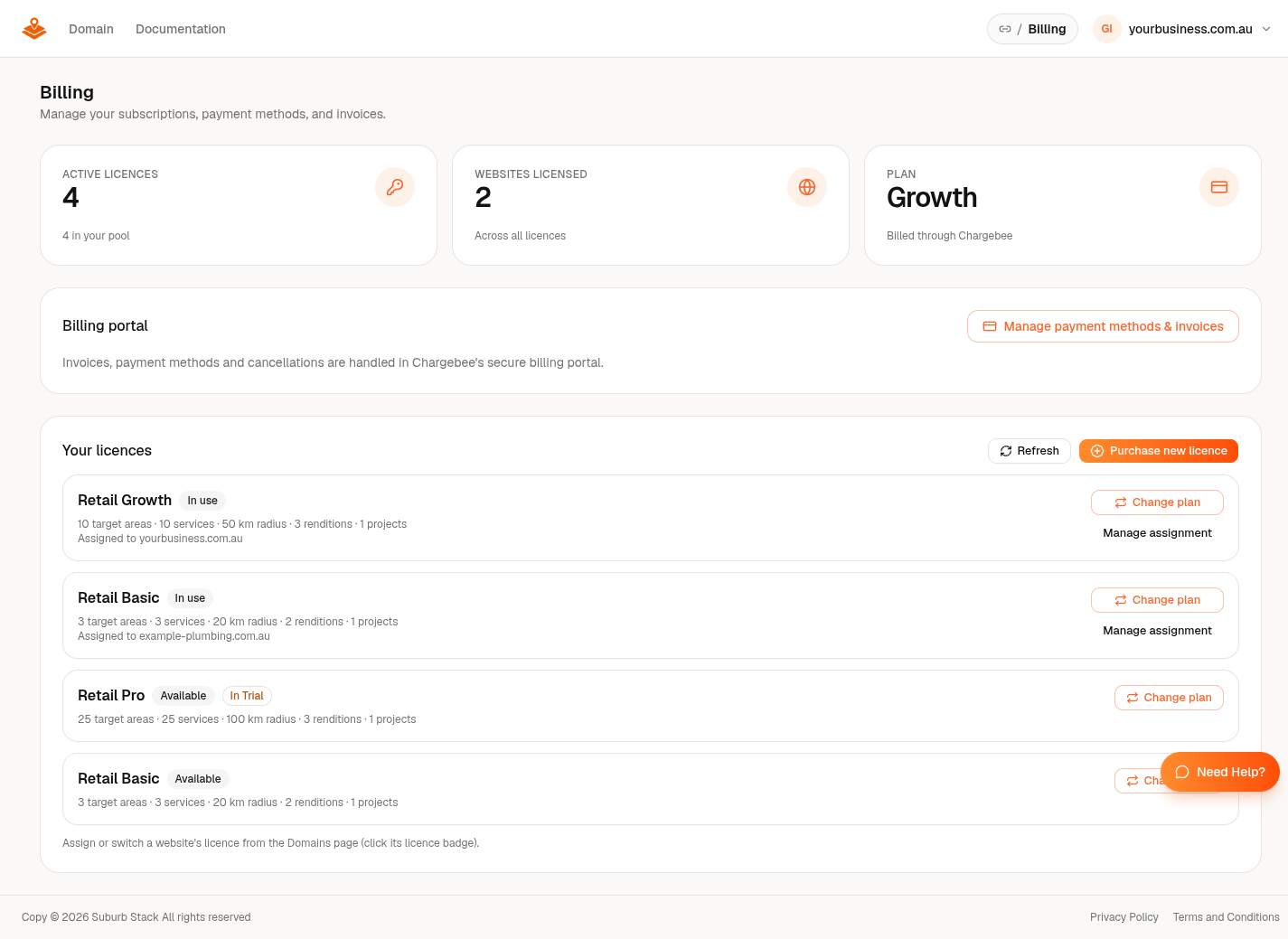
The screenshots in this guide use example plans and prices. Your own plans, prices and currency are shown in the app.
How licences work
- Every website needs a licence before you can generate pages for it.
- The licences you have bought sit in your pool. You assign a licence from the pool to a website, and can unassign or switch it later.
- Each licence comes from a plan that sets its limits: services, target areas, radius in km, renditions per page, and how many websites it covers.
Stat cards
| Card | What it shows |
|---|---|
| Active Licences | Licences that are active or in a free trial, and how many are in your pool in total. |
| Websites Licensed | How many websites currently hold one of your licences. |
| Plan | Your plan. Billed through Chargebee means it is billed through the secure billing portal described below. |
Your licences
The Your licences list shows every licence in your pool.
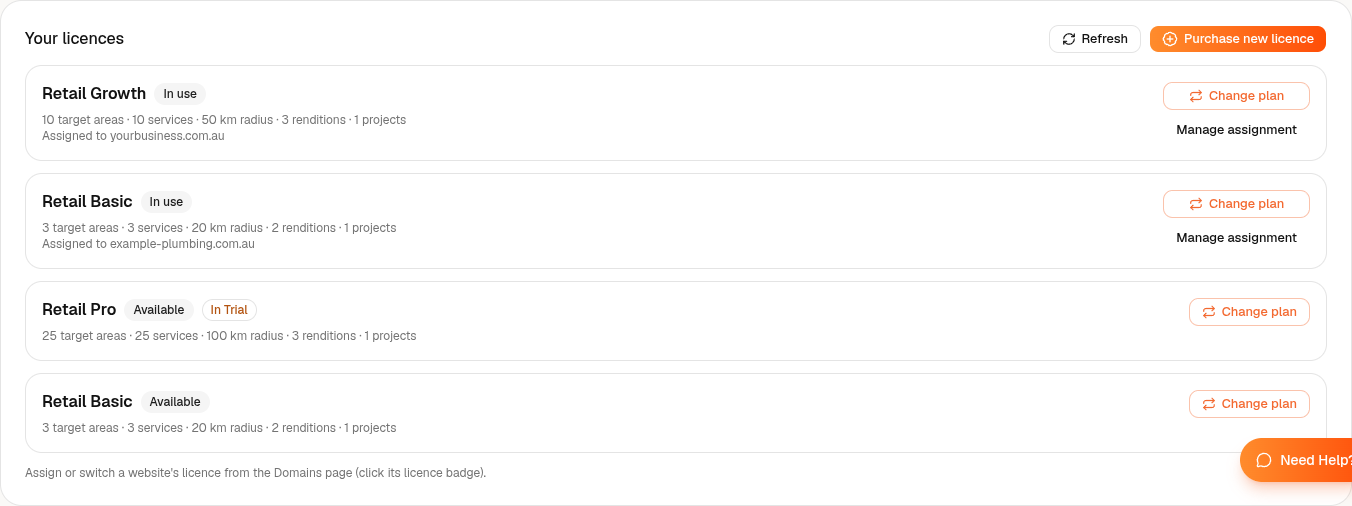
Each licence shows:
| Item | Meaning |
|---|---|
| Name | The licence type and plan, for example Retail Growth. |
| In use / Available | Whether the licence is assigned to a website. |
| In Trial | The licence is in its free trial. |
| DFY / Managed | A licence managed for you. It shows Managed instead of the buttons below. Contact support to change it. |
| Limits line | For example "10 target areas · 10 services · 50 km radius · 3 renditions". |
| Assigned to | The website or websites using the licence. Licences that cover several websites show a "... / ... domains" bar. |
Buttons:
- Change plan: change this licence's plan or add-ons (see below).
- Manage assignment: opens the Manage Licence dialog for the website using this licence. Only shown when the licence is assigned to a website.
- Refresh: reload the list, for example just after a purchase.
To assign a licence to a website that has none, open the website and select Manage Licence on the sidebar's Your Plan card (see Websites and licences).
Purchase a new licence
- Select Purchase new licence.
- Choose Monthly or Yearly billing. Yearly shows the Save 20% badge. If more than one currency is offered, pick yours from the currency list.
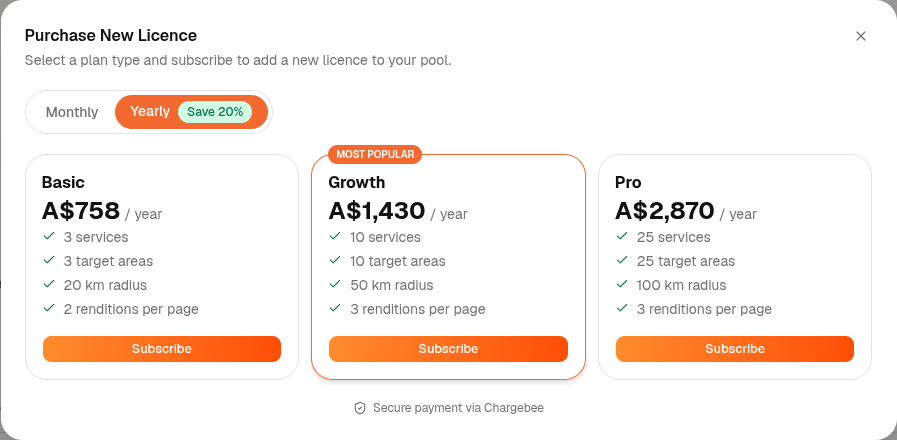
- Compare the plans. Each card lists what the plan includes. Most Popular marks the suggested plan.
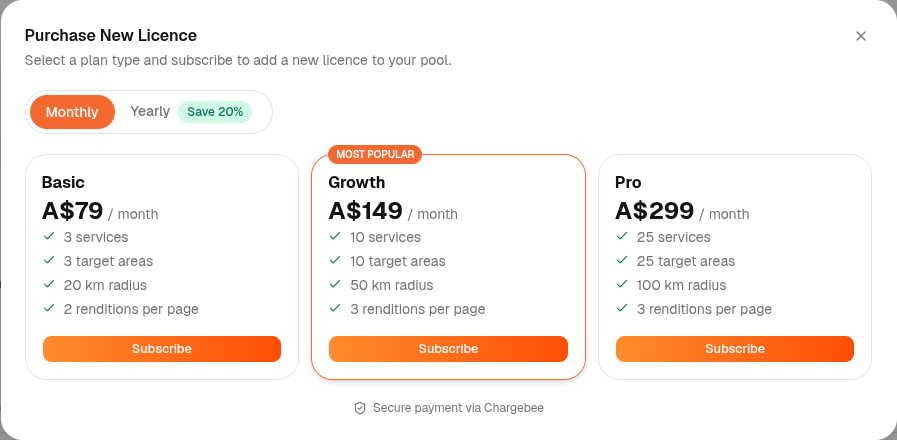
- Select Subscribe on the plan you want. The secure checkout opens over the app. If your browser blocks it, the checkout opens in a new tab instead: complete it there, then select Refresh on the Billing page to see the new licence.
- Enter your payment details in the checkout and complete it.
When the checkout finishes you see Thank you for your order!. Select Back to Licences. The new licence takes a few seconds to arrive: the list shows "Your new licence is being provisioned..." and then "Your new licence has been added to your pool." If it takes longer, you see "Your new licence is still being processed. Please refresh the page in a moment."
If you have an agency account that already holds an active agency licence, Purchase new licence is not offered. The page says "You already have an active agency licence. Use "Change plan" to upgrade instead."
Change a licence's plan or add-ons
- Select Change plan on the licence. The Change Plan dialog opens. It keeps the licence's current billing period and currency.
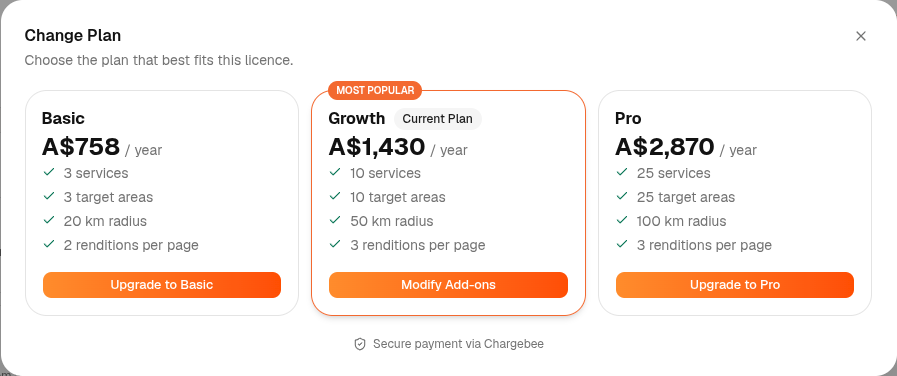
- Choose what to change:
- Upgrade to a plan name moves the licence to that plan.
- Modify Add-ons on your Current Plan keeps the plan and changes the add-ons. It only shows when the plan has add-ons; otherwise the button reads Current Plan and is greyed out.
- If the plan has add-ons, set them with the sliders. Each slider shows the price of one unit, what your current plan has, and the amount you have chosen. The Total at the bottom updates as you move the sliders, so you can work out the cost before you commit.
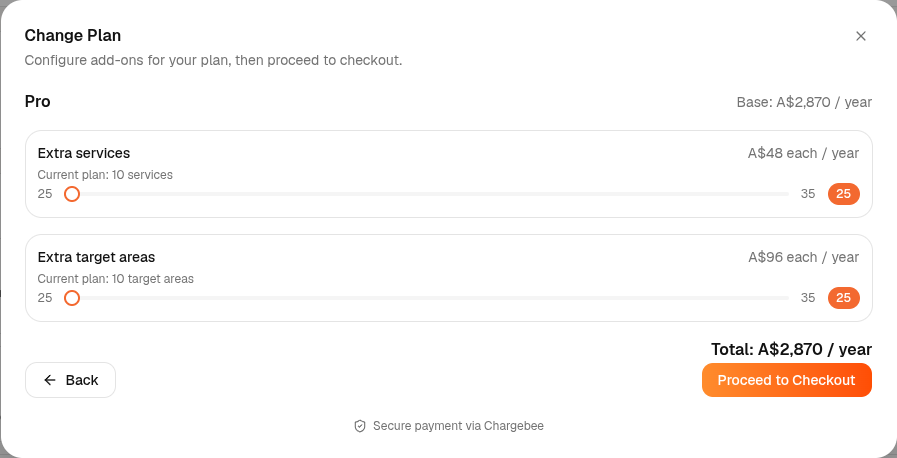
- Select Proceed to Checkout. (A plan without add-ons skips steps 3 and 4 and goes straight to the Order Summary.)
- Check the Order Summary and the Payment Method on file.
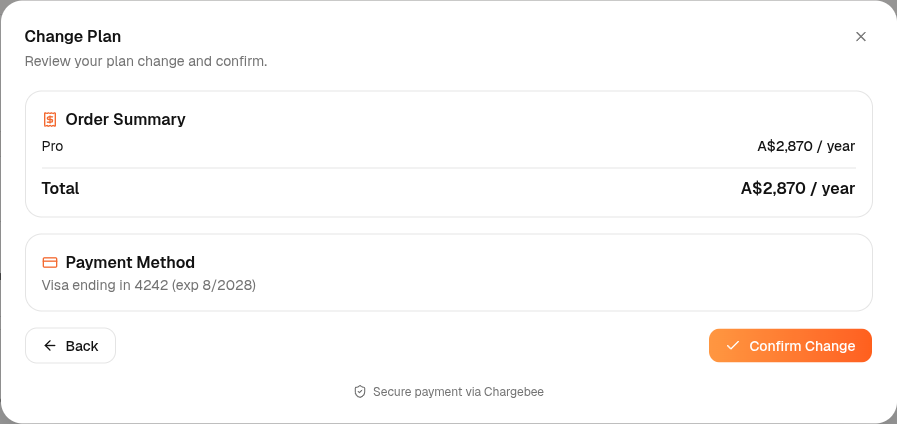
- Select Confirm Change to apply it, or Back to go back a step. The change is charged to the payment method shown.
If the licence is in its free trial, the summary warns: "Your free trial will end immediately." Changing the plan ends the trial and billing starts straight away.
When the change is applied you see Plan changed and "Your licence has been updated." If the change is not allowed, you see "Cannot change to this plan:" with the reasons.
Manage a website's assignment
Select Manage assignment on a licence that is in use. The Manage Licence dialog opens for that website.
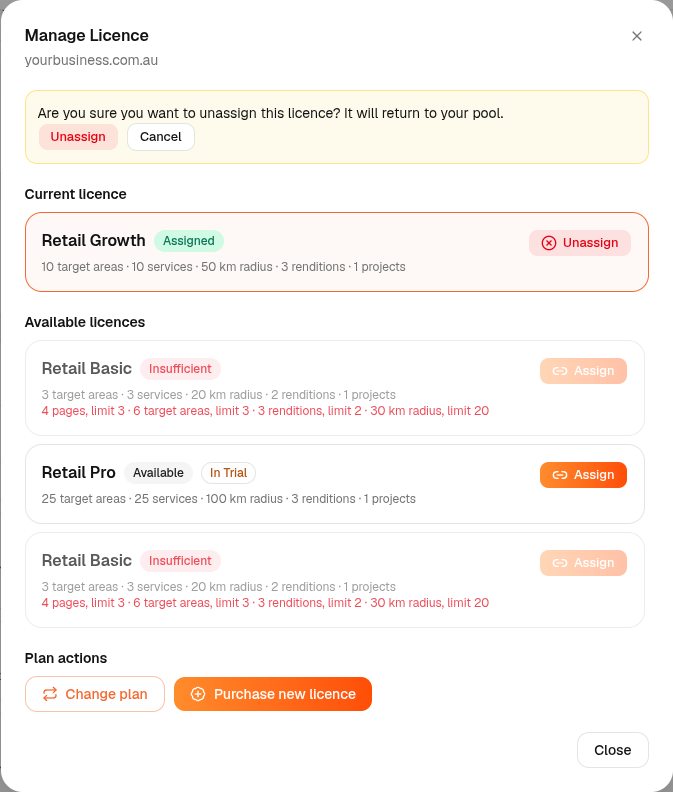
- Unassign returns the licence to your pool. Confirm with Unassign, or select Cancel.
- Assign on an available licence moves the website to it. If the website already has a licence, confirm with Switch licence.
- A licence marked Insufficient is too small for what the website already uses, and lists why.
The Websites and licences guide describes this dialog in full.
Payment methods and invoices
Payment methods, invoices and cancellations are handled in the secure billing portal.
- On the Billing portal card, select Manage payment methods & invoices.
- The billing portal opens over the app. There you can update your card, download invoices and cancel a subscription.
Archiving a website (see Websites and licences) does not cancel its subscription. Cancel it in the billing portal.
Accounts on the older billing system
If your account still has subscriptions on the previous billing system, a Legacy billing card appears at the top of the page. Select Open legacy billing portal to manage those subscriptions, invoices and payment methods in a new tab. New licences are still purchased on this page.
Related guides
- Websites and licences: assign, switch and unassign a website's licence; archive websites.
- Getting started: the Add Website wizard, which can also buy a licence.
- Account settings: your billing address.
- Dashboard: the Your Plan card on each website.