Leads
Leads lists every enquiry visitors send through the forms on your Suburb Stack pages, newest first. Open a lead to read everything the visitor filled in and to view or download any files they attached.
How to get here: Sidebar > Leads. (See Getting started for the sidebar and switching between websites.)
The Leads list
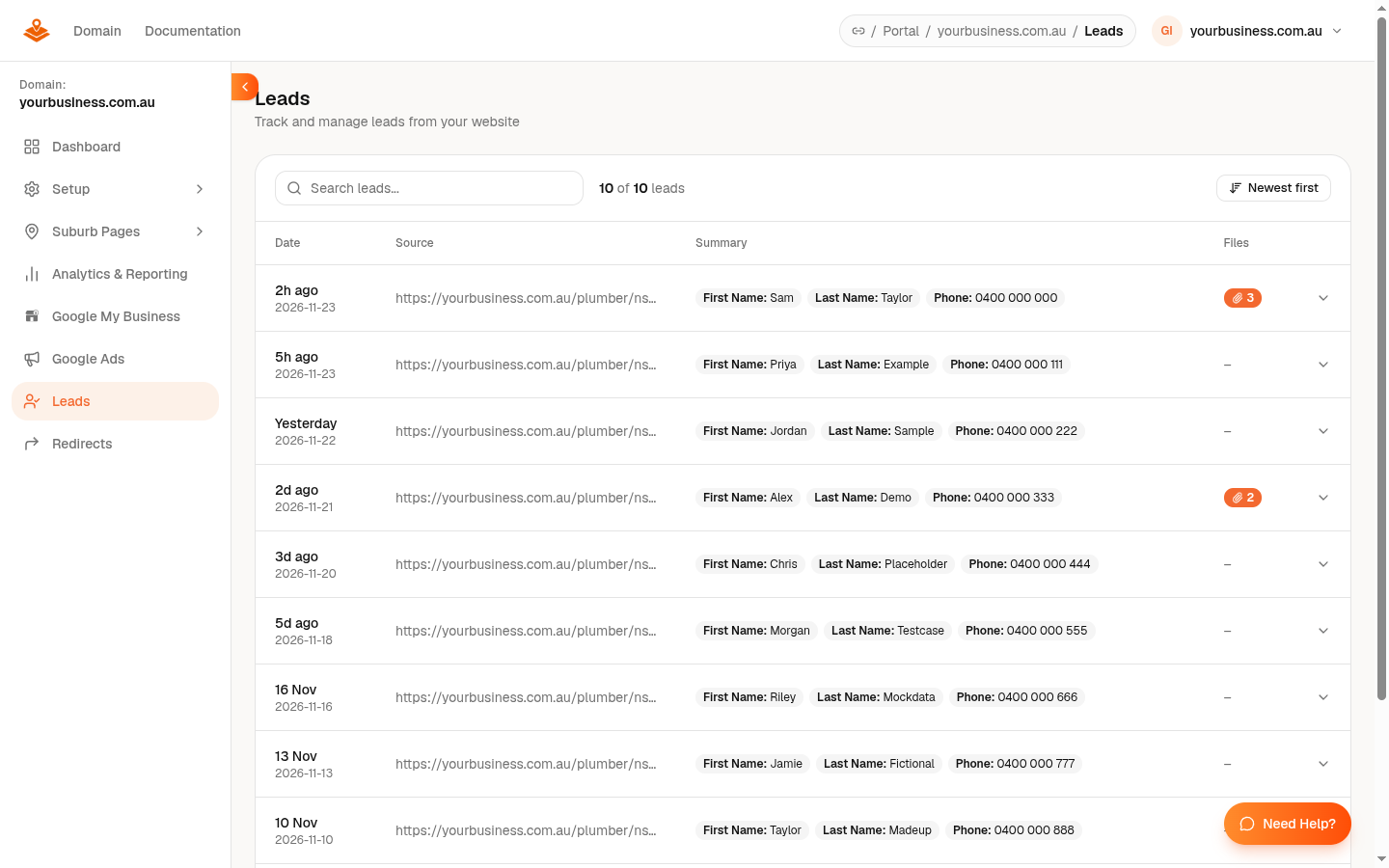
Each row is one form submission:
| Column | What it shows |
|---|---|
| Date | When the lead came in, for example "2h ago", "Yesterday", "3d ago" or "16 Nov" for older leads, with the date underneath. |
| Source | The page the form was on. |
| Summary | The first three fields of the lead, with names first, then phone and e-mail (for example first name, last name and phone). Long answers are shortened. |
| Files | A paperclip with the number of files, if the visitor attached any. A dash means no files. |
Above the table you see how many leads match your search out of the total, for example "10 of 10 leads".
The list loads your newest 500 leads. If you have more, a line under the search box says "Showing the newest 500 of N leads."
If nobody has sent a form yet, you see No leads yet with "Leads will appear here when visitors submit forms on your website."
On a phone or a small tablet the same leads show as cards instead of a table. Tap a card to open it.
Search and sort leads
- Type in Search leads.... The list narrows as you type. The search looks at everything a lead holds: every field, the date and the source page.
- To change the order, select Newest first. It changes to Oldest first. Select it again to go back.
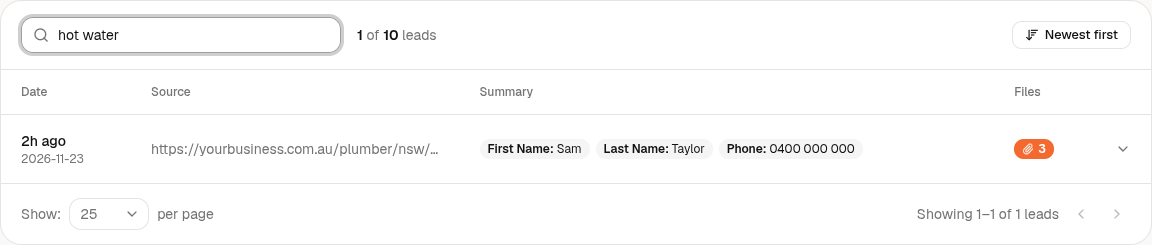
If nothing matches, the list says "No leads match your search."
Use Show at the bottom to see 10, 25 or 50 leads per page, and the arrows at the bottom right to move between pages. Searching, re-sorting or changing page closes any lead you had open.
Open a lead
- Select the lead's row (anywhere on it). It opens underneath.
- Select the row again to close it. You can have several leads open at once.
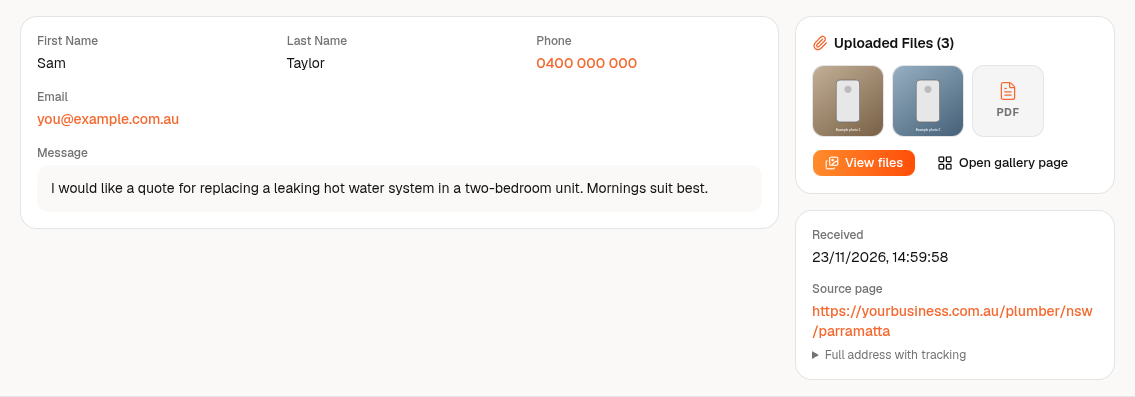
An open lead shows:
- The form fields: names first, then phone, e-mail and the other fields, with long answers last. A long answer, such as the message, gets its own wider box with its line breaks kept. An e-mail address or phone number is a link: select it to start an e-mail or a call.
- Uploaded Files (only if the visitor attached files), with a thumbnail per file. See View the files a visitor attached.
- Received: the date and time the lead came in.
- Source page: the page the form was on. Select it to open that page in a new tab. If the address had tracking details on the end (for example from an ad click), they are hidden; select Full address with tracking to see the whole address. If the lead only has your website's name and not a page, this line is called Domain.
If a form was sent with no fields at all, the lead says "This submission has no fields."
Where the e-mails for new leads go is set in Form Settings.
View the files a visitor attached
You can view a lead's files in a pop-up viewer (the lightbox) or on the lead's own gallery page.
In the lightbox
- Do one of these:
- In the list, select the paperclip in the Files column (this does not open the lead).
- In an open lead, select a thumbnail, or select View files.
- The Lead files viewer opens and shows one file at a time. The counter beside the title, for example "1 / 3", shows which file you are on.
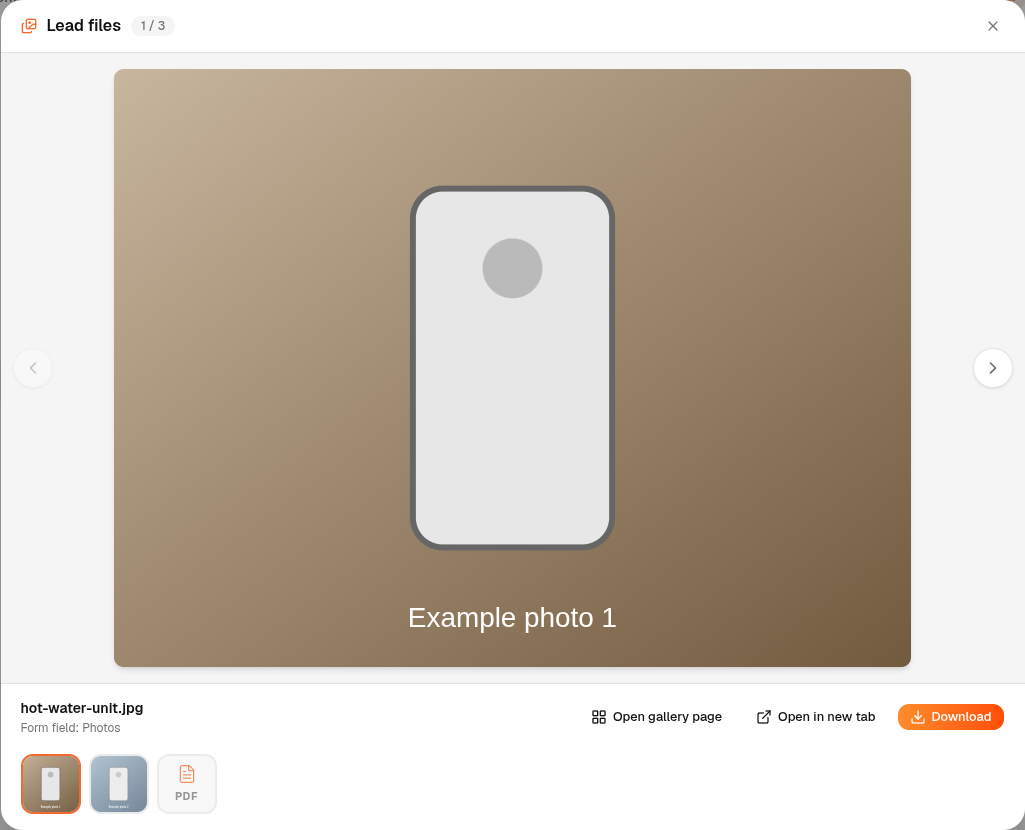
In the viewer you can:
- Move to the previous or next file with the arrow buttons at the sides, or the left and right arrow keys on your keyboard.
- Select a thumbnail in the strip at the bottom to jump to that file (shown when the lead has more than one file).
- See the file name and, under it, Form field: the form field the file was uploaded through.
- Select Open in new tab to see the file full size in a new browser tab.
- Select Download to save the file.
- Select Open gallery page to go to the lead's gallery page.
- Select the X (or press Esc) to close the viewer.
Photos show as a picture. Other files, such as PDFs, show an icon with the file type and "No preview for this file type. Use Download to save it."
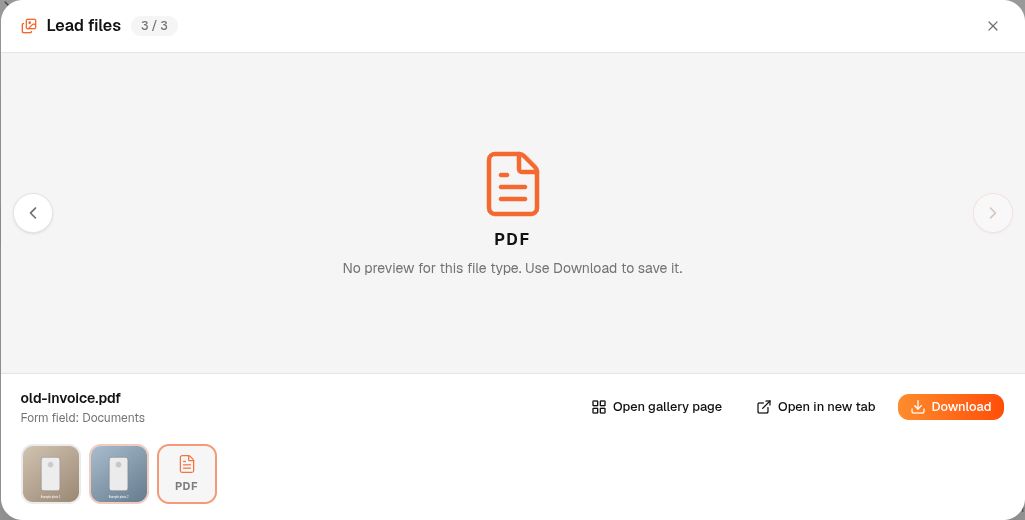
On the gallery page
- In an open lead, select Open gallery page (or select it in the lightbox).
- The Lead files page opens. It shows the Lead details (the form fields, Received and Source page) and, under Files, a card for each file.
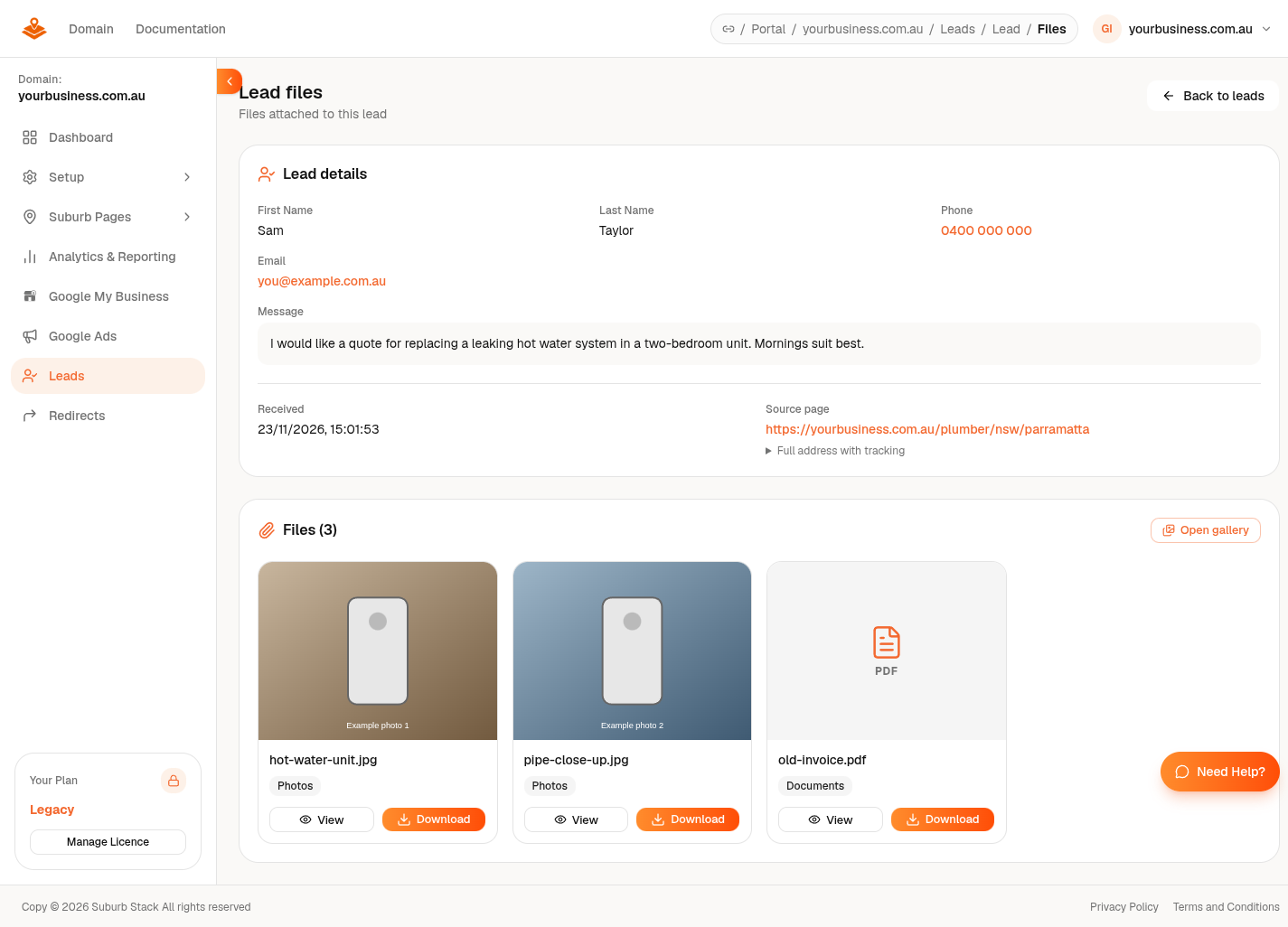
On each file card:
- The badge under the file name shows the form field it came through.
- View opens the file in the lightbox.
- Download saves the file.
Select Open gallery at the top of the Files card to start the lightbox at the first file. Select Back to leads to return to the list.
The gallery page has its own web address, so you can bookmark it or send the link to a colleague who also has access to this website.
Messages you may see
| Message | What it means |
|---|---|
| "This submission did not include any uploads." / No files on this lead | The visitor did not attach a file. |
| "This lead is not among the newest leads on the Leads page, so only its files are shown here." | The lead is older than your newest 500 leads. Its files still show. |
| "The lead's details could not be loaded. Its files are below." | The details could not be read this time. Reload the page to try again. |
| A red message with Try again | The leads or files could not be loaded. Select Try again. |
Related guides
- Form Settings: who receives an e-mail for each new lead, and where visitors go after sending a form.
- Page details: the pages your forms are on.
- Dashboard: your website's summary screen.