Blocks
Blocks are reusable sections for your pages, kept in one place on the Components & Templates screen. There are two kinds:
- A component is shared everywhere it is placed. When you update it, the change appears on every page that uses it. Good for headers, footers and call-to-action banners.
- A template is copied into a page when you place it. Each copy is independent, so editing one does not affect the others. Good for starting points and repeated sections such as a hero, testimonials or pricing.
How to get here: Sidebar > Blocks. (See Getting started for the sidebar.)
Blocks only appears in the sidebar for websites that have components and templates switched on (they come with CMS pages). If you do not see it, it is not included for your website. Contact support to turn it on. If you open the screen on a website without it, you see "Blocks aren't enabled for this website." and the New Component and New Template buttons are greyed out.
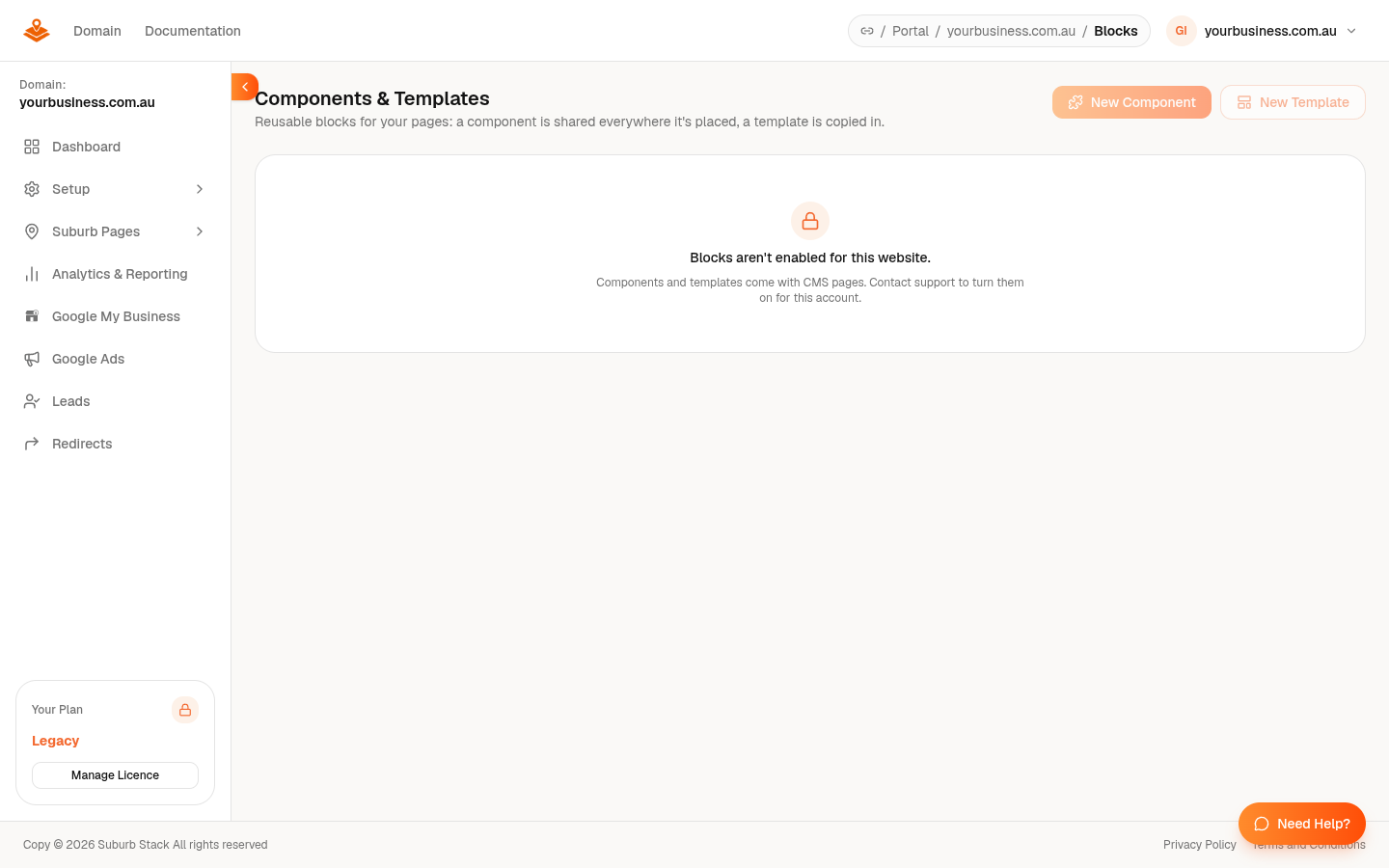
The Components & Templates screen
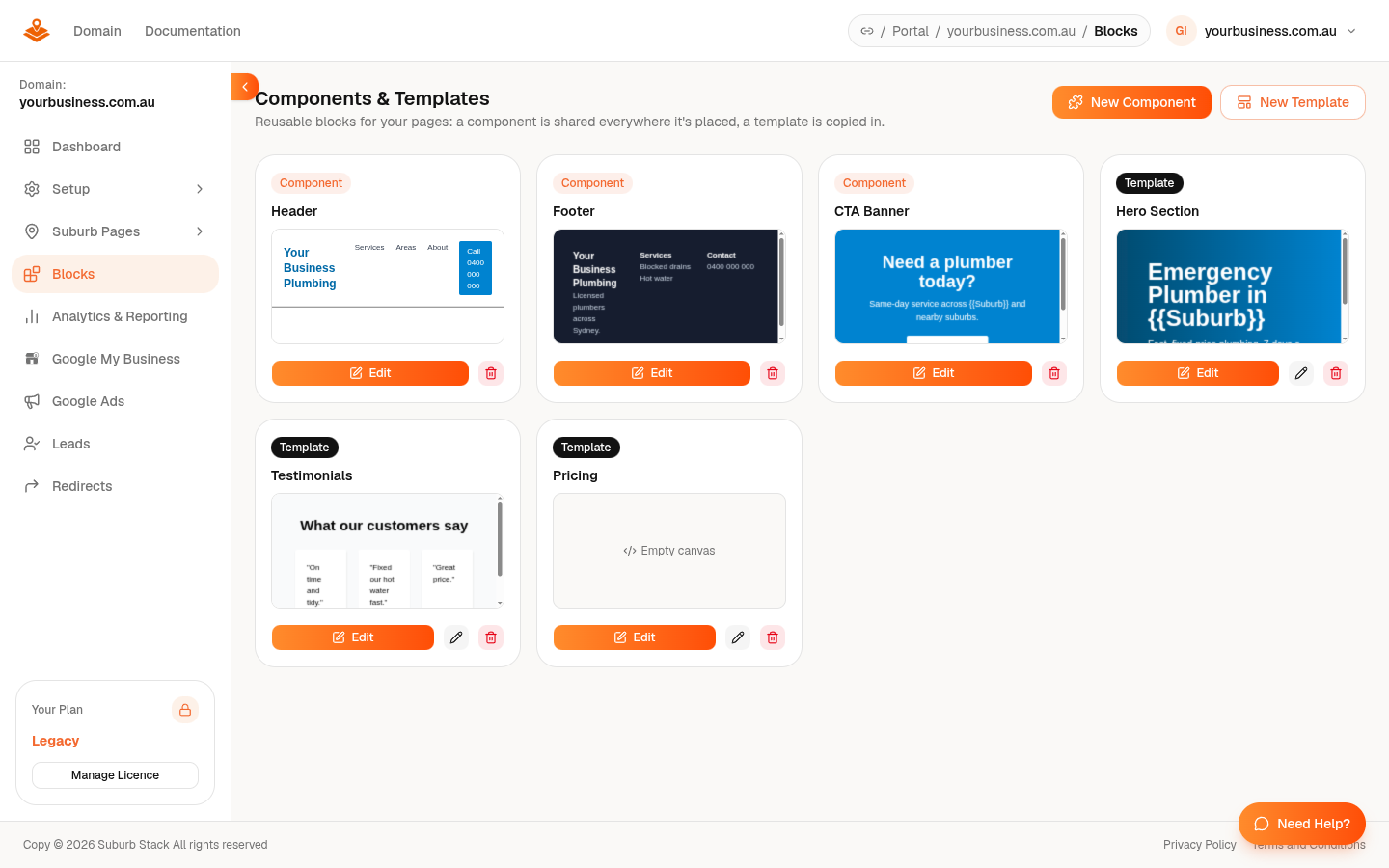
Each block has a card, with the most recently changed first:
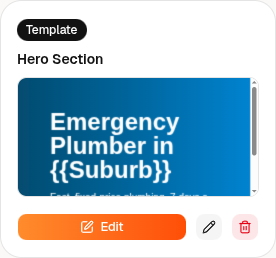
- The badge says Component (orange) or Template (dark).
- The name of the block.
- A small preview of the block. A block with nothing in it yet shows Empty canvas.
- Edit opens the block in the editor.
- The pencil renames the block (templates only).
- The bin deletes the block.
If you have no blocks yet, the screen says "No components or templates yet. Create one to get started."
Create a component or template
- Select New Component or New Template at the top right.
- The dialog explains what that kind of block is for. Type a Name, for example "Footer" for a component or "Hero Section" for a template.
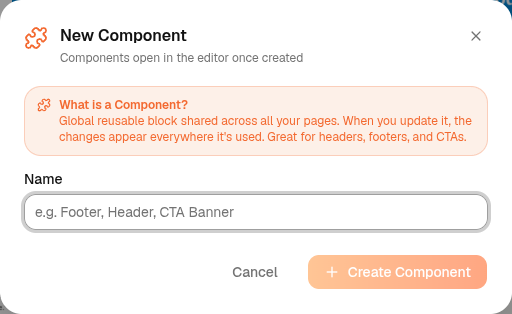
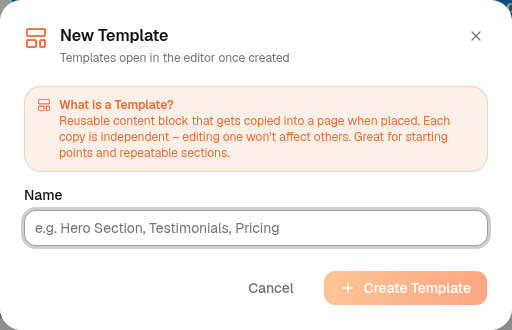
- Select Create Component or Create Template. The button stays greyed out until you type a name.
- The new block opens straight away in the editor, where you build its content. The editor opens in its own app; when you go back from it, you return to this screen.
Select Cancel to close the dialog without creating anything.
Messages you may see in the dialog:
| Message | What to do |
|---|---|
| "An item with that name already exists" | Each block needs its own name. Choose a different one. |
| "Name produces an empty slug" | The name has no letters or numbers. Use a name with at least one letter or number. |
Edit a block
- On the block's card, select Edit.
- The block opens in the editor. Make your changes there and save them in the editor.
- Go back from the editor to return to the Components & Templates screen.
Remember: changing a component changes it on every page that uses it. Changing a template here only affects pages you place it on from now on; pages that already have a copy keep their own copy.
Blocks are placed on pages in the editor. See Page details for opening a page in the editor with Edit Template.
Rename a template
Only templates can be renamed. A component keeps the name it was created with, because pages refer to it.
- On the template's card, select the pencil.
- In New name, type the new name.
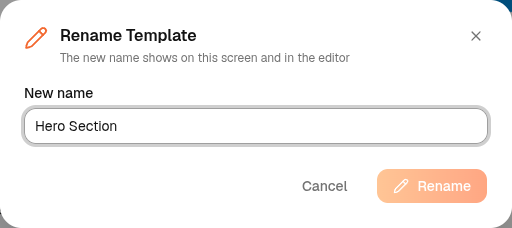
- Select Rename. The button stays greyed out until the name is different from the current one.
The new name shows on this screen and in the editor. If another block already has that name, the dialog says "An item with that name already exists".
Delete a block
- On the block's card, select the bin.
- The dialog asks you to confirm, naming the block, and warns that this cannot be undone.
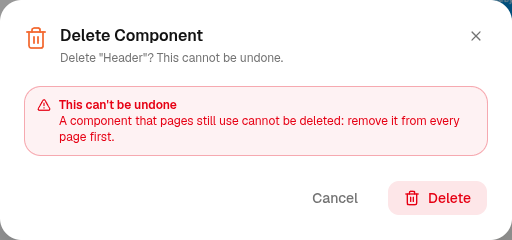
- Select Delete, or Cancel to keep the block.
What happens depends on the kind of block:
- Component: you cannot delete a component that pages still use. If you try, the dialog says "This component is still used on: ..." followed by the pages, and "Remove it from all pages before deleting." Remove the component from those pages in the editor first, then delete it.
- Template: pages that already copied the template keep their copy. Only the template itself is removed.
Related guides
- Page details: open a page in the editor, where you place components and templates.
- Pages: all the pages on your website.