Redirects
Redirects send visitors (and Google) from an old address on your website to a new one, for example when you rename a page or retire an old section. Each rule has a From Path, a Destination and a type, and you can switch a rule on or off at any time.
How to get here: Sidebar > Redirects. (See Getting started for the sidebar.)
Redirects only appears in the sidebar for websites that have redirects switched on. If you do not see it, redirects are not included for your website. Contact support to turn them on. If you open the screen on a website without redirects, it says "Redirects aren't enabled for this website." and New Redirect is greyed out.
The URL Redirects list
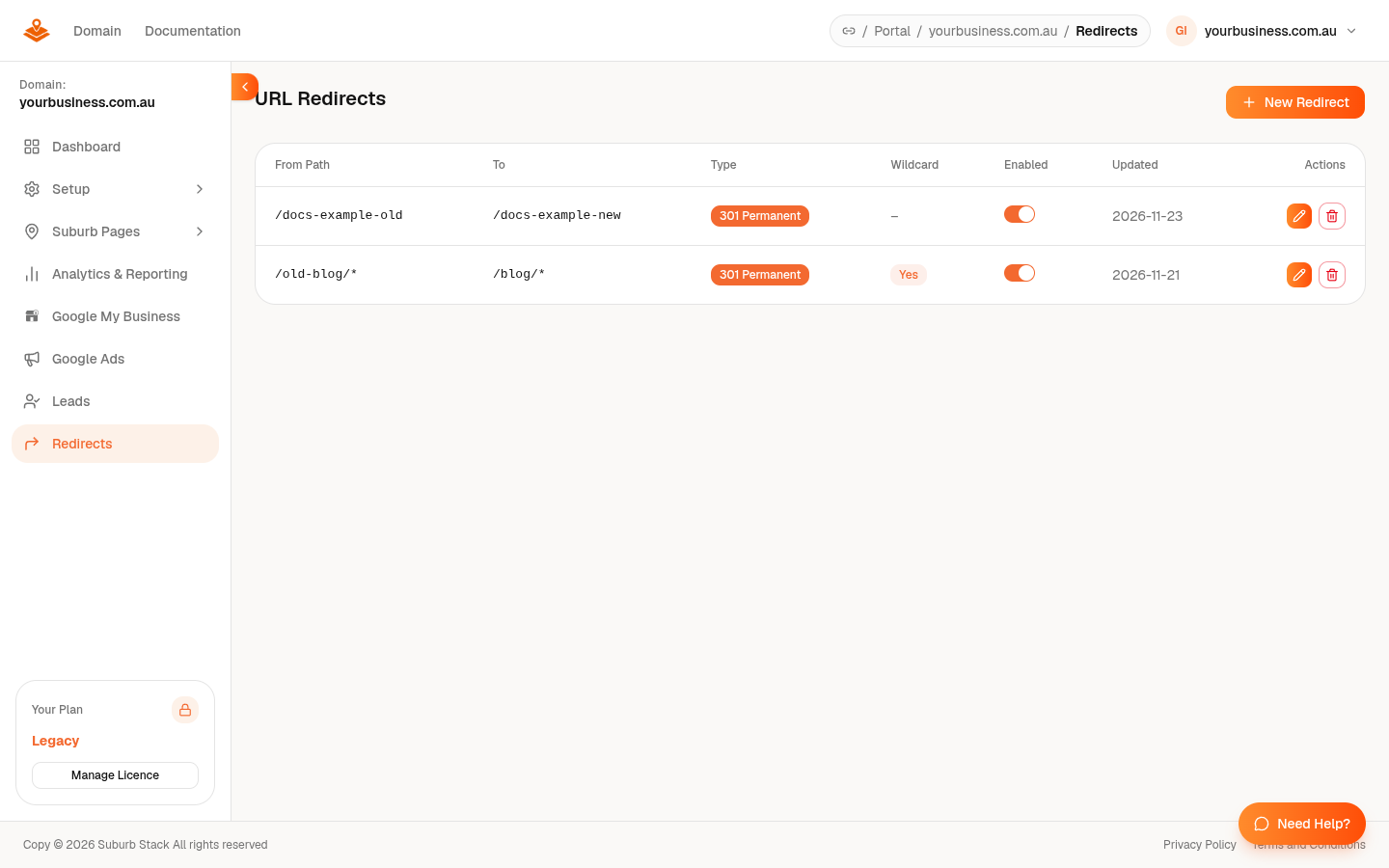
The most recently changed rule is at the top. Turning a rule on or off updates its date and position the next time you load the page.
| Column | What it shows |
|---|---|
| From Path | The old address on your website that visitors arrive at. |
| To | Where they are sent instead. |
| Type | 301 Permanent or 302 Temporary. |
| Wildcard | Yes for a rule that covers everything under a path (see Wildcard rules). A dash for a rule that covers one address. |
| Enabled | A switch: on means the rule is working. |
| Updated | The date the rule last changed. |
| Actions | The pencil edits the rule; the bin deletes it. |
If the website has no rules yet, you see "No redirects yet. Create one to send visitors from an old URL to a new one."
Add a redirect
- Select New Redirect.
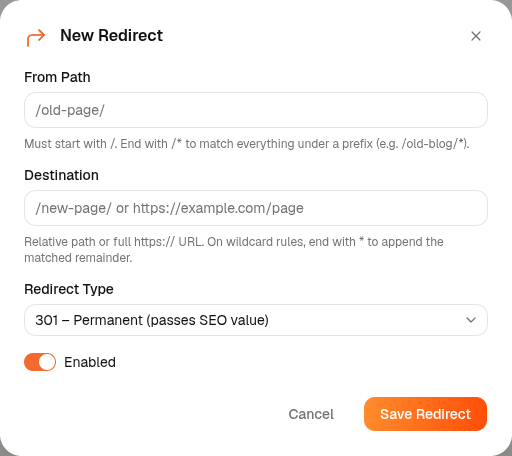
- In From Path, type the old address, starting with
/, for example/old-page/. Leave out your domain name. - In Destination, type where visitors should go: another path on your website such as
/new-page/, or a full address starting withhttps://(for example to send them to another website). - Choose the Redirect Type:
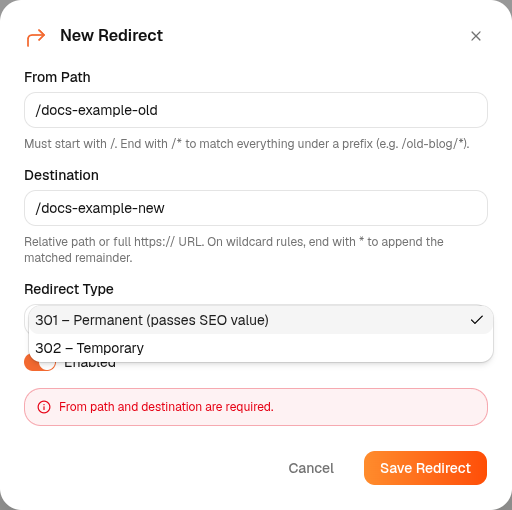
- 301 – Permanent (passes SEO value): use this when the old address is gone for good. Google moves the old page's ranking to the new one. This is the default.
- 302 – Temporary: use this when the old address will come back.
- Leave Enabled on for the rule to work straight away, or switch it off to save the rule without using it yet.
- Select Save Redirect. The dialog closes and the rule appears in the list.
Press Enter in either field to save, or select Cancel to close without saving.
Wildcard rules
A wildcard rule redirects a whole section of your website with one rule.
- End the From Path with
/*, for example/old-blog/*. It then matches every address under/old-blog/. - To keep the rest of the address, end the Destination with
*too, for example/blog/*. A visitor to/old-blog/my-postthen goes to/blog/my-post. - Without the
*on the Destination, every address under the old path goes to the same single destination.
What the app checks
If a rule breaks one of these checks, a red message shows in the dialog and nothing is saved. Fix the field and select Save Redirect again.
| Message | What to change |
|---|---|
| "From path and destination are required." | Fill in both From Path and Destination. |
| "From path must start with /" | Start the From Path with / and leave out your domain name. |
| "From path must be 512 characters or fewer" | Shorten the From Path. |
| "From path must not contain ?, # or whitespace" | Remove any ?, # or spaces from the From Path. |
| "From path /* would redirect the entire site" | You cannot redirect your whole website. Use a more specific path. |
| "Wildcard * is only allowed at the end of the path, as /*" | Use * only once, at the very end, after a /. |
| "Destination must be a relative path starting with / or a full http(s):// URL" | Start the Destination with /, http:// or https://. |
| "Destination * is only allowed on wildcard rules" | Remove the * from the Destination, or make the From Path a wildcard (end it with /*). |
| "Destination may only end with a single *" | Use one *, at the end of the Destination only. |
| "Destination is the same as the from path" | The rule would send visitors back to the same address. Choose a different Destination. |
| "Destination is inside the wildcard path and would loop" | A wildcard rule cannot point to an address inside its own path. Choose a Destination outside it. |
| "A redirect for that path already exists" | Each From Path can only have one rule. Edit the existing rule instead. |
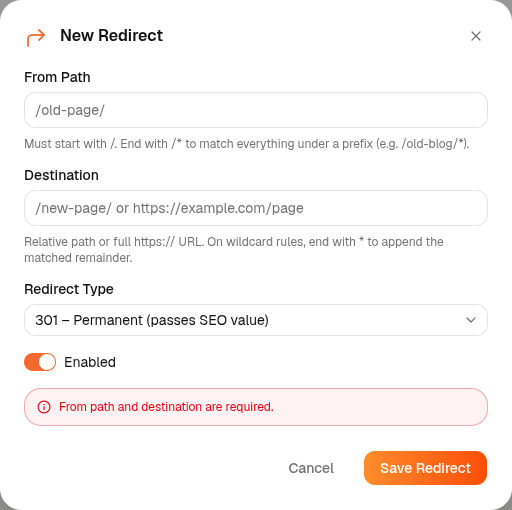
The From Path is saved in lower case, so /Old-Page/ and /old-page/ are the same rule.
Edit a redirect
- In the rule's row, select the pencil.
- The Edit Redirect dialog opens with the rule's current values.
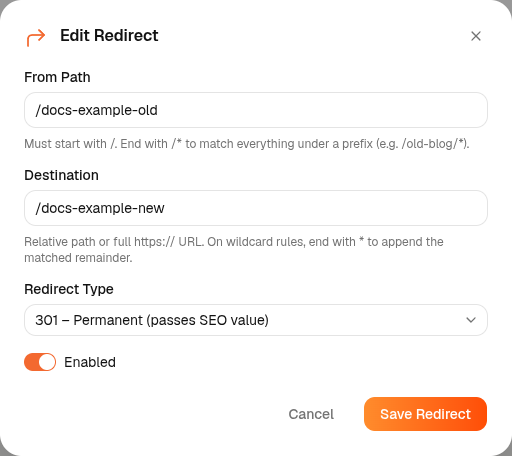
- Change any field, then select Save Redirect.
The same checks apply as when you add a rule.
Switch a redirect on or off
Select the switch in the rule's Enabled column. It changes straight away. A rule that is off stays in the list but does not redirect anyone, which is handy when you want to pause a rule without losing it.
If the change cannot be saved, the switch goes back and a red message ("Failed to update redirect" or a more specific reason) shows above the list. Select the X on the message to hide it.
Delete a redirect
- In the rule's row, select the bin.
- The Delete Redirect dialog asks you to confirm, naming the From Path.
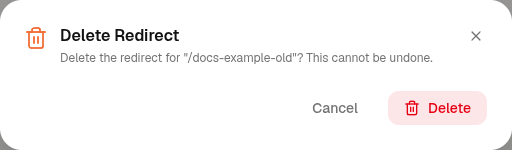
- Select Delete to remove the rule, or Cancel to keep it.
Deleting cannot be undone. If you might need the rule again, switch it off instead.