Geo-grid scan
A geo-grid scan checks your local map ranking from a grid of points spread across an area (for example 5 x 5 points, 1 km apart), so you can see on a map where you rank well and where competitors win.
How to get here: Sidebar > Google My Business > Geo-grid scan in the screen header. See Google My Business for connecting a listing.
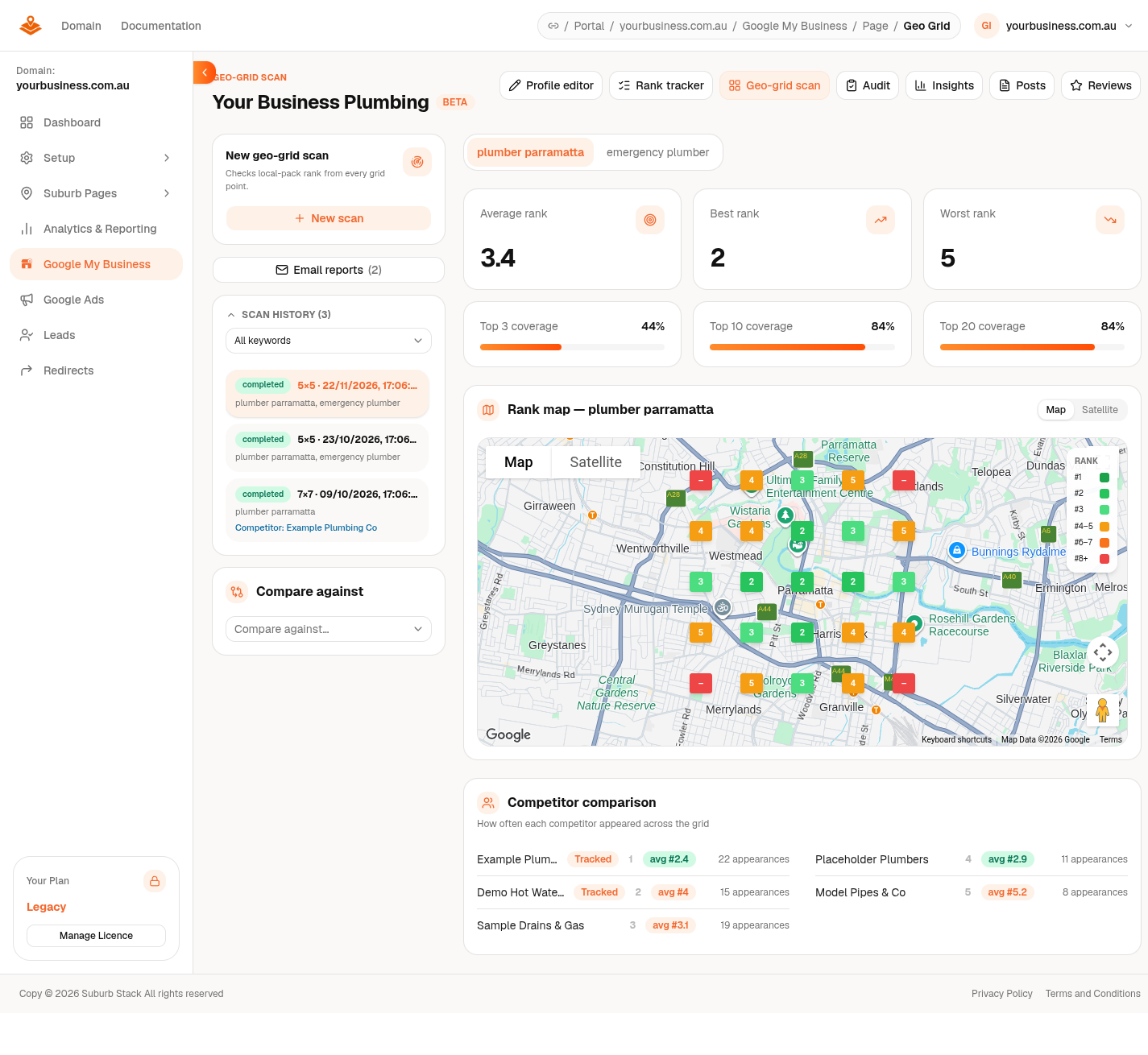
The left column holds New geo-grid scan, Email reports, Scan history and Compare against. The right side shows the selected scan's results.
If you have never run a scan, the New geo-grid scan dialog opens by itself.
Run a new scan
Scans use the same keywords as the Rank tracker.
- Select New scan.
- Under Keywords, tick one or more keywords. Select Add keyword to track a new one (it opens the rank tracker's add-keyword dialog, without the group field), or the bin icon to stop tracking one.
- Choose the Scan perspective:
- Your business: ranks your own listing.
- Competitor: ranks a competitor's listing instead, to see the area through their eyes (see below).
- Choose the Grid size (3×3, 5×5, 7×7 or 9×9) and Point spacing (250m, 500m, 1km, 2.5km or 5km).
- Check the Scan centre. It defaults to your business address (or your saved central point). Select Change to search for a suburb instead; tick Save as this location's central point to keep it. Select Use default to go back.
- Under Grid points, the map previews the grid. Select a point to leave it out of the scan (it turns faded); select it again to include it. "Grid points selected" shows how many are included.
- Select Run scan.
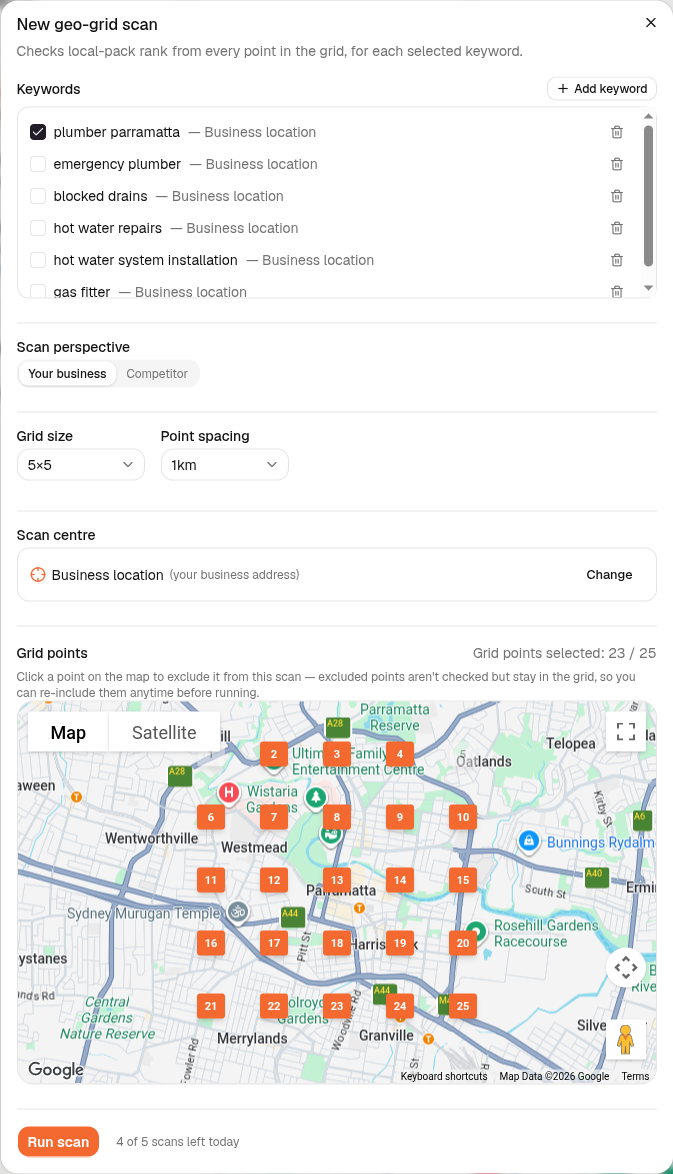
Run scan stays disabled until at least one keyword is ticked and at least one grid point is included ("At least one grid point must stay included."). It is also disabled while the location's details load, when there is no scan centre, when you chose Competitor but have not picked or pasted a competitor, when a scan is already running, and when the day's scans are used up. You can run 5 scans a day; the count shows next to the button. Only one scan can run at a time: "A scan is already queued or running for this location" means you need to wait.
Service-area businesses often have no address coordinates. The dialog then says "This location has no coordinates on record" and asks you to pick a point to scan around.
Scan as a competitor
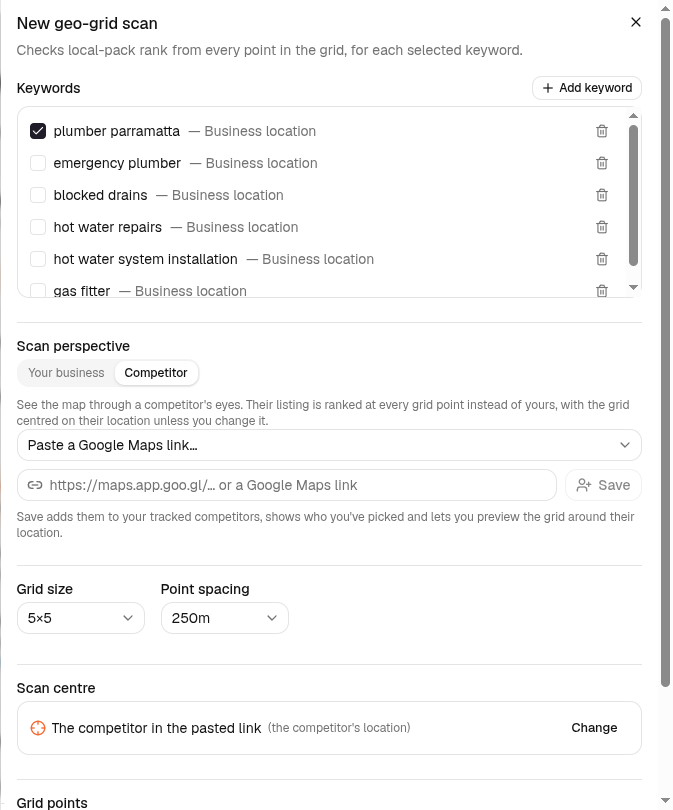
- Select Competitor.
- Pick one of your tracked competitors from the list, or paste their Google Maps link and select Save (this also adds them to your tracked competitors).
- The grid centres on the competitor's location unless you change the Scan centre.
The results then carry the note "Competitor perspective": every rank is for that competitor's listing, not yours.
While a scan runs
The results area shows "Scan queued…" and then "Scanning… X/Y checks" with a progress bar. The screen updates by itself. Select Cancel scan to stop it. A failed scan shows "Scan failed:" with the reason; a stopped one shows "Scan was cancelled."
Read the results
When a scan completes:
- If the scan covered several keywords, pick one from the tabs above the cards.
- The cards show Average rank, Best rank, Worst rank and Top 3 / Top 10 / Top 20 coverage across all grid points. If some points failed, a note says how many were checked successfully.
- Rank map shows each point coloured by your position (see the Rank legend: #1, #2, #3, #4-5, #6-7, #8+). A dash means you were not in the results there; a cross means that point's check failed. Switch between Map and Satellite at the top right of the card.
- Competitor comparison lists the businesses that appeared across the grid, how often, and their average position. Your tracked competitors are marked Tracked and listed first.
Select a point on the rank map to see the full local results there:
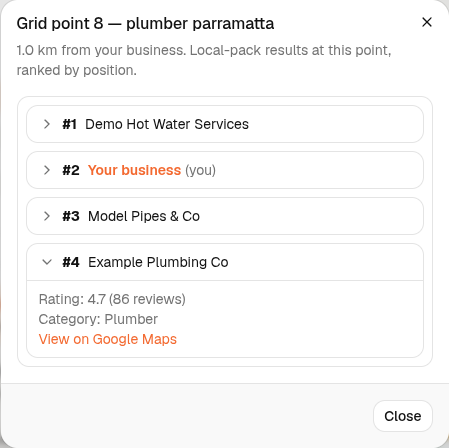
The dialog shows how far the point is from your business (or the grid centre) and every business in the results, in order, with yours marked (you). Select a business to see its Google rating, review count and category, and View on Google Maps.
Scan history and comparing scans
Scan history lists your scans with their status (queued, running, completed, failed or cancelled), grid size, date and keywords. Select a scan to show its results. Use the All keywords list to show only scans for one keyword. Scans run as a competitor, centred on a custom point, or matched by business name are labelled.
To see what changed between two scans:
- Open the newer scan.
- Under Compare against, pick an older completed scan for the same keyword.
- A Comparison card appears below the results.
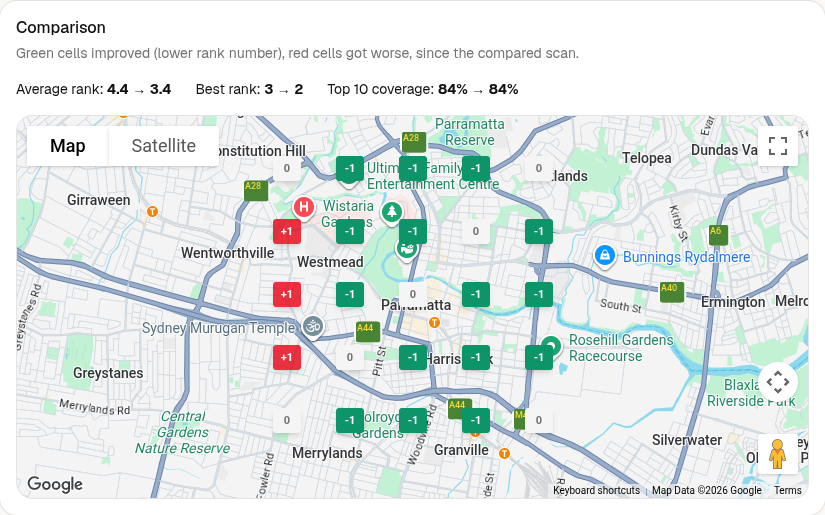
The card shows average rank, best rank and top 10 coverage before and after, and a map where green points improved and red points got worse since the compared scan.
If your listing has no Google map ID on record yet, scans still run but match your listing by business name only. The results then say "Matched by business name", and points where Google shows your listing under a different name read as not ranked.
Email reports
Select Email reports to schedule geo-grid (or rankings) reports by email. A scheduled geo-grid report runs a fresh scan and emails the results when it completes. The number in brackets is how many schedules you have. The dialog works the same way as on the rank tracker: see Rank tracker: Email reports.
Related guides
- Rank tracker: keywords, tracked competitors and the single-point daily checks.
- Google My Business: connecting a listing and daily limits.
- Reports: audit, insights, posts and reviews.