Google Connections
Google Connections links a Google account to your website so Suburb Stack can report on Search Console, Google Ads, Google Analytics 4 (GA4) and Tag Manager. From the Manage page you choose which property, account and container belong to this website, and set up conversion tracking.
How to get here: Sidebar > Setup > Google Connections. See Getting started for the layout of the app.
Connections are per website. If you manage several websites, connect each one separately (switch websites as described in Getting started).
The Google Connections page
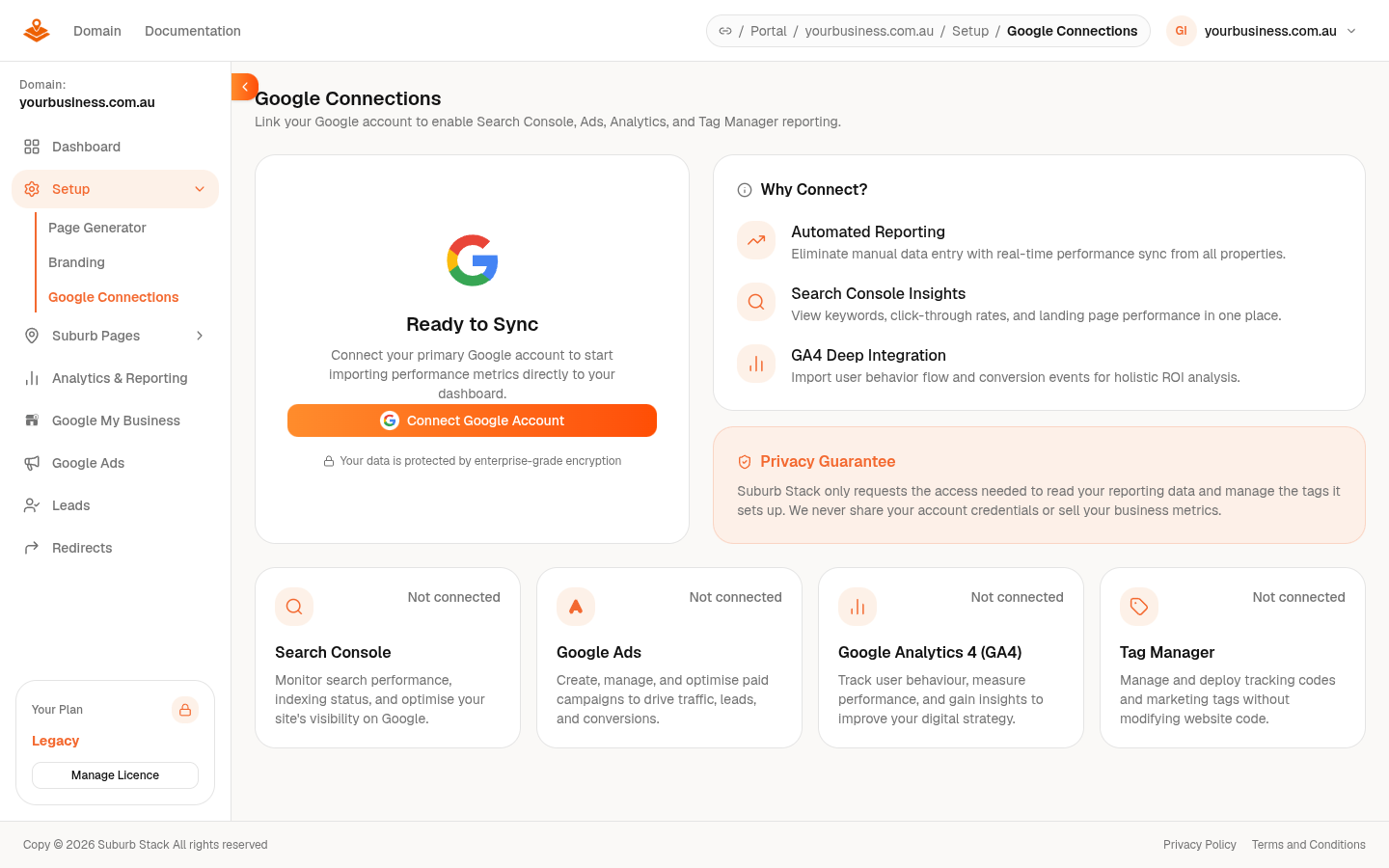
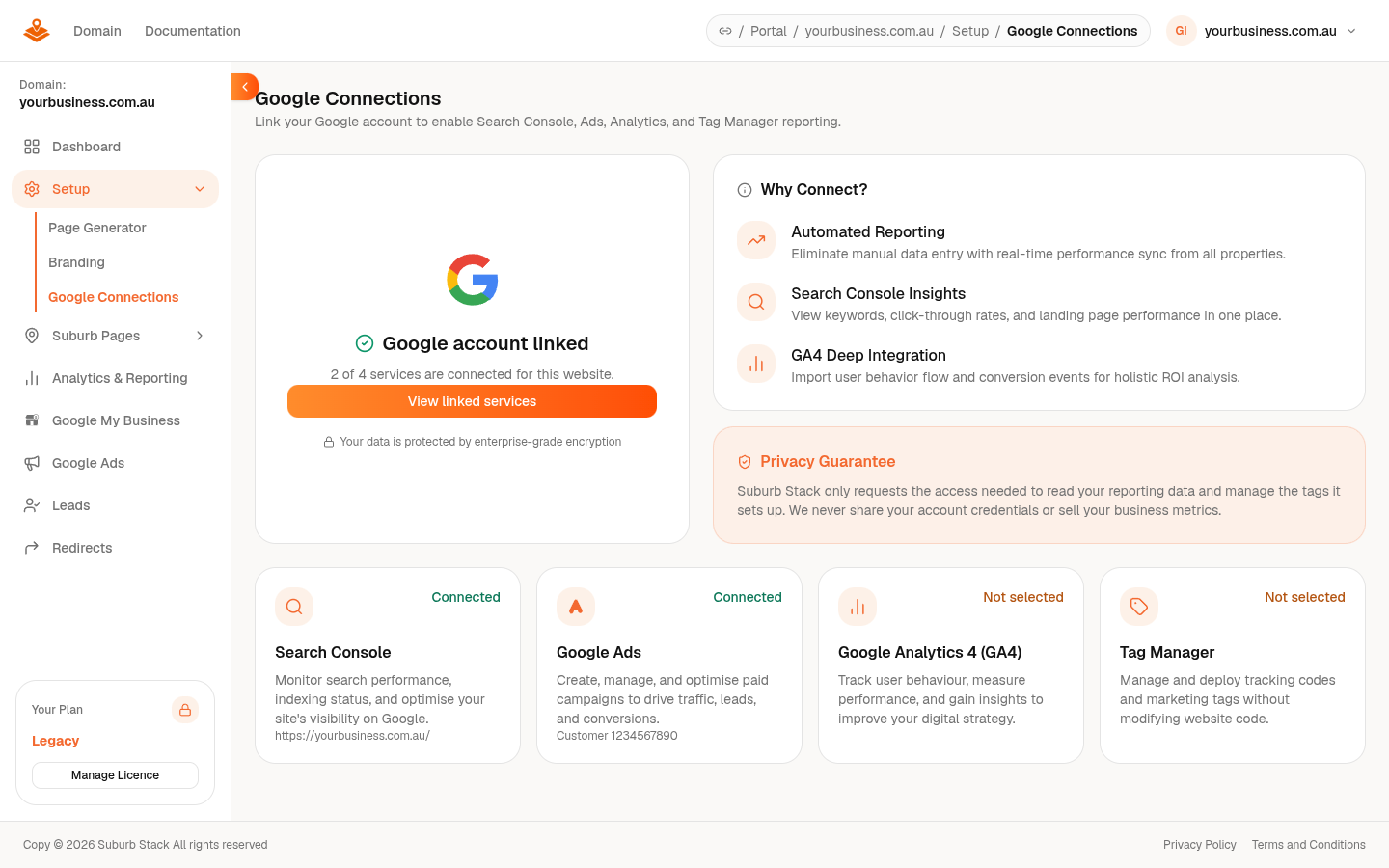
- The left card shows Ready to Sync until a Google account is linked, then Google account linked with how many of the four services are connected.
- Why Connect? and Privacy Guarantee explain what the connection is for. Suburb Stack only asks for the access it needs to read your reporting data and manage the tags it sets up.
- The four cards at the bottom show each service's status:
| Status | Meaning |
|---|---|
| Connected | The Google account gives access and a site, account, property or container is chosen. The chosen one is shown under the description. |
| Not selected | The Google account gives access, but nothing is chosen yet, so reports for that service stay empty. Choose one on the Manage page. |
| Not connected | No Google account is linked, or it did not give access to this service. |
Connect a Google account
- Select Connect Google Account. The button shows Opening Google….
- Google's sign-in screen opens. Choose the Google account that has access to your Search Console, Ads, Analytics and Tag Manager.
- On the consent screen, allow every permission Google asks for.
- Google sends you back to Suburb Stack. You see "Google account connected. Choose the sites and accounts to report on below."
- Select View linked services to open the Manage page and choose what to report on.
Messages you may see when you come back from Google:
| Message | What to do |
|---|---|
| Permissions incomplete: Google did not grant all required permissions... | You unticked a permission on the Google screen. Connect again and allow all permissions. |
| Google sign-in was cancelled. Nothing was changed. | You closed or cancelled the Google screen. Connect again when ready. |
| Google sign-in failed. Please try connecting again. | Something went wrong at Google. Try again. |
Manage your linked services
How to get here: On the Google Connections page select View linked services. Select Back to Google Connections to return.
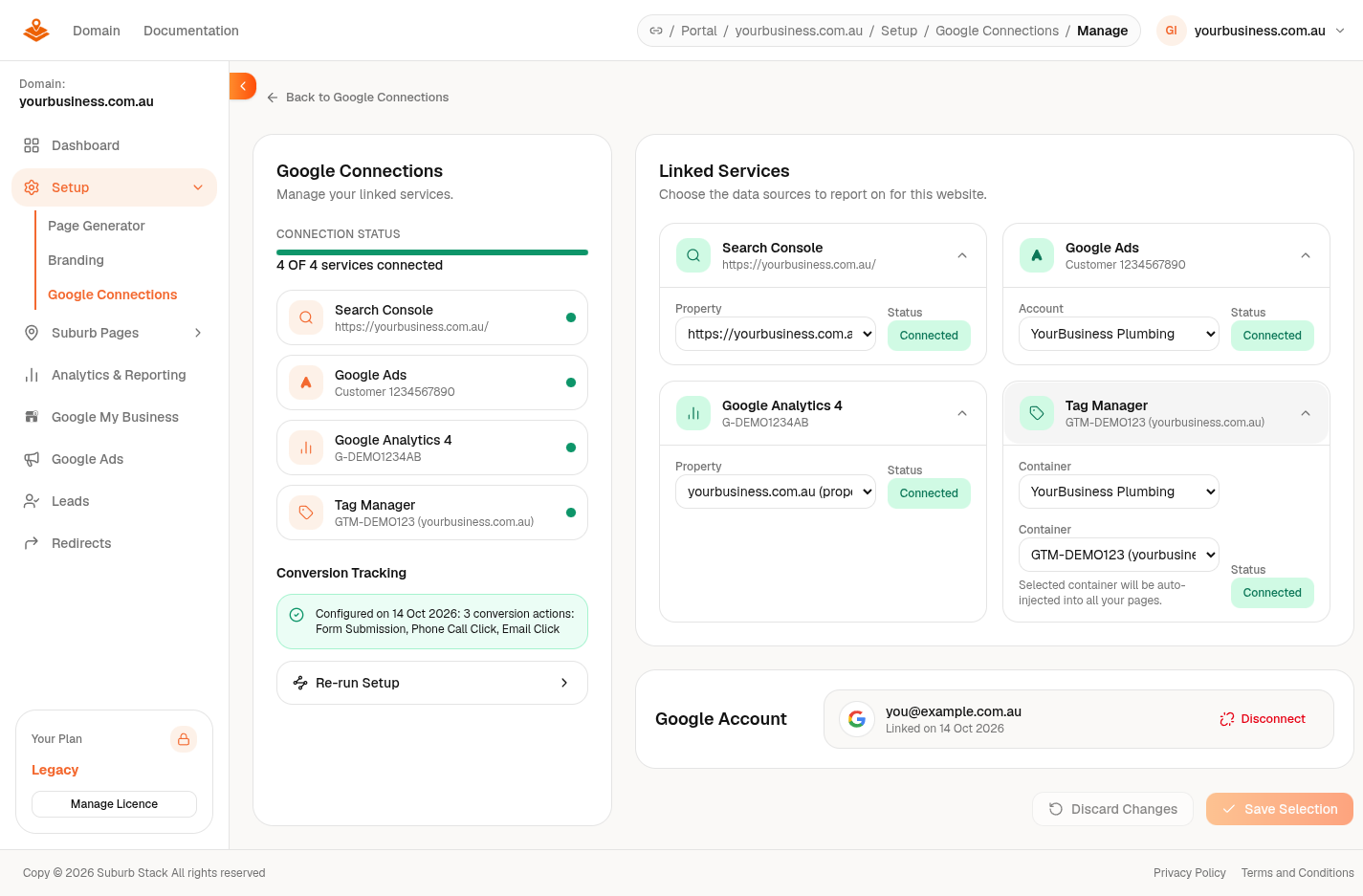
The page has three parts:
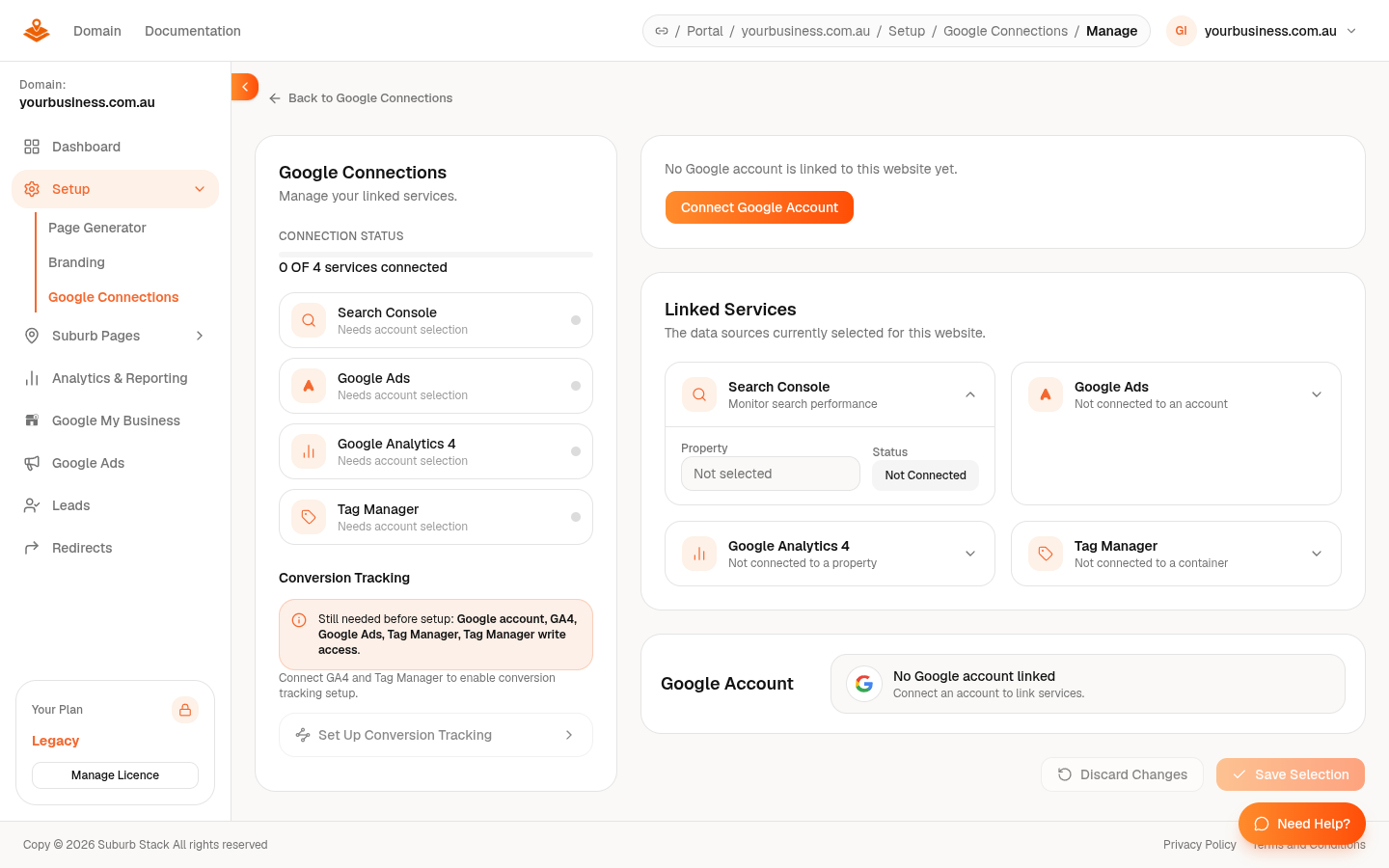
- Google Connections (left): a bar showing how many services are connected, a row per service (a green dot means connected, Needs account selection means nothing is chosen yet), and Conversion Tracking.
- Linked Services (right): a card per service where you choose the data source.
- Google Account: the linked Google account and the date it was linked, with Disconnect.
Choose what to report on
After you connect, Suburb Stack loads the lists from your Google account. This can take a moment ("Loading your Google accounts… this can take a moment.").
- Select a service card to open it.
- Choose from its list:
| Service | What you choose |
|---|---|
| Search Console | The Property (your website as set up in Search Console). |
| Google Ads | The Account. If you choose a manager account (marked (Manager)), a second list, Client Account (under MCC), appears. Choose the client account for this business there. |
| Google Analytics 4 | The Property. |
| Tag Manager | First the Tag Manager account, then the container. Both lists are labelled Container: the first one picks the account, the second the container. The chosen container is added to all your pages automatically. |
- Select Save Selection. You see "Your account selections have been saved successfully."
To undo choices you have not saved yet, select Discard Changes. Both buttons stay greyed out until you change something. If saving fails you see "Failed to save selection. Please try again."
To stop reporting on a service, choose -- None -- in its list and save.
Set up conversion tracking
Conversion tracking records enquiries from your pages (form submissions, phone call clicks and email clicks) in Google Ads and GA4, using Tag Manager.
Before you can set it up you need a linked Google account with GA4 and Tag Manager (account and container) connected, and write access to Tag Manager. Google Ads is not needed to start the setup. Until then the panel lists what is Still needed before setup, and the button is greyed out.
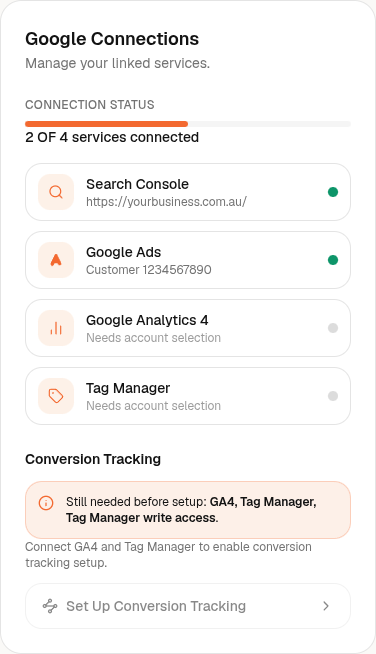
- Connect and save GA4 and Tag Manager above.
- Select Set Up Conversion Tracking. You see "Setup started. This can take a minute." and the panel shows that setup is running.
- Stay on the page or come back later. When it finishes, the panel shows Configured on the date, with the conversion actions created, for example Form Submission, Phone Call Click and Email Click.
Select Re-run Setup to run it again, for example after you change the Google Ads account or the Tag Manager container.
| Message | Meaning |
|---|---|
| Conversion tracking configured successfully. | Done. |
| Setup partially completed. Some tags may need attention. | Most of it worked. Check your Tag Manager container, or contact support. |
| Setup is taking longer than expected. Refresh in a moment to check its status. | It is still running. Reload the page in a few minutes. |
| Setup failed. Please try again. | Try again. If it keeps failing, contact support. |
| Conversion-tracking status is unavailable right now. | The status could not be read. Try again later. |
Disconnect the Google account
Disconnecting removes the stored Google sign-in for this website. Suburb Stack cannot read your Google data for this website until you connect again.
- In the Google Account card, select Disconnect.
- A confirmation appears: "Disconnect Google account? This will remove all stored tokens."
- Select Disconnect Account to confirm, or Cancel to keep it.
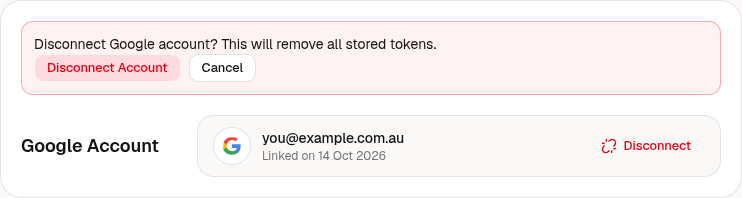
When it is done you see "Google account disconnected."
When no account is linked, or the connection needs renewing
If no Google account is linked, the Manage page says "No Google account is linked to this website yet." with a Connect Google Account button. The service cards show what is currently selected (nothing), and the Google Account card says No Google account linked.
If you see "Stored Google credentials could not be read. Please reconnect your Google account.", select Reconnect Google Account and sign in again. Your saved choices are shown, but the lists cannot load until you reconnect.
If the lists fail to load you see "Couldn't load your Google accounts:" with the reason. Select Try again.
Other places that connect to Google
- The Page Generator can sign in with Google to import your Google Business Profile reviews.
- Google My Business and Google Ads have their own Connect buttons, which use the same Google sign-in.
Related guides
- Analytics & Reporting: the reports these connections feed.
- Google Ads and Google Ads AI agent: campaigns for the connected Ads account.
- Google My Business: your Business Profile.
- Branding: the item above this one under Setup.