Rank tracker
The rank tracker shows where your business appears in Google's local map results (the "local pack") for the keywords you choose. Each keyword is checked automatically once a day, and you can run an extra check at any time.
How to get here: Sidebar > Google My Business > Rank tracker in the screen header. See Google My Business for connecting a listing.
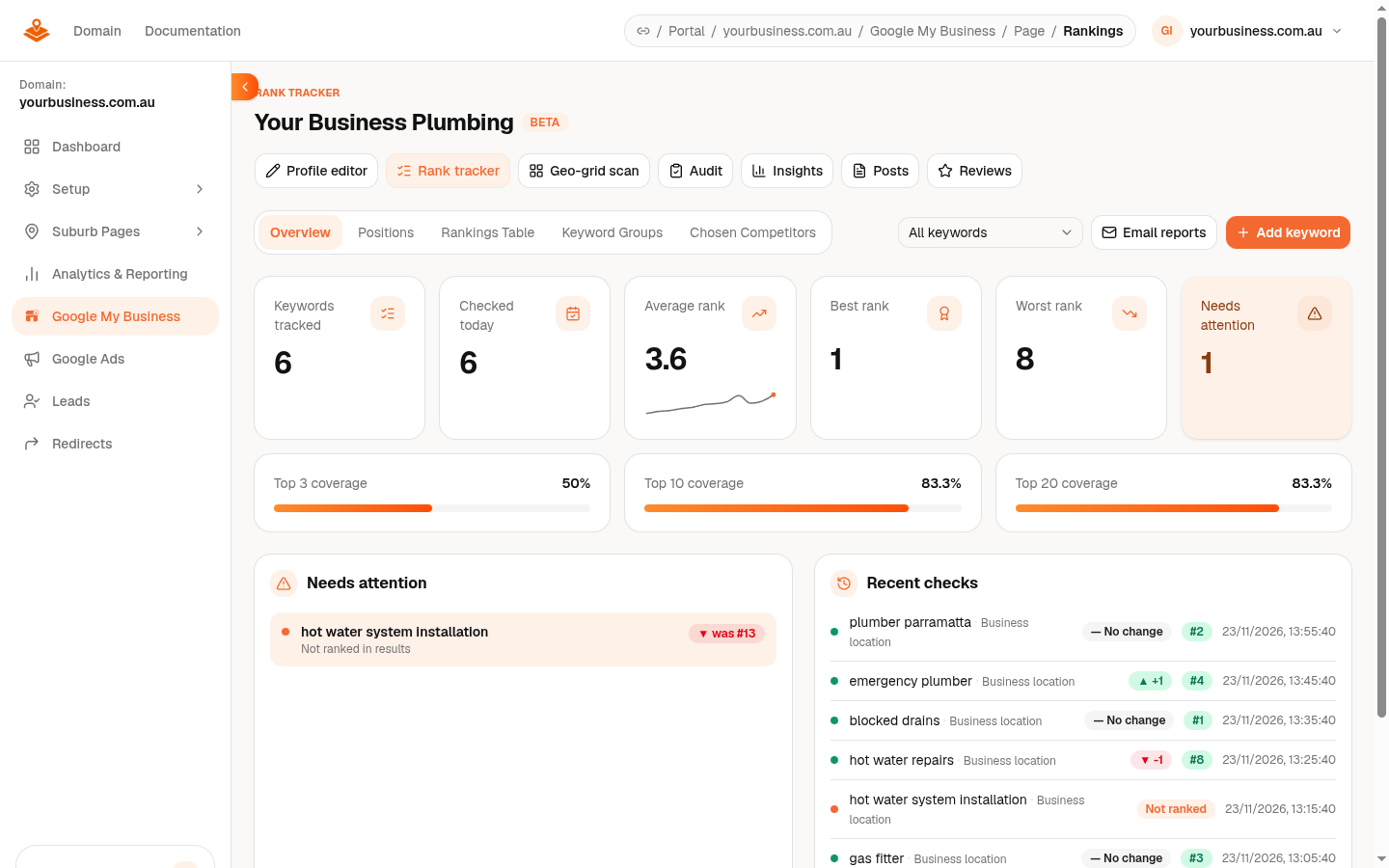
The screen has five tabs: Overview, Positions, Rankings Table, Keyword Groups and Chosen Competitors. On Overview, Positions and Chosen Competitors, the list next to the tabs (All keywords) narrows everything to one keyword group or one keyword.
If you see "This location doesn't have a Place ID on record yet", Google has not given the app the listing's map ID yet, so rank checks cannot match your business. The message tells you to re-sync from Connected Locations, but that page is no longer in the app: contact support instead.
Add a keyword
- Select Add keyword.
- Type the search term in Keyword, for example "plumber" or "blocked drains".
- Choose Search from: the place the search is run from.
- Business location: your listing's address.
- Central point: (suburb): a saved central point for the location, if you have one.
- Custom suburb…: search for a suburb and pick it. Tick Save as this location's central point to reuse it next time.
- If you have keyword groups, pick a Group (optional).
- Select Add keyword (or Cancel).
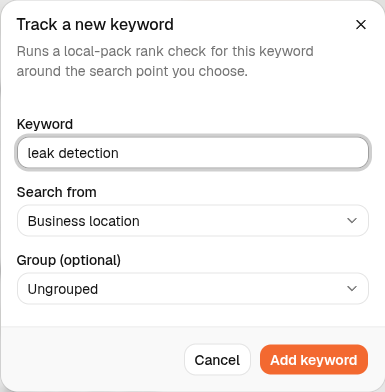
Service-area businesses often have no address coordinates. The dialog then says "This location has no coordinates on record" and you need to pick a suburb to search from.
The keyword is checked with the next daily check, or straight away if you select Check now on the Rankings Table tab. If the keyword is already tracked you see "This keyword is already tracked for this location."
Overview
| Card | What it shows |
|---|---|
| Keywords tracked | How many keywords you track. |
| Checked today | How many were checked today. |
| Average rank | Average position of the keywords that ranked, with a small trend line. |
| Best rank / Worst rank | Your best and worst current positions. |
| Needs attention | Keywords whose last check failed or that are not ranked. |
| Top 3 / Top 10 / Top 20 coverage | Share of checked keywords in the top 3, 10 or 20. |
Needs attention lists each flagged keyword with the reason ("Last check failed" or "Not ranked in results") and, when it dropped out, the position it used to have. Recent checks lists the latest 8 checks with the rank found and the movement since the previous check.
Positions
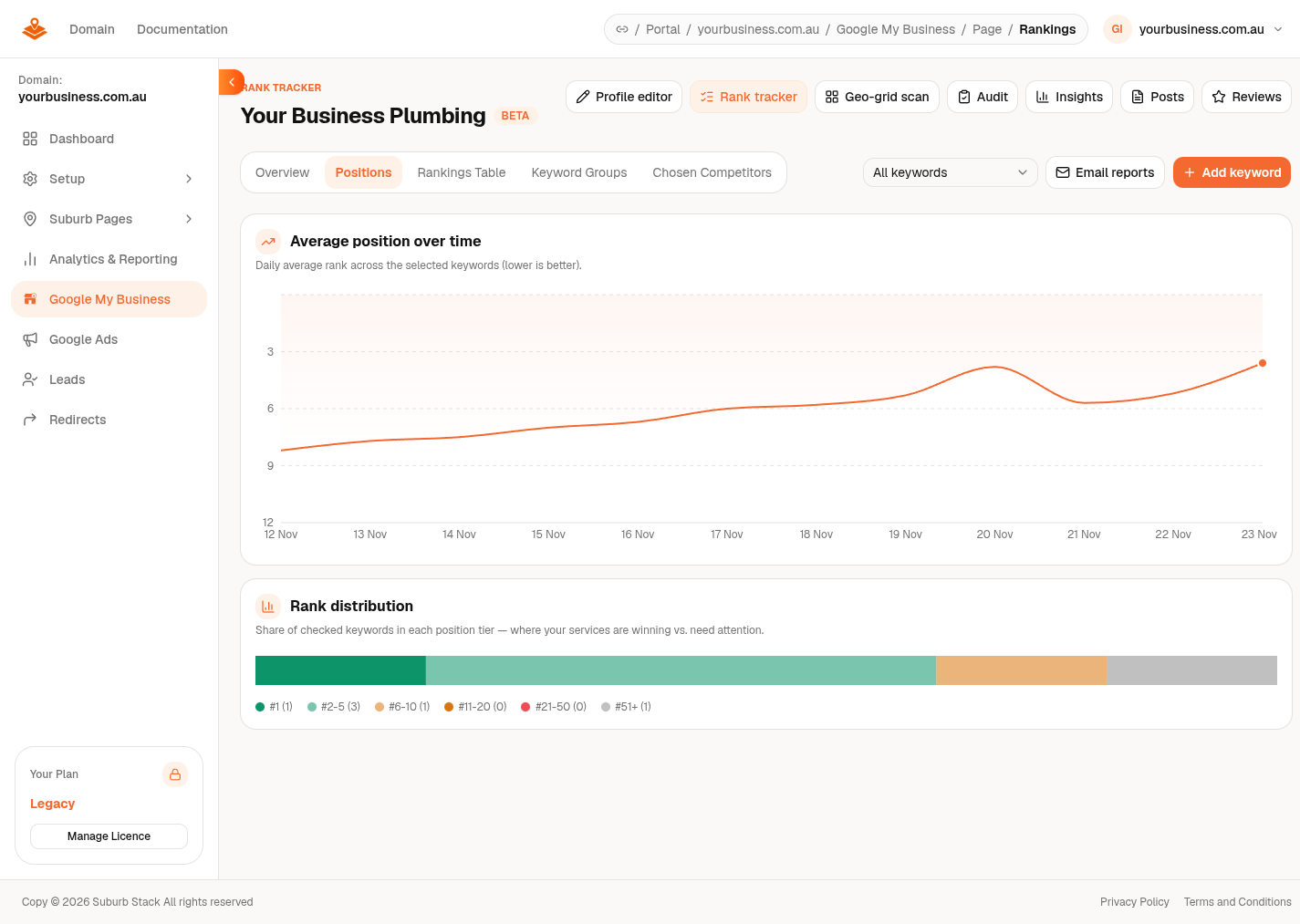
- Average position over time: the daily average rank of the selected keywords. Lower is better, so the chart is upside down (position 1 at the top). Until there are at least two days of checks, it shows each keyword's current position instead.
- Rank distribution: the share of checked keywords at #1, #2-5, #6-10, #11-20, #21-50 and #51+. The counts show in the legend, and when you hover the bar.
Rankings Table
The table lists every keyword with its current rank and controls.
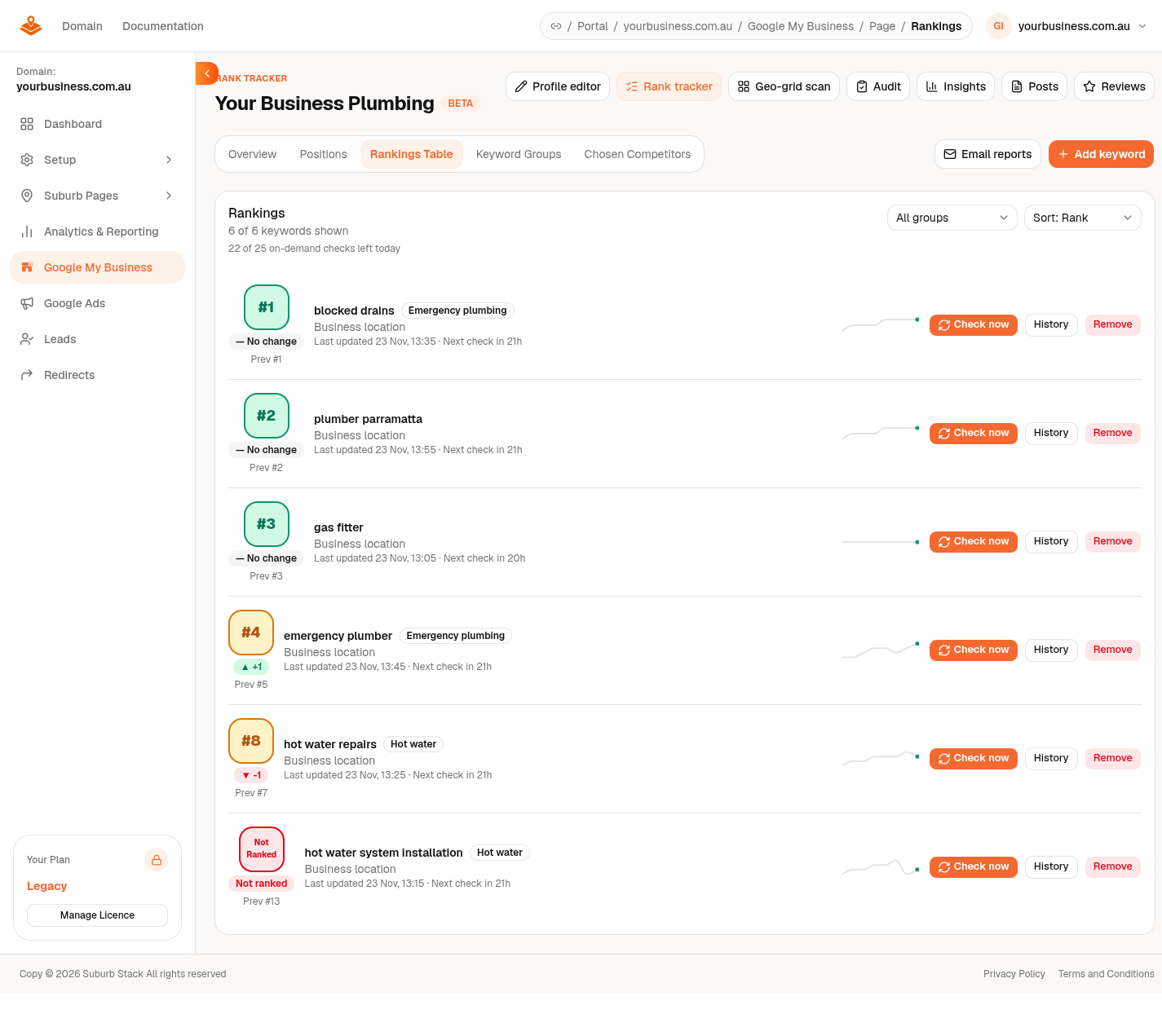
Each row shows:
- The current position (green for top 3, amber for 4 to 10, orange for lower, red Not Ranked when the business was not in the results).
- The movement since the previous check (up, down, No change, New or Not ranked) and the previous position.
- The keyword, its group, where it is searched from, when it was last updated and when the next automatic check is due.
- A small trend line of recent checks.
Use All groups to show one group (or Ungrouped) and Sort: to sort by Rank, Keyword or Last updated.
Row buttons:
| Button | What it does |
|---|---|
| Check now | Runs a rank check immediately. You have 25 on-demand checks a day; the count shows under the table title. If a check fails, the reason appears under the row. |
| History | Opens the check history and the top competitors at the latest check. |
| Remove | Stops tracking the keyword after you confirm. |
Check history
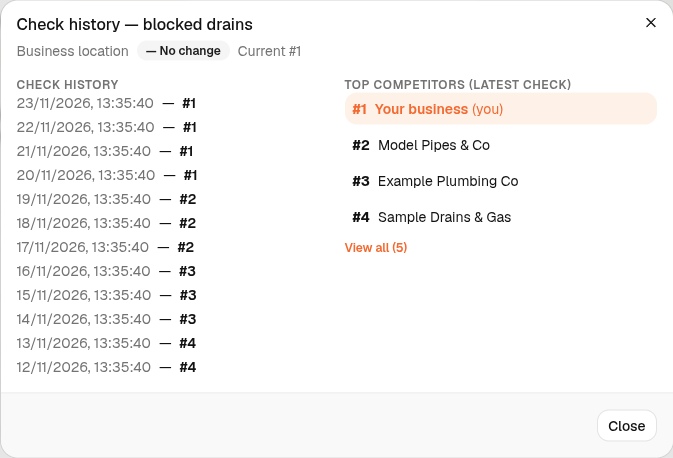
The left side lists up to the last 30 checks with the rank found ("Not in top 20" when you did not appear). The right side shows up to three competitors from the latest check, with your own business added and highlighted, in rank order. Select View all to see every competitor, and a competitor's name to open it in Google Maps.
Keyword Groups
Groups let you see how a whole service is doing, for example all your hot water keywords together.
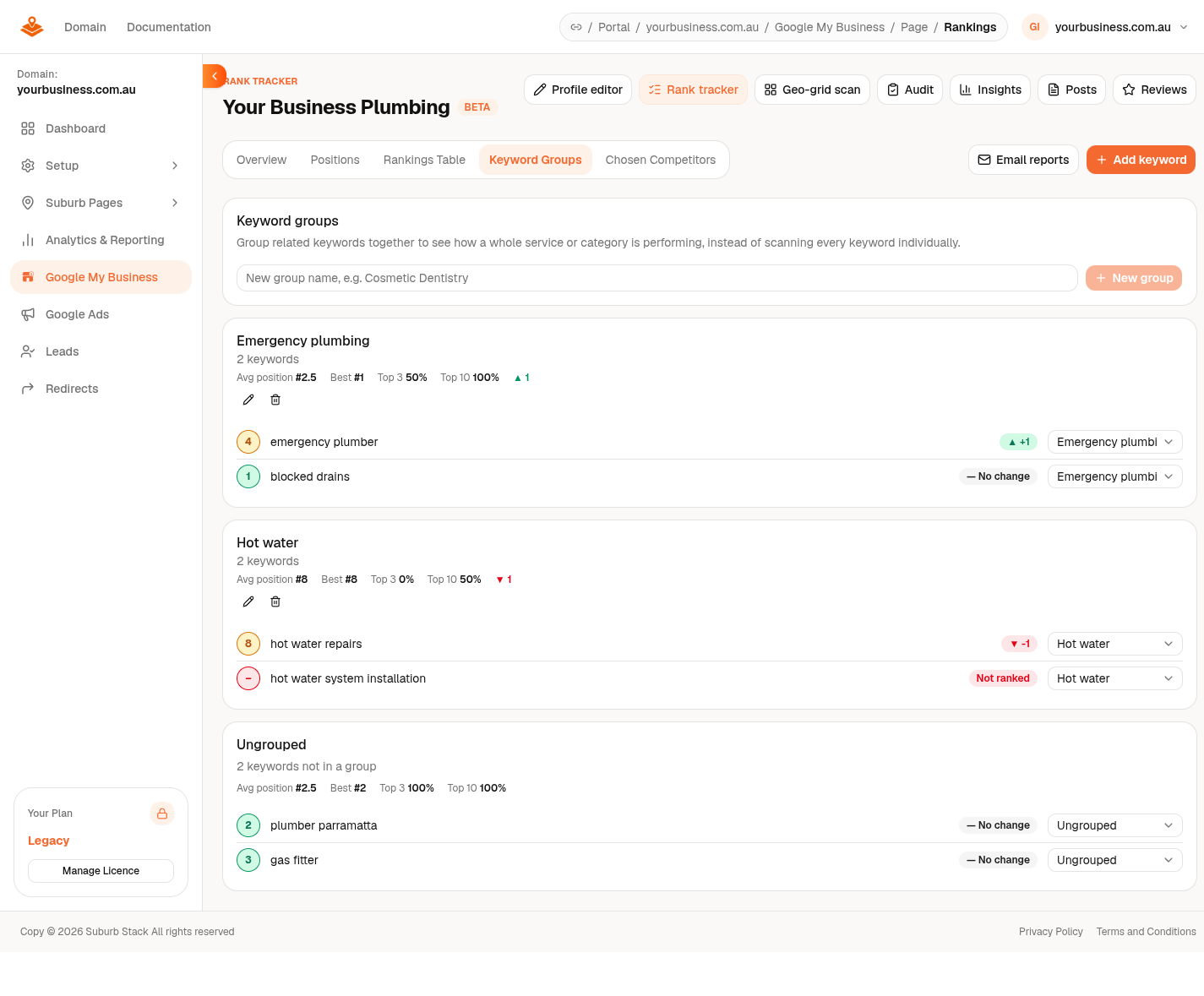
- To create a group, type a name in New group name and select New group.
- Each group card shows its average position, best rank, top 3 and top 10 share, and how many keywords moved up or down.
- To move a keyword, pick a group (or Ungrouped) in the list on its row.
- To rename a group, select the pencil icon, type the new name and press Enter.
- To delete a group, select the bin icon and confirm. Its keywords become ungrouped; they are not deleted.
Chosen Competitors
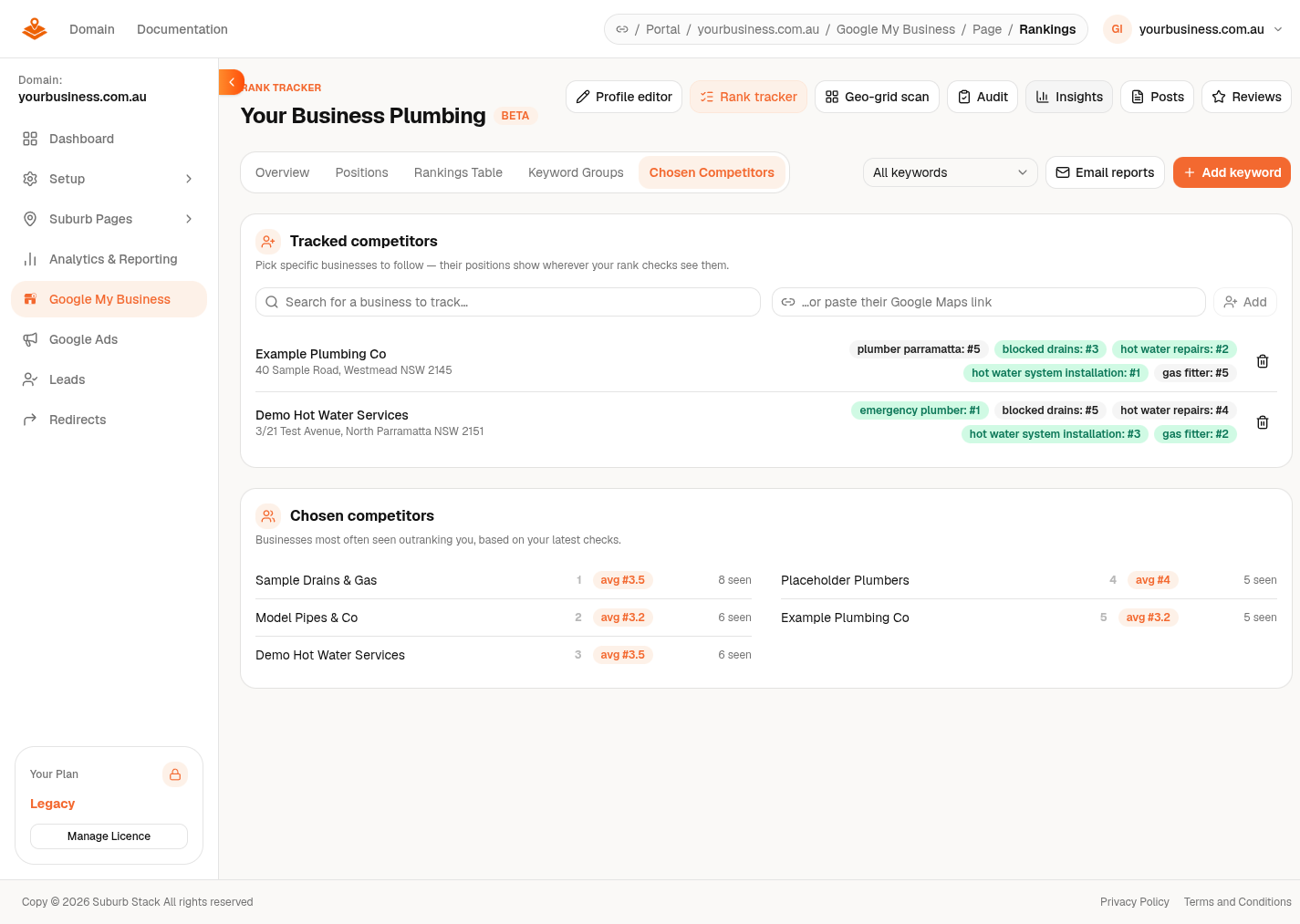
Tracked competitors are businesses you choose to follow. Wherever your rank checks see them, their position for each keyword shows as a badge.
- Type at least 2 letters of the business name in Search for a business to track… and pick it, or
- paste their Google Maps share link in …or paste their Google Maps link and select Add.
You can track up to 10 competitors. Select the bin icon to stop tracking one. Tracked competitors are also used by the Geo-grid scan.
Chosen competitors lists the businesses seen most often in your latest checks, with their average position and how many keywords they appeared for.
Email reports
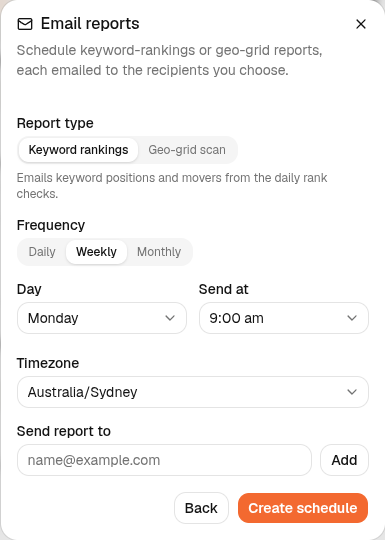
Select Email reports to email ranking reports on a schedule. The same schedules are shared with the Geo-grid scan screen.
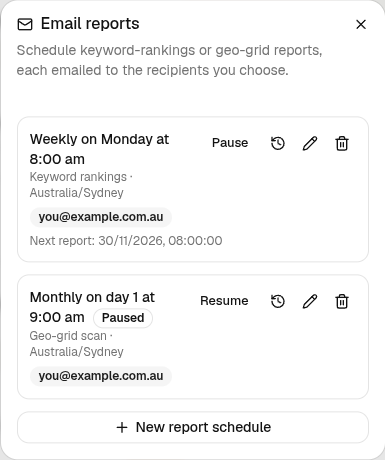
To create a schedule:
- Select New report schedule.
- Choose the Report type: Keyword rankings (positions and movers from the daily checks) or Geo-grid scan (runs a fresh scan and emails the results when it finishes).
- Choose the Frequency: Daily, Weekly (pick the Day) or Monthly (pick the Day of month).
- Choose Send at and the Timezone.
- In Send report to, type an email address and select Add. Add up to 10 recipients.
- Select Create schedule.
On each schedule you can select Pause or Resume, the history icon (past reports, with Sent, Failed or Awaiting scan), the pencil to edit, or the bin to delete. Active schedules show the next report time.
Links in a rankings report email open the rank tracker as it was on the report's day, with a banner "Showing rankings as of (date)". Select Show latest to go back to today's figures.
Related guides
- Google My Business: connecting a listing and daily limits.
- Geo-grid scan: rank checks from many points on a map.
- Profile editor: improve the listing itself.