Google My Business
Google My Business connects your website account to your Google Business Profile listing (the business listing that shows in Google Search and Google Maps). From here you can edit the listing, track where you rank in the local map results, run geo-grid scans, audit the profile, see performance insights, publish posts and reply to reviews.
How to get here: Sidebar > Google My Business. (See Getting started for the sidebar and switching websites.)
Inside the app, the module is marked Beta. The location picker is headed Google Business Profile, and each screen has its own heading, such as Profile editor or Rank Tracker.
If the screens show "GMB module is not enabled for this account", Google My Business has not been turned on for your account. If they show "An active Suburb Stack subscription is required to use the GMB module", your subscription is not active (see Billing). Contact support if you are not sure.
What you see when you open it
What the first screen shows depends on whether your account is already connected to a listing:
| Your situation | What you see |
|---|---|
| Google is not connected, or the connection has expired | Choose your location with a Not connected or Connection expired banner and a Reconnect button |
| Google is connected, but no listing is chosen yet | Choose your location with one card per listing in your Google account |
| A listing is already connected | The app opens that listing's Audit screen straight away |
Each website account connects to exactly one Google Business Profile location (listing).
Connect or reconnect your Google account
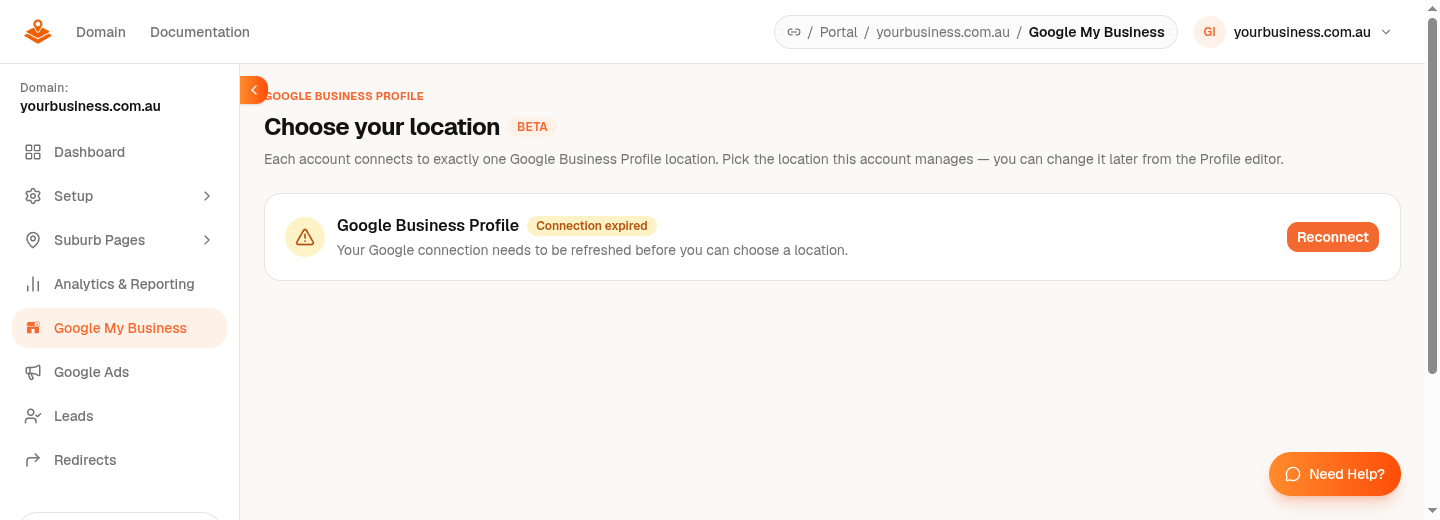
If Google has never been connected, or the sign-in has expired, the screen shows a banner instead of your listings:
| Banner | Meaning |
|---|---|
| Connection expired | Google needs you to sign in again before you can choose a location. |
| Not connected | No Google Business Profile account is connected to this website yet. |
To connect:
- Select Reconnect. The button changes to Redirecting….
- Google's sign-in page opens. Sign in with the Google account that manages your Business Profile and allow access.
- Google sends you back to Google My Business, where your listings appear.
You can also manage the Google sign-in from Google Connections. If Reconnect shows "Unable to start reconnect.", try again shortly or use Google Connections.
Choose your location
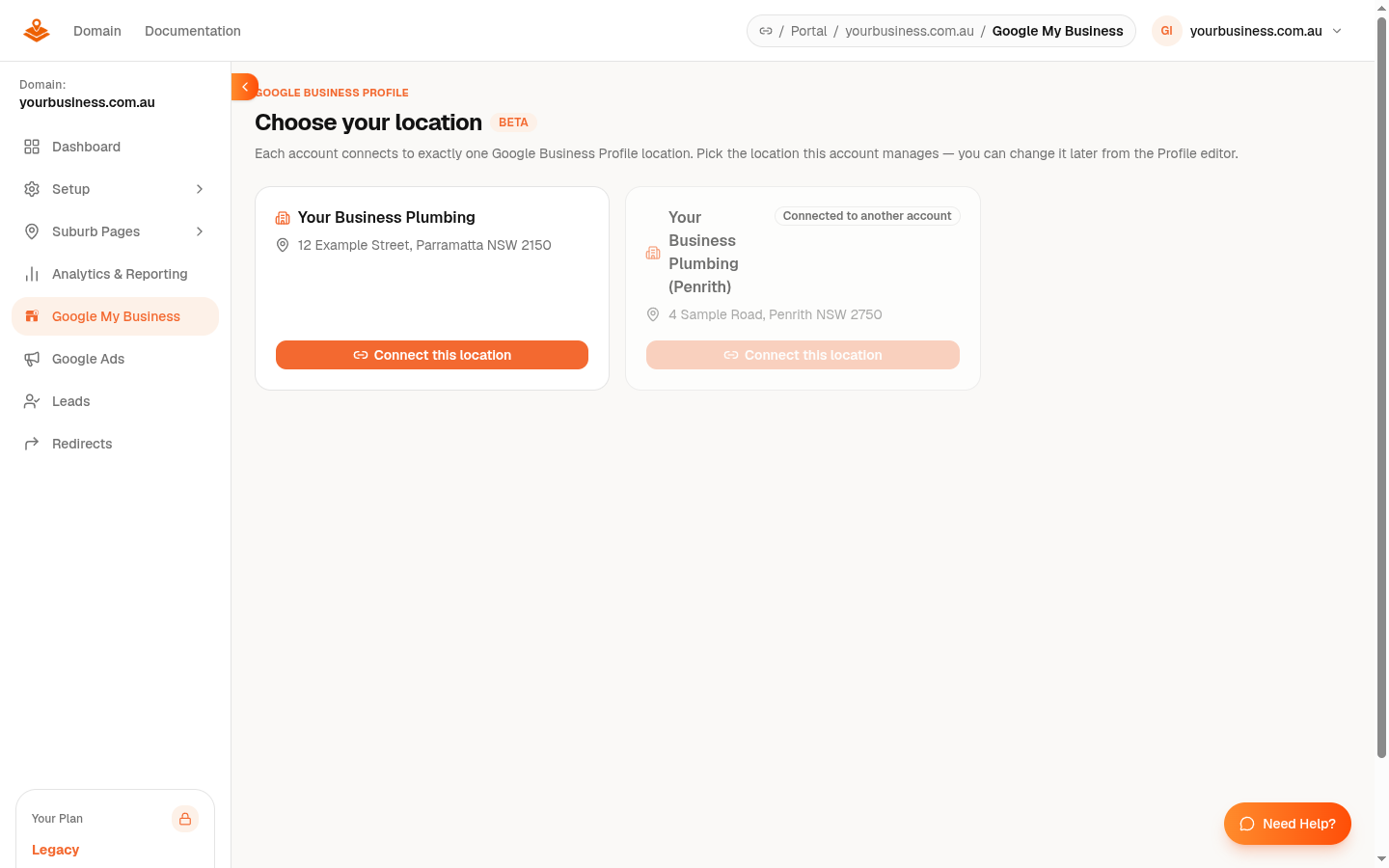
Once Google is connected, Choose your location lists every location (listing) in your Google Business Profile account.
- If your Google account has more than one business account, pick it from the Business account list above the cards.
- A card marked Connected to another account is already claimed by another Suburb Stack website and cannot be selected.
- A card marked Your connected location is the one this website already uses. Select Go to dashboard to open it.
To connect a location:
- Select Connect this location on the listing you manage.
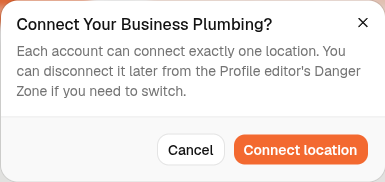
- Read the confirmation and select Connect location (or Cancel).
- The app opens the listing's screens. A first audit of the profile runs automatically in the background, so the Audit screen fills in shortly after you connect.
Messages you may see on this screen:
| Message | What to do |
|---|---|
| No Google Business Profile accounts found for this Google connection. | The Google account you signed in with does not manage a Business Profile. Reconnect with the right Google account. |
| No locations found under this account. | Pick another Business account, or check the listing exists in Google. |
| A red error after Connect location (for example, the location was just taken) | The list refreshes. Choose another location or contact support. |
To switch to a different listing later, disconnect the current one from the profile editor's Danger Zone (see Profile editor). Your tracking data is kept.
Moving between the screens
Every screen for your connected location has the same header: the screen name, your business name, and a row of buttons to move between the screens. The current screen's button is highlighted.

| Button | What it is for | Guide |
|---|---|---|
| Profile editor | Edit the listing's details, categories, hours, description, attributes and photos | Profile editor |
| Rank tracker | Track where you rank in the local map results for chosen keywords | Rank tracker |
| Geo-grid scan | See your rank from many points across an area, on a map | Geo-grid scan |
| Audit | Score how complete the profile is and get recommendations | Reports: Audit |
| Insights | Calls, website clicks, direction requests and views from Google | Reports: Insights |
| Posts | Create, schedule and manage posts on the listing | Reports: Posts |
| Reviews | Read, filter and reply to Google reviews | Reports: Reviews |
Daily limits
Actions that call Google have a daily allowance per website, counted over a rolling 24 hours. The screen shows what is left next to the button (for example "4 of 5 refreshes left today"). When an allowance runs out, the button is disabled and a note says when the next slot frees up.
| Action | Daily allowance |
|---|---|
| Profile Refresh from Google | 5 |
| Rank tracker Check now | 25 |
| Geo-grid Run scan | 5 |
| Run Audit | 10 |
| Sync Insights | 10 |
| Posts Sync from Google | 5 |
| Post actions that go to Google (schedule, publish, update, cancel, delete) | 10 |
| AI post writing | 20 |
| Sync Reviews | 5 |
| Review replies (post, edit, delete) | 20 |
| Generate AI Reply | 20 |
Saving a post as a draft does not use the allowance.
Related guides
- Google Connections: connect or manage the Google sign-in used here.
- Profile editor: edit the listing and disconnect it.
- Rank tracker: keyword rankings, groups, competitors and email reports.
- Geo-grid scan: map-based rank scans.
- Reports: audit, insights, posts and reviews.