Google Ads AI agent
The Google Ads AI agent looks after the Google Ads campaigns you choose. Once a week it reads how they performed, adds negative keywords so your ads stop showing for searches that waste money, and reports every change it made. Each change can be reverted for 30 days.
How to get here: Sidebar > Google Ads, then the Agent setup or Agent reports tab at the top of the page. You can also select Set up AI agent on the Ads builder.
The agent is an add-on. If you do not see the Agent setup and Agent reports tabs, or Set up AI agent opens a "coming soon" panel, it is not included in your plan. Contact support. If you open the report page without it, you see "The Google Ads Agent is not enabled for this website".
The badge at the right of the tab bar shows the agent's status:
| Badge | Meaning |
|---|---|
| AI Agent · draft | Set up has not been finished, or the agent has never been activated. |
| AI Agent · active | The agent runs every week. |
| AI Agent · paused | The agent does nothing until you resume it. Your campaigns keep running as they are. |
Set up the agent
Agent setup is a five-step wizard. The steps are shown across the top; select any step to jump to it. The Agent plan panel on the right fills in as you go and shows when the next run is. The bar at the bottom has Back and Confirm & continue.
Nothing is written to your Google Ads account during setup.
Step 1: Connect Google Ads
The agent needs read access to your campaign performance. The step lists what it reads: campaign, ad group and keyword performance, the search terms report, and conversion actions and values.
If Google Ads is not connected you see Not connected and a Connect Google Ads button (or "Your Google connection needs to be reconnected." if an earlier connection has stopped working):

- Select Connect Google Ads. You go to Google to sign in and allow access.
- Accept every permission on Google's screen. If you do not, you come back to "Google didn't grant all required permissions. Please try connecting again and accept every permission on the consent screen." If you cancel, you see "Google sign-in was cancelled or failed. Please try again."
- Back in Suburb Stack, choose the Google Ads account the agent will manage from the list (marked Select account). If the list says "No advertising account found on this Google login", sign in with a Google account that has direct access to a Google Ads account.
- When the account shows Connected, select Confirm & continue.
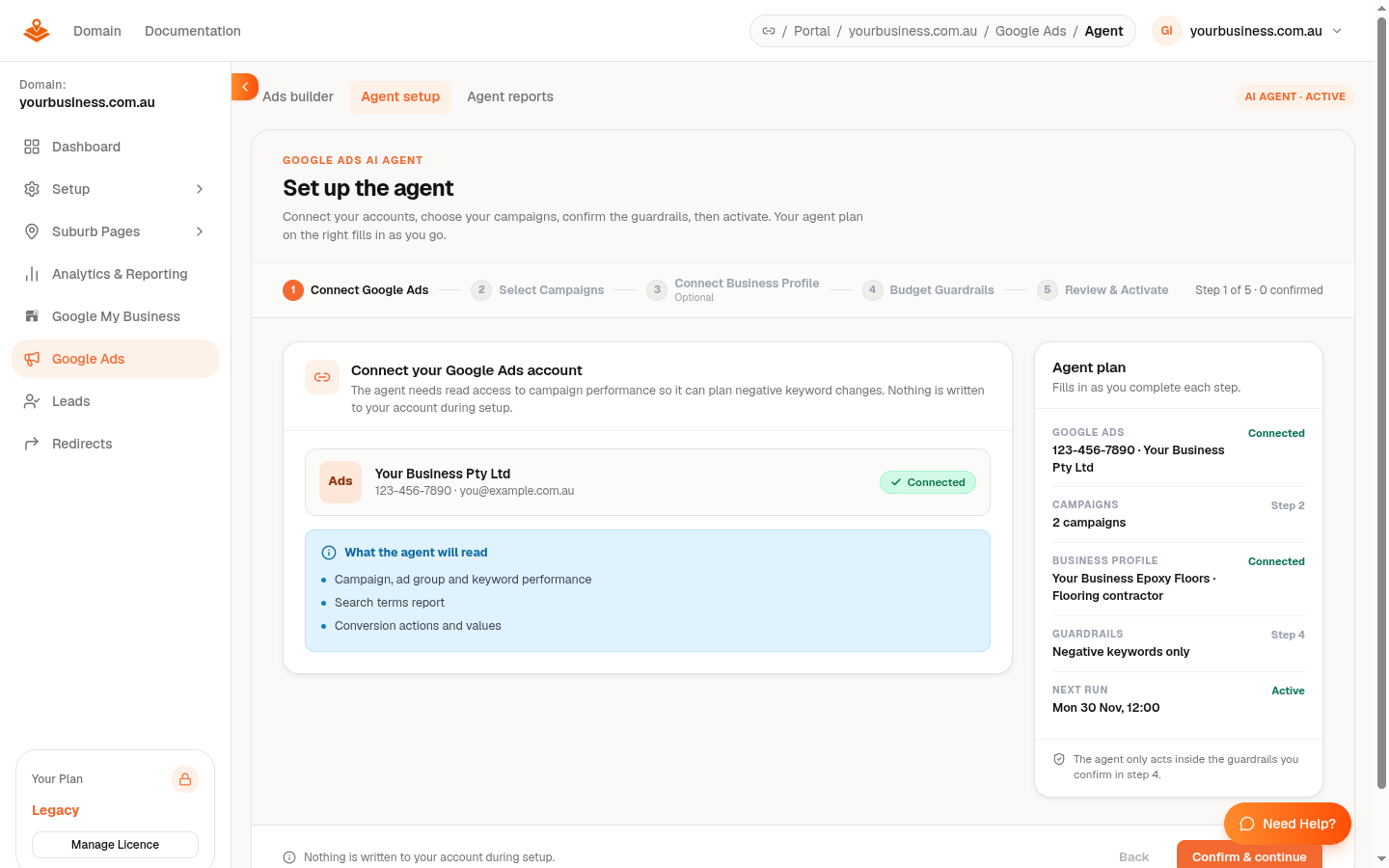
If the account later shows Access lost, the connection can no longer reach that Google Ads account. Select Reconnect.
Step 2: Select Campaigns
Choose which campaigns the agent manages. It never reads or changes a campaign you have not selected.
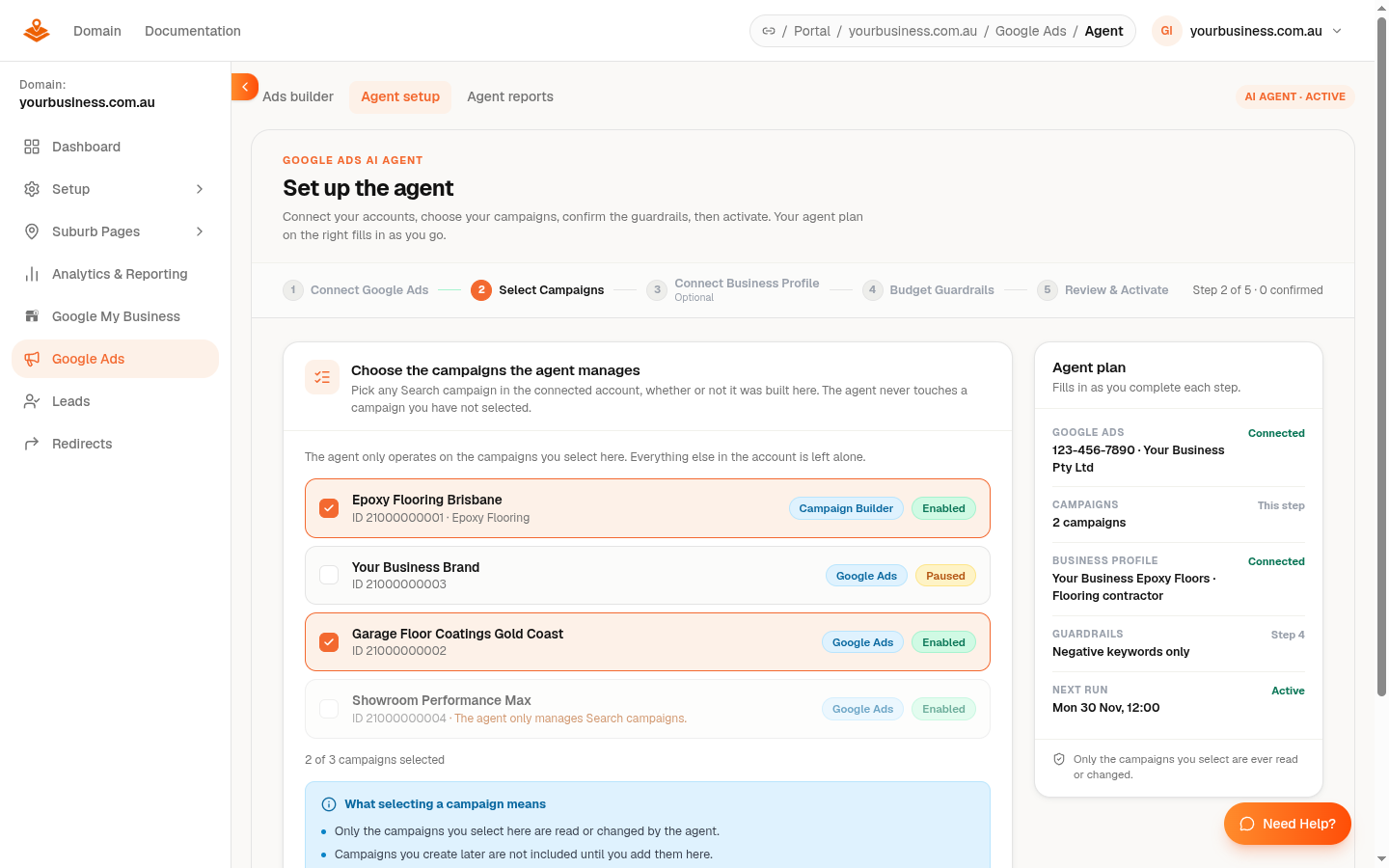
- Select each campaign you want the agent to manage. A selected campaign is highlighted with a tick.
- Check the count under the list, for example "2 of 3 campaigns selected".
- Select Confirm & continue. This saves your selection ("Campaign selection saved").
Each campaign shows its Google Ads ID, the service page it was built from (if any), where it came from (Campaign Builder for campaigns made in the Ads builder, Google Ads for campaigns made elsewhere) and its status in Google Ads (Enabled or Paused).
Things to know:
- The agent only manages Search campaigns. Other campaign types are listed but greyed out, with "The agent only manages Search campaigns."
- Campaigns you create later are not included until you come back and add them.
- A campaign that is paused or removed in Google Ads stays selected, but is skipped until it is enabled again.
- You must select at least one campaign. Confirm & continue stays greyed out until you do.
- If you see "These are the campaigns the agent runs on today. Confirm the selection to keep it, or change it.", select Confirm & continue to keep that selection.
Step 3: Connect Business Profile (optional)
Your Google Business Profile helps the agent understand the areas and services you cover. It reads the areas you serve, your primary and secondary categories, and your business name, website and address.
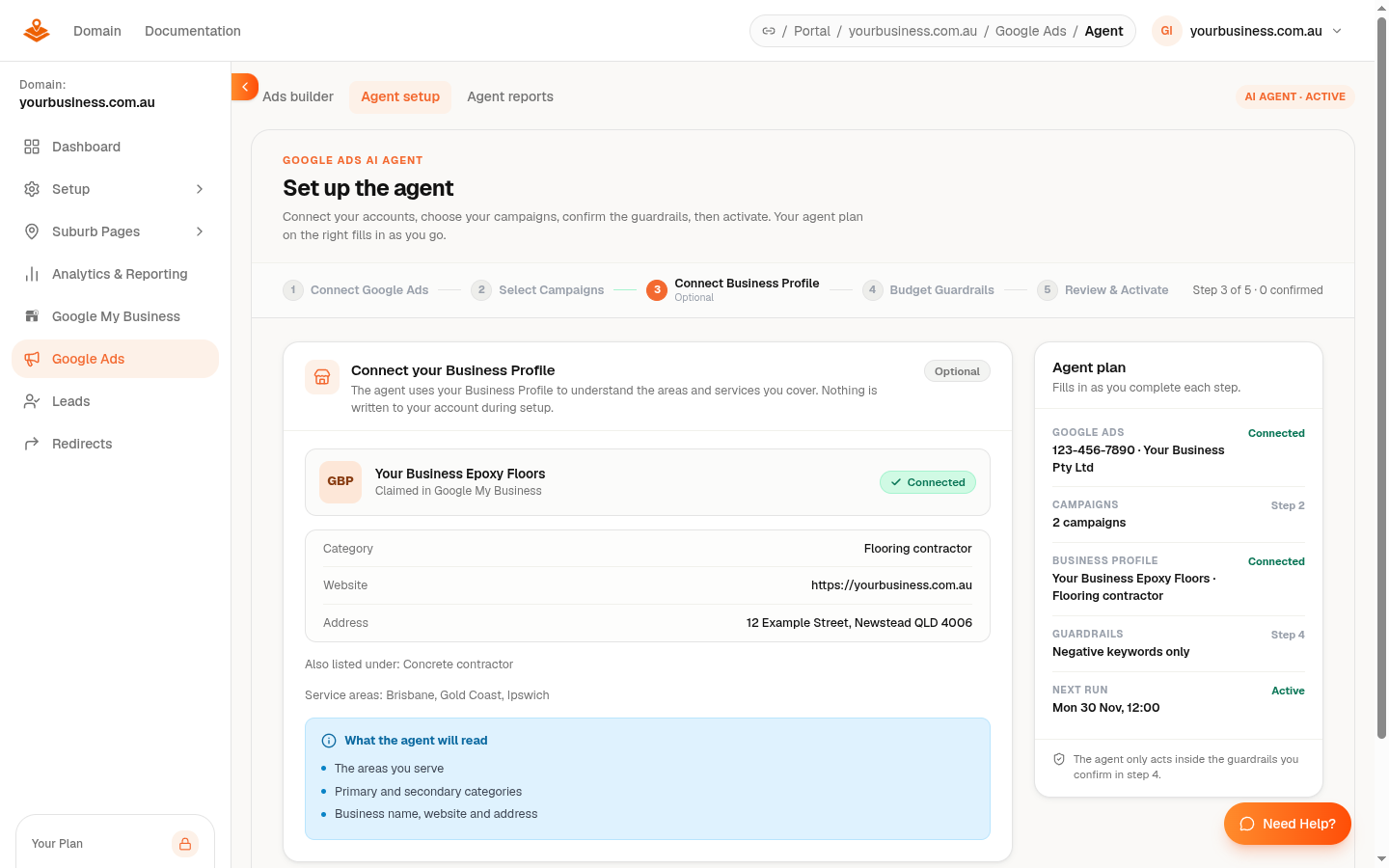
- If a profile is already claimed in Google My Business, it shows Connected with its details. Select Confirm & continue.
- If not, it shows Not connected and a Manage in Google My Business link. You can connect a profile there, or select Skip for now to carry on without one. Suburb Stack remembers that you skipped it.
Step 4: Budget Guardrails
This step shows what the agent is allowed to change. The permissions are fixed and cannot be edited here:
| Permission | State |
|---|---|
| Negative Keywords – Add | Enabled: the agent may add negative keywords to the campaigns it manages. |
| Budgets – Update | Disabled: the agent never changes your budgets. |
| Bidding – Update | Disabled: the agent never changes your bids or bidding strategies. |
Anything outside these permissions is never applied. Select Confirm & continue.
Step 5: Review & Activate
Check everything before the agent starts.
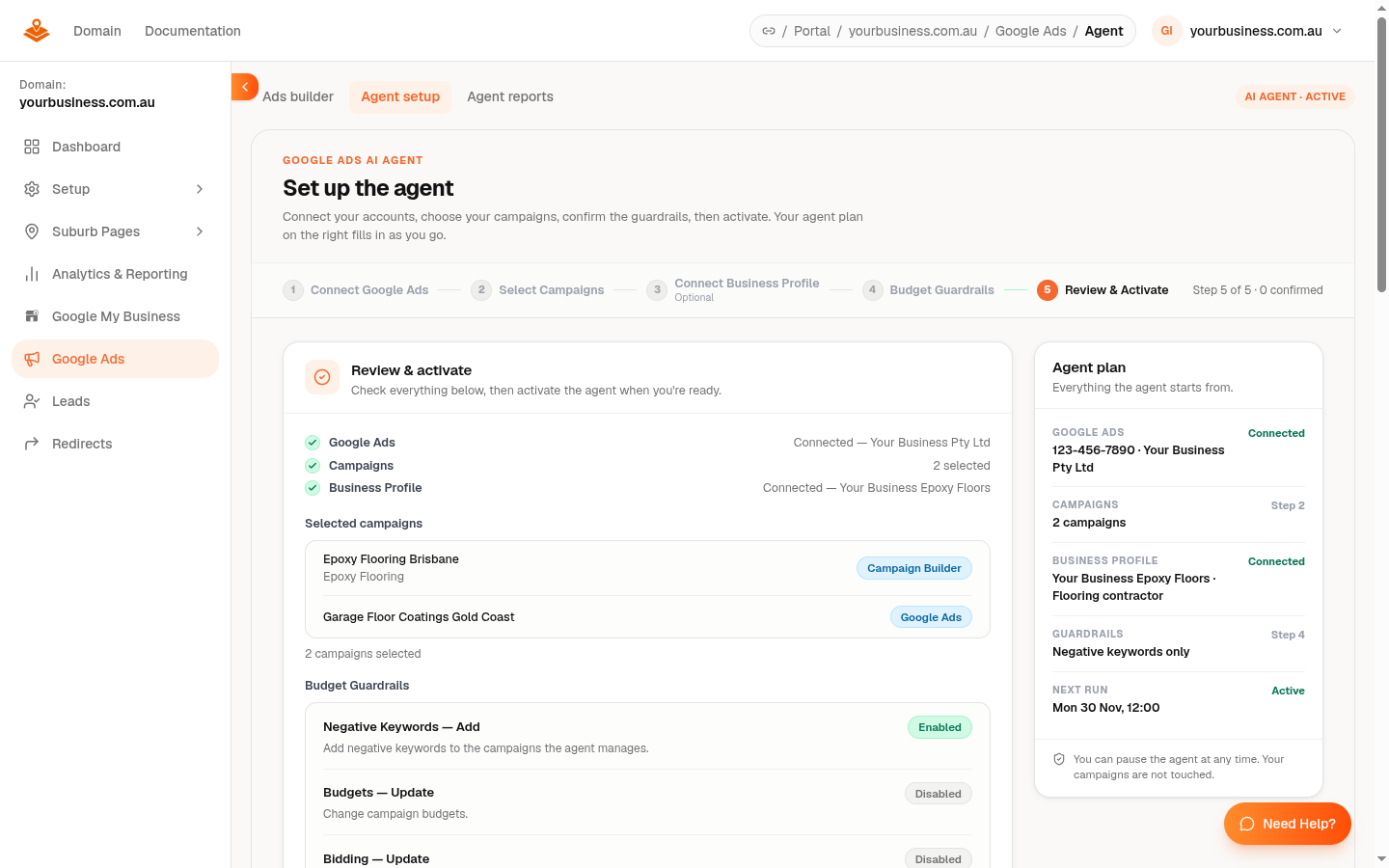
The step shows:
- A checklist for Google Ads, Campaigns and Business Profile.
- Selected campaigns: every campaign the agent will manage. If it says "No campaigns selected yet", go back to step 2.
- Budget Guardrails: the same permissions as step 4.
- How the agent works: Agent Module (Negative Keyword Optimisation), Schedule (Weekly), Automation (Automatic), Verification (Enabled), Change History (Enabled) and Revert Window (30 days).
- Agent settings (see below).
- A green card with when the first or next run happens, in your own time zone.
If the agent has a change waiting for you, a Waiting for your approval card appears here too. Approve change lets the agent go ahead with it; Dismiss declines it.
To start the agent, select Activate Agent in the bottom bar. You see "AI agent activated". The button is greyed out, with "Select at least one campaign in step 2 before activating the agent.", until a campaign is selected.
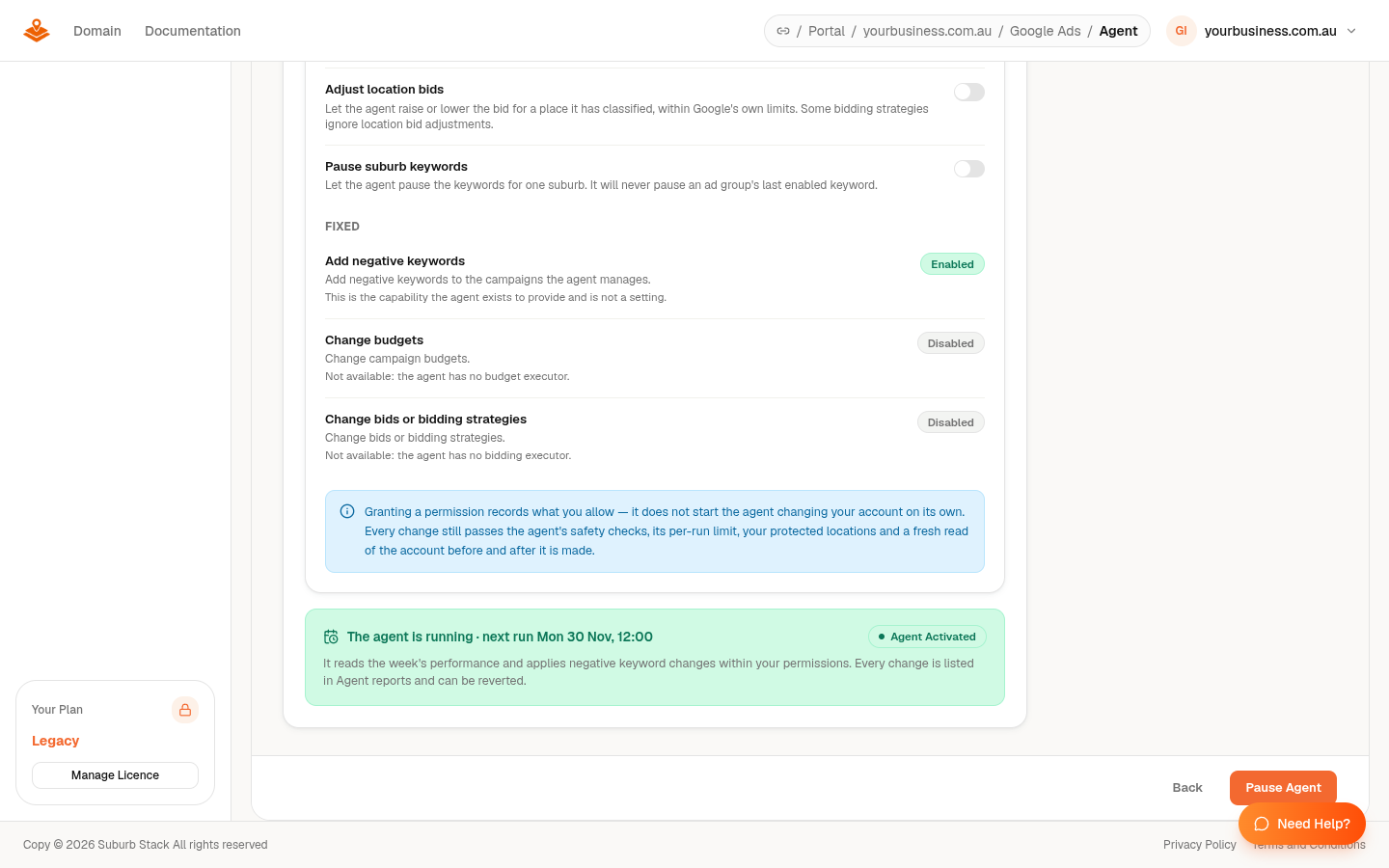
Agent settings
The Agent settings section at the bottom of step 5 controls what the agent does from its next run. Changing these does not undo anything it has already done, and does not affect anything waiting for your approval.
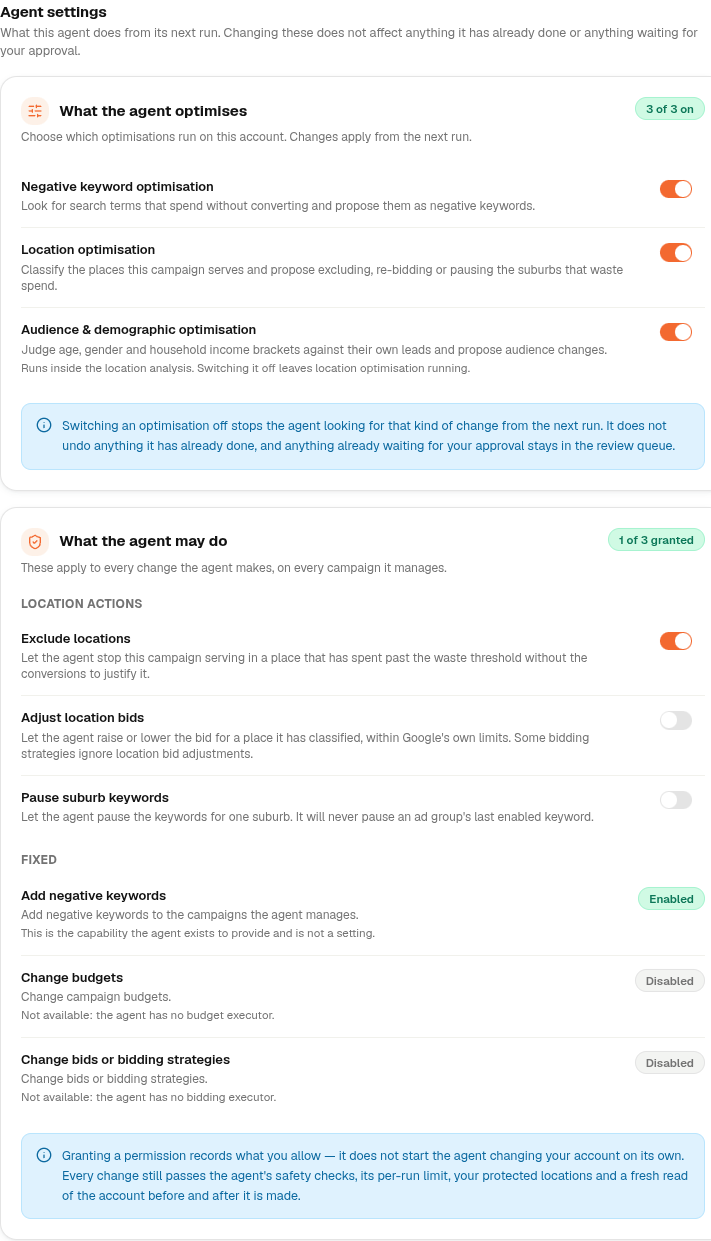
What the agent optimises has one switch per type of optimisation. Each switch saves as soon as you change it (you see Saving, then Saved):
| Optimisation | What the agent looks for |
|---|---|
| Negative keyword optimisation | Search terms that spend without converting, to add as negative keywords. |
| Location optimisation | Places your campaign serves that waste spend, to exclude, re-bid or pause. |
| Audience & demographic optimisation | Age, gender and household income groups that spend without leads. This runs inside the location analysis, so switching it off leaves location optimisation running. |
What the agent may do lists what the agent is allowed to change:
- Under Location actions there are three switches: Exclude locations, Adjust location bids and Pause suburb keywords. Each one is separate; granting one does not grant the others. The agent never pauses an ad group's last enabled keyword.
- Under Fixed, Add negative keywords is always enabled, and Change budgets and Change bids or bidding strategies are always disabled.
Granting a permission records what you allow. It does not make the agent start changing your account on its own: every change still passes the agent's safety checks, its limit per run, your protected locations, and a fresh read of the account before and after.
If a row shows On, Off or Unknown instead of a switch (or, under Location actions, Enabled, Disabled or Unknown), that setting cannot be changed for your account yet.
Pause or resume the agent
- Open Agent setup and go to Review & Activate.
- Select Pause Agent.
- Confirm with Yes, pause the agent, or select Cancel.
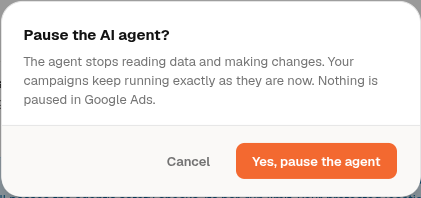
While paused, the agent stops reading data and making changes. Your campaigns keep running exactly as they are; nothing is paused in Google Ads. To start it again, select Resume Agent on the same step ("AI agent resumed").
The weekly report
Agent reports shows a week at a time: how your campaigns performed, what the agent found and every change it made.
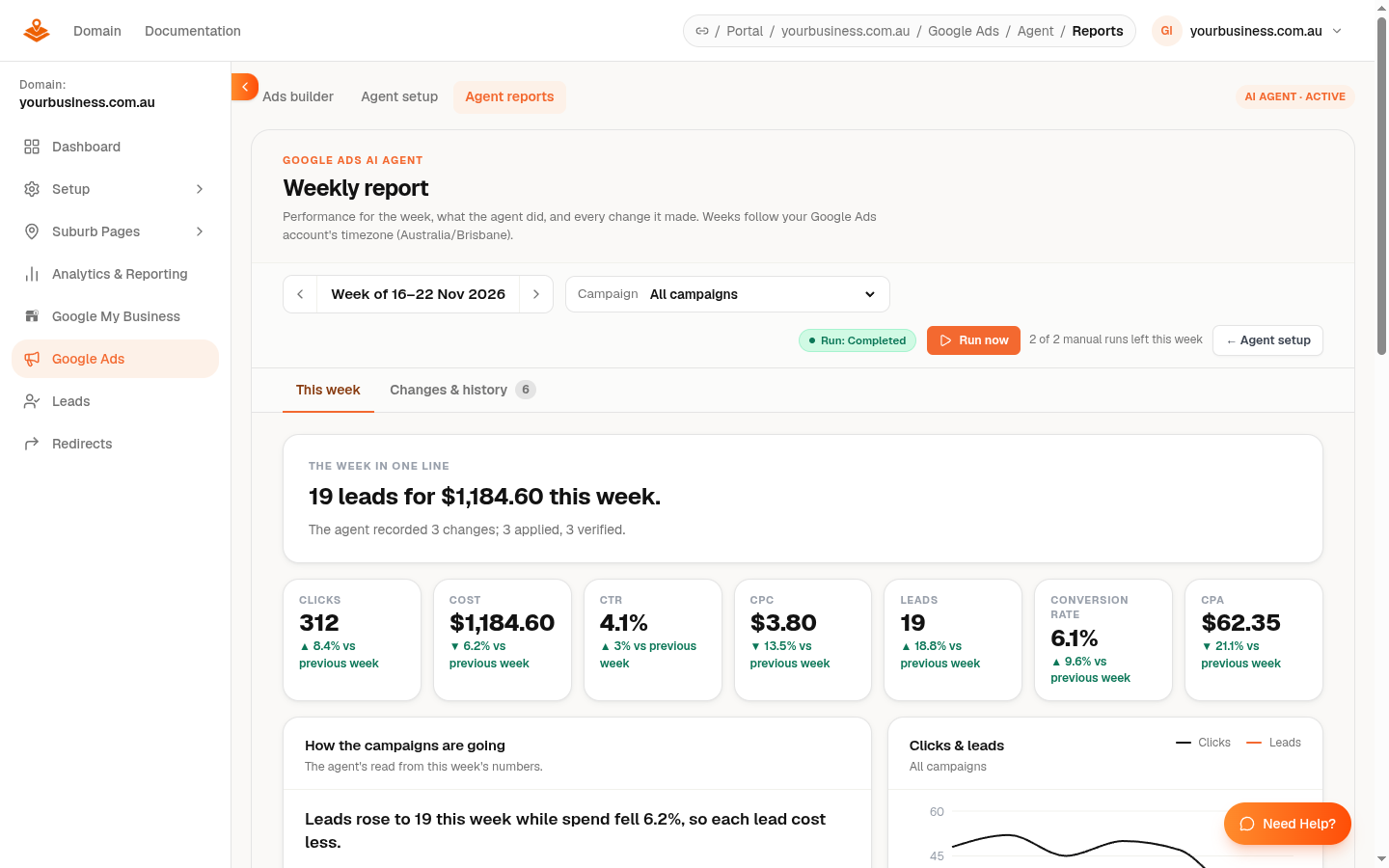
The bar at the top has:
| Control | What it does |
|---|---|
| Week selector | Use the arrows to move to the previous or next week. You cannot move past the current week. Weeks follow your Google Ads account's time zone. |
| Campaign | Show All campaigns or one campaign. Every part of the report follows this choice. |
| Run chip | The result of this week's run, for example Run: Completed. If the agent has not run yet, it says so. |
| Run now | Asks the agent to run today instead of waiting for its weekly run. You can do this twice in any 7 days; the note beside it shows how many runs are left, or when the next one is available. After you select it you see a confirmation and a Refresh link. |
| Agent setup | Goes back to the setup wizard. |
The report has two tabs: This week and Changes & history.
This week
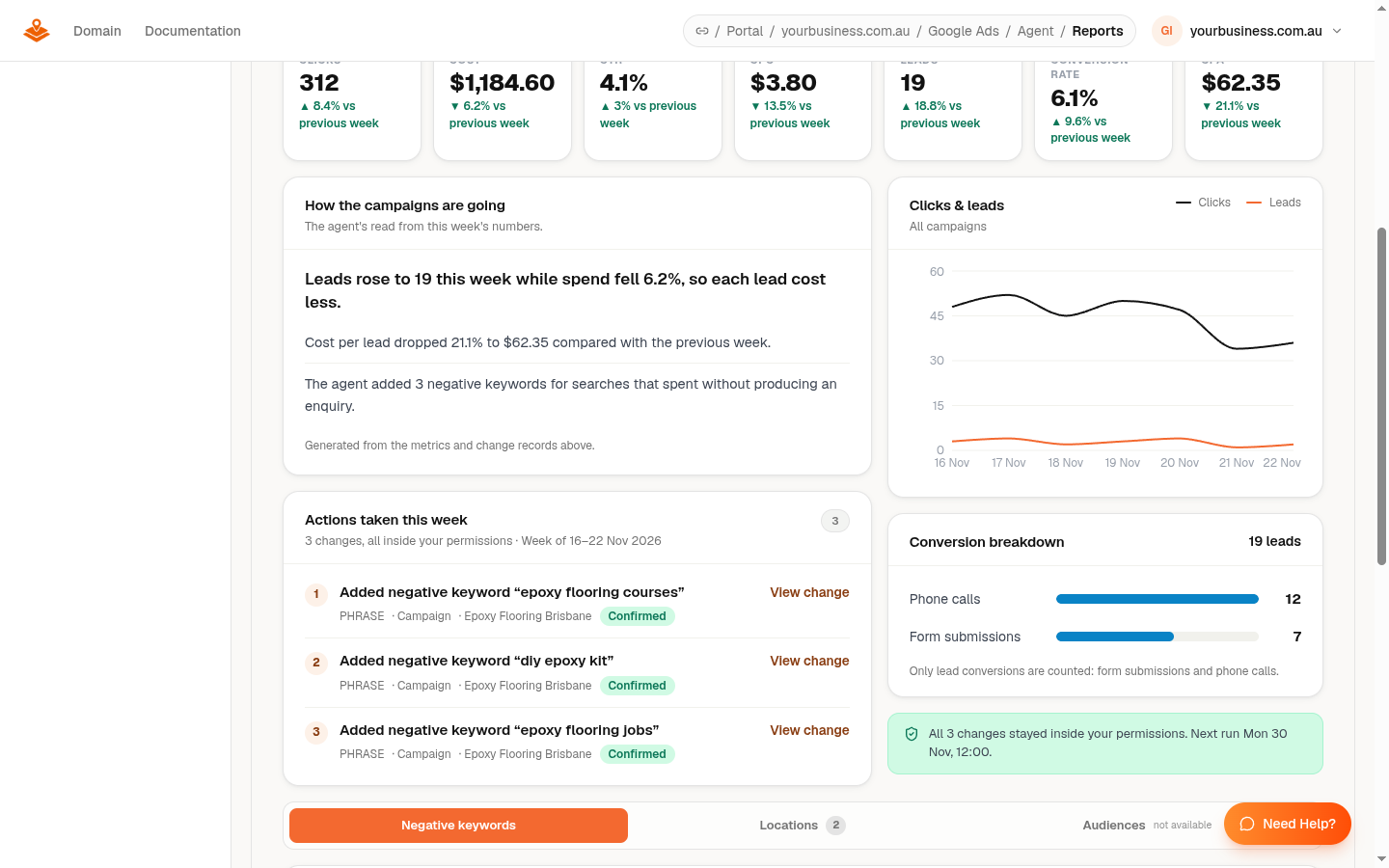
- The week in one line: leads and spend for the week, and what the run did. Before the agent's first run you see "No agent run this week yet" and the three things it does each week.
- Seven figure cards: Clicks, Cost, CTR, CPC, Leads, Conversion rate and CPA. Each shows the change against the previous week, green when it is an improvement and red when it is not. A dash means the figure is not available. If Google Ads is not connected you see "Connect Google Ads in Agent setup to see performance."
- How the campaigns are going: the agent's plain-English read of the week.
- Actions taken this week: each change the agent made, with its match type, the campaign and whether it was confirmed. View change opens it in Changes & history. Anything under Not applied was attempted but did not go through, with the reason.
- Clicks & leads: a daily chart for the week.
- Conversion breakdown: leads split into phone calls and form submissions. Only these two count as leads.
- A green note confirming the changes stayed inside your permissions, and when the next run is.
Below these, three buttons switch between the agent's findings:
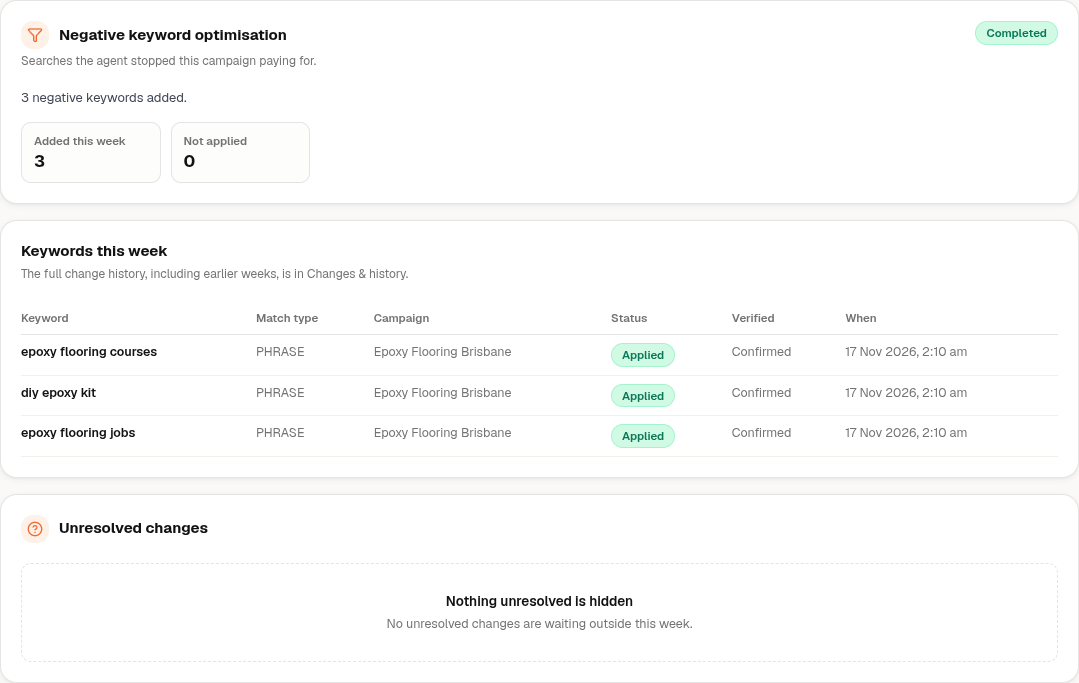
Negative keywords shows how many negative keywords were added and not applied this week, and a table of each keyword with its match type, campaign, status, whether it was verified and when.
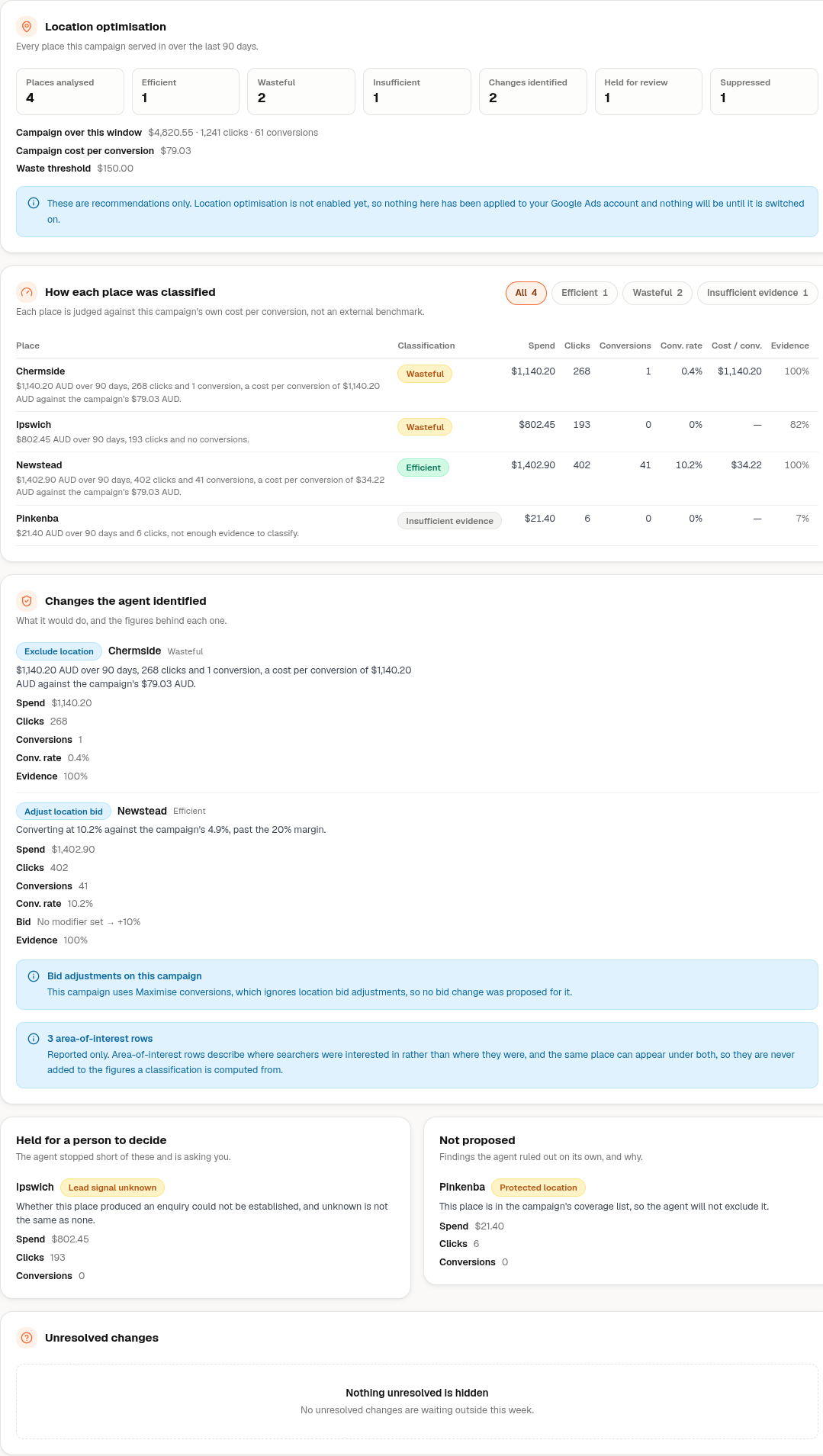
Locations shows where the campaign's money went over the period shown on the card:
- Counts of places analysed and classified as Efficient, Wasteful or Insufficient (not enough clicks or spend to judge yet), plus changes identified, held for review and suppressed.
- How each place was classified: each place with its spend, clicks, conversions, conversion rate, cost per conversion and how strong the evidence is. Each place is judged against the campaign's own cost per conversion. Use the tabs above the table to show one classification.
- Changes the agent identified: what it would do (for example Exclude location or Adjust location bid) and the figures behind it.
- Held for a person to decide and Not proposed: findings the agent stopped short of, and the ones it ruled out (for example a place in your coverage list), with the reason.
If location changes are not switched on for your account yet, a note says these are recommendations only and nothing has been applied.
Audiences shows how age, gender and household income performed. If it is marked not available, the agent is not reporting audiences for your account yet.
Unresolved changes lists any change where the agent could not confirm whether it reached your Google Ads account. These need someone to check them in Google Ads.
Changes & history
This tab lists every change the agent recorded for the week, plus anything waiting for your decision. The count on the tab shows how many entries there are.
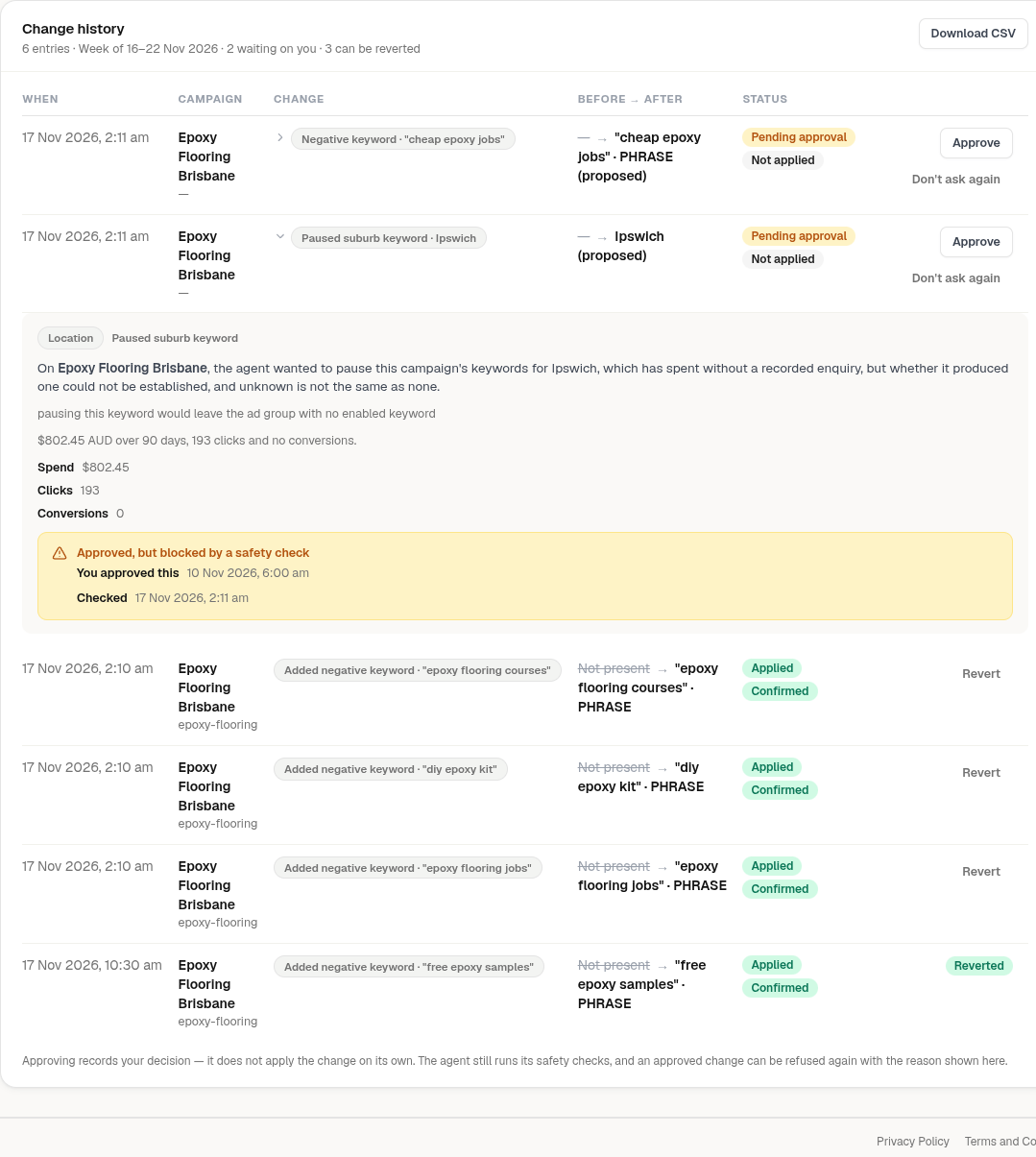
| Column | What it shows |
|---|---|
| When | When the change was made or proposed. |
| Campaign | The campaign and the service page it belongs to. |
| Change | What changed. Select the arrow to expand the entry and see the agent's reason and the figures behind it. |
| Before → after | The value before and after the change. |
| Status | Whether it was applied (for example Applied, Not applied or Pending approval) and whether the agent confirmed it in Google Ads (for example Confirmed). |
| Last column | The action you can take, if any. |
Changes waiting for you show Pending approval:
- Approve records that you agree. It does not apply the change on its own: the agent may act on it from its next run, if its safety checks allow it. An approved change can still be refused by a safety check; the expanded entry then says so (for example "Approved, but blocked by a safety check").
- Don't ask again dismisses it, and the agent will not raise it again.
Revert a change:
- Find the change and select Revert. This is available for 30 days after the change.
- The Revert this change? dialog explains what will happen. For a negative keyword, it is removed from the campaign in Google Ads. The original change stays in the history.
- Select Revert change, or Cancel to leave it.
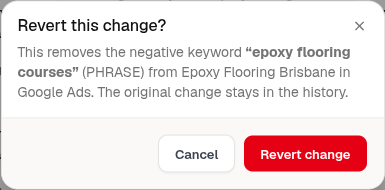
After a revert you see whether it was confirmed removed from Google Ads, or that it was already absent. Changes that cannot be reverted show why instead of a button (for example "the action was never applied to Google Ads"), and reverted changes show Reverted.
Select Download CSV to save the week's history as a spreadsheet, with the time, campaign, page, change, before and after values, statuses and reason for each entry.
Related guides
- Google Ads campaign builder: build the campaigns the agent manages.
- Google Connections: the Google account linked to your website.
- Google My Business: connect the Business Profile the agent reads.