Page URL
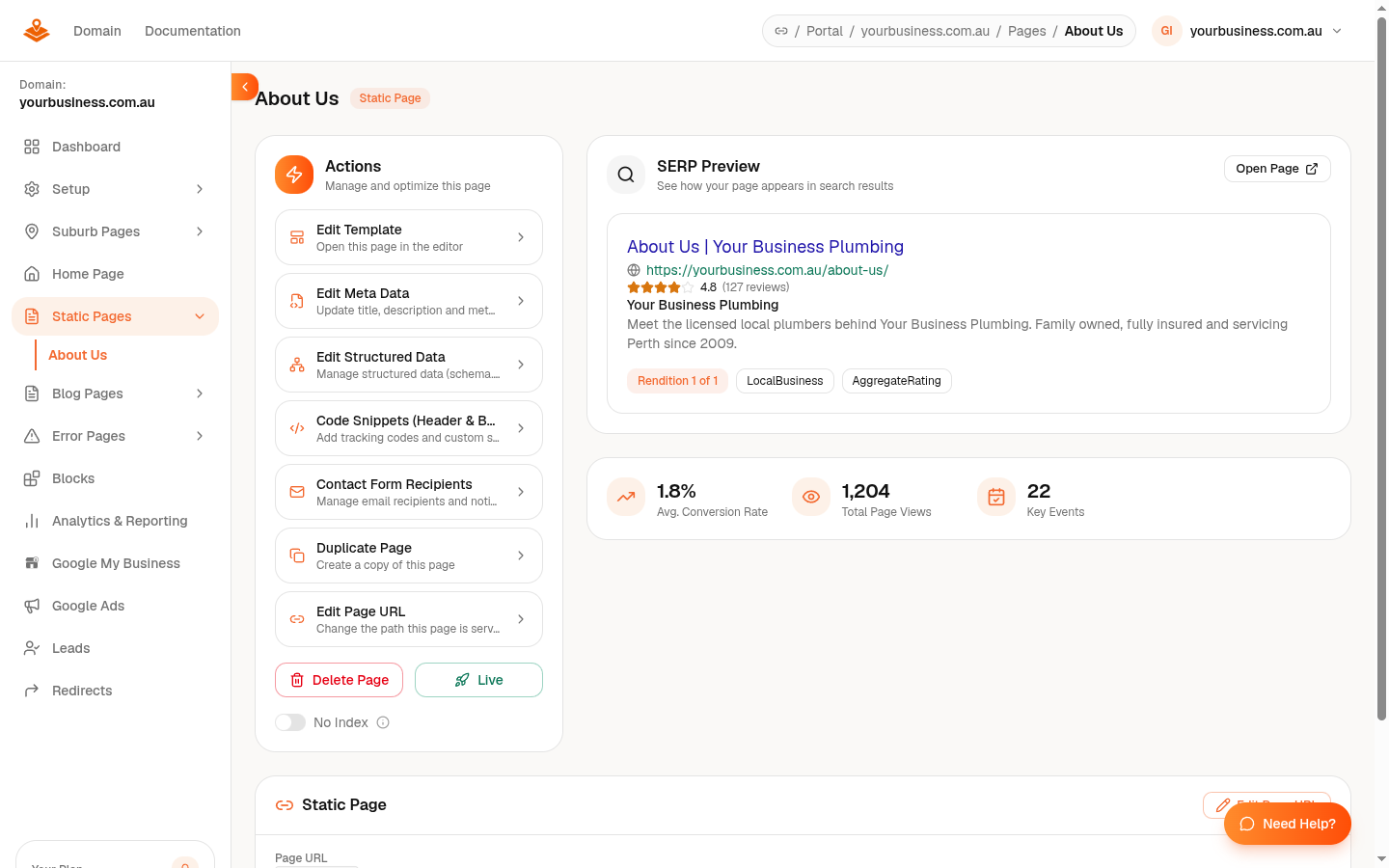
You can change the web address a page is served at. For a suburb page you change the pattern its suburb URLs are built from (Custom URL Layout). For a static, blog or error page you change its single path (Edit Page URL), which is also shown on the page's Page Info card.
How to get here: Sidebar > Suburb Pages (or another page type) > select a page > Actions > Custom URL Layout or Edit Page URL. See Page details.
These actions are only available on accounts that have several page types (home, static, blog and error pages as well as suburb pages). If you do not see them, they are not included in your plan. Contact support.
Changing the URL of a live page changes the address visitors and search engines use. To send people who use the old address to the new one, add a redirect in Redirects.
Suburb pages: Custom URL Layout
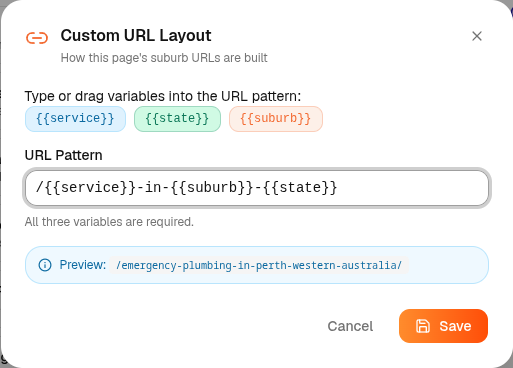
By default, a suburb page's URLs follow the layout /{service}/{state}/{suburb}/, for example /emergency-plumbing/western-australia/joondalup/. A custom layout lets you arrange these parts differently, for example /emergency-plumbing-in-joondalup-western-australia/.
Set a custom layout
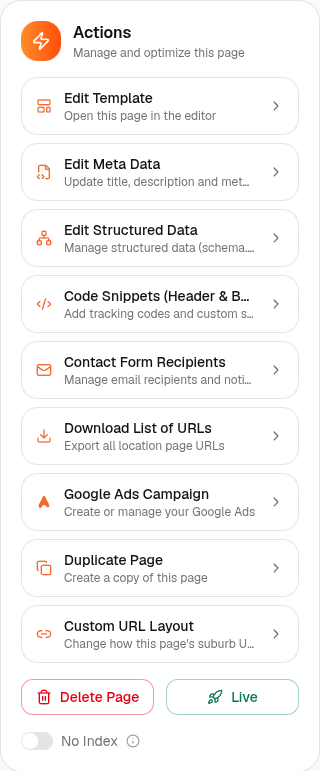
- In the Actions panel, select Custom URL Layout.
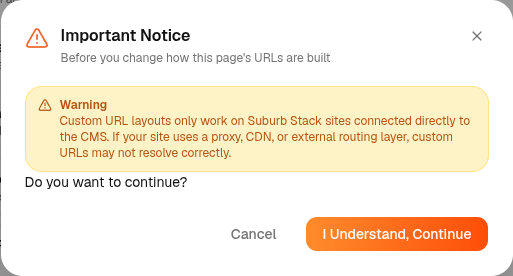
- Read the Important Notice. Custom URL layouts only work on Suburb Stack sites connected directly to the CMS. If your site uses a proxy, CDN or external routing layer, custom URLs may not resolve correctly. If you are not sure how your site is connected, check with support before you continue.
- Select I Understand, Continue.
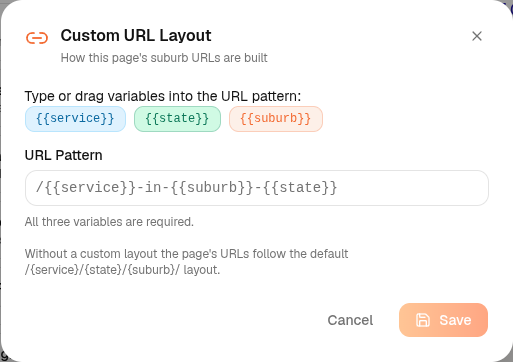
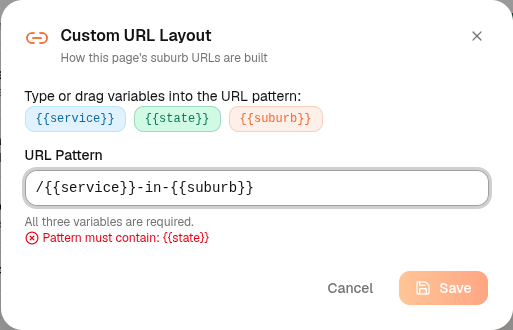
- Build the pattern in URL Pattern. Type it, and add the three variables by selecting a chip (it is inserted where your cursor is) or by dragging a chip into the field:
{{service}}: the page's service name, for exampleemergency-plumbing{{state}}: the state, for examplewestern-australia{{suburb}}: the suburb, for exampleperth- Check the Preview line. It shows the URL your pattern makes for a sample suburb.
- Select Save.
Rules for the pattern:
- All three variables are required. If one is missing, you see Pattern must contain: followed by the missing variable, and Save stays unavailable.
- Apart from the variables, use only letters, numbers, hyphens and slashes. Otherwise you see Pattern contains invalid characters. Only letters, numbers, hyphens, and slashes are allowed.
- The pattern is saved in lowercase with a
/at the start.
Go back to the default layout
- Open Custom URL Layout and select I Understand, Continue.
- Select Remove Custom Layout (bottom left). It only appears when the page has a custom layout.
- At Revert to the default layout?, select Remove. Select Keep to change your mind.
The page's URLs go back to /{service}/{state}/{suburb}/.
Static, blog and error pages: the Page Info card
On a home, static, blog or error page, the bottom of the details screen shows a Page Info card instead of Location Management. It is headed with the page type (for example Static Page) and shows:
- Page URL: the path, for example
/about-us, and the full address on your domain. Select the full address to open the page in a new tab. - A note explaining the type: a static or blog page serves a single URL with no location variations; an error page is shown when visitors hit its error.
- Edit Page URL (static, blog and error pages): opens the dialog described below. It does the same as Edit Page URL in the Actions panel.

The home page
The home page is always served at /, the root of your domain. Its card has no Edit Page URL button, and its Actions panel has no URL action.

Change a static or blog page's URL
- Select Edit Page URL (in the Actions panel or on the Page Info card).
- In Page URL, type the new path after the
/, for exampleour-team. Capitals become lowercase and characters other than letters, numbers, hyphens and slashes are dropped as you type. - Wait for the check under the field, then select Save.
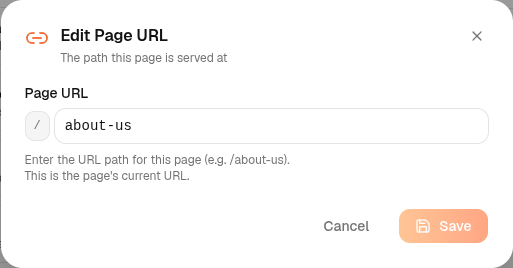
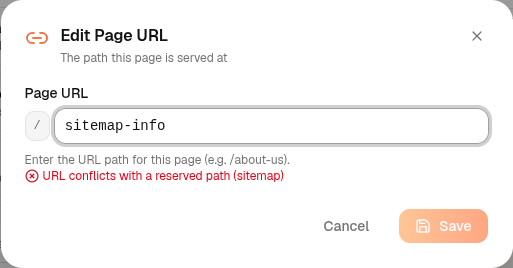
The new path is checked as you type. Messages you may see:
| Message | What to do |
|---|---|
| This is the page's current URL. | Nothing has changed yet. Save stays unavailable |
| Checking… | Wait a moment |
| URL available | The path is free. Select Save |
| URL must be between 2 and 128 characters | Make the path longer or shorter |
| URL can only contain lowercase letters, numbers, hyphens, and slashes | The path must start with a letter or number and use only those characters |
| URL conflicts with a reserved path (...) | Suburb Stack reserves paths starting with sitemap, robots or favicon, and the /api/ and /portal/ folders. Choose another path |
| Another reason, for example the URL is already in use | Choose another path |
| Couldn't save the URL: | The change was not saved. Try again |
Change which error an error page answers
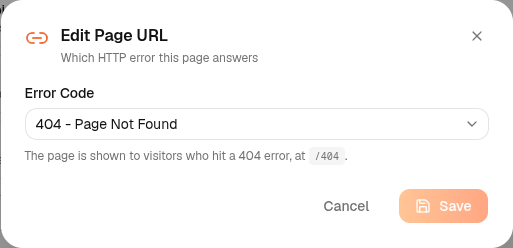
An error page's URL is its error code, for example /404.
- Select Edit Page URL.
- Choose the Error Code: 404 - Page Not Found, 500 - Server Error, 403 - Forbidden, 400 - Bad Request, 502 - Bad Gateway or 503 - Service Unavailable.
- Select Save.
If the current URL cannot load
If the dialog says The current URL could not be read, select Try again. Select Close to leave without changes.
Related guides
- Page details: the other page actions.
- Pages: page types, and choosing a URL when you create a page.
- Redirects: send visitors from an old URL to the new one.
- Go Live: publishing the page and its sitemap links.