Google Ads campaign builder
The Ads builder turns each of your service pages into a Google Ads search campaign. Every suburb on the page becomes a phrase match keyword, each ad group gets responsive search ads (written for you by AI, and editable), and when the campaign is ready you push it to your Google Ads account, where it is created paused.
How to get here: Sidebar > Google Ads. You arrive on the Ads builder. If the Google Ads AI agent is switched on for your website, a tab bar above the page also shows Agent setup and Agent reports (see Google Ads AI agent).
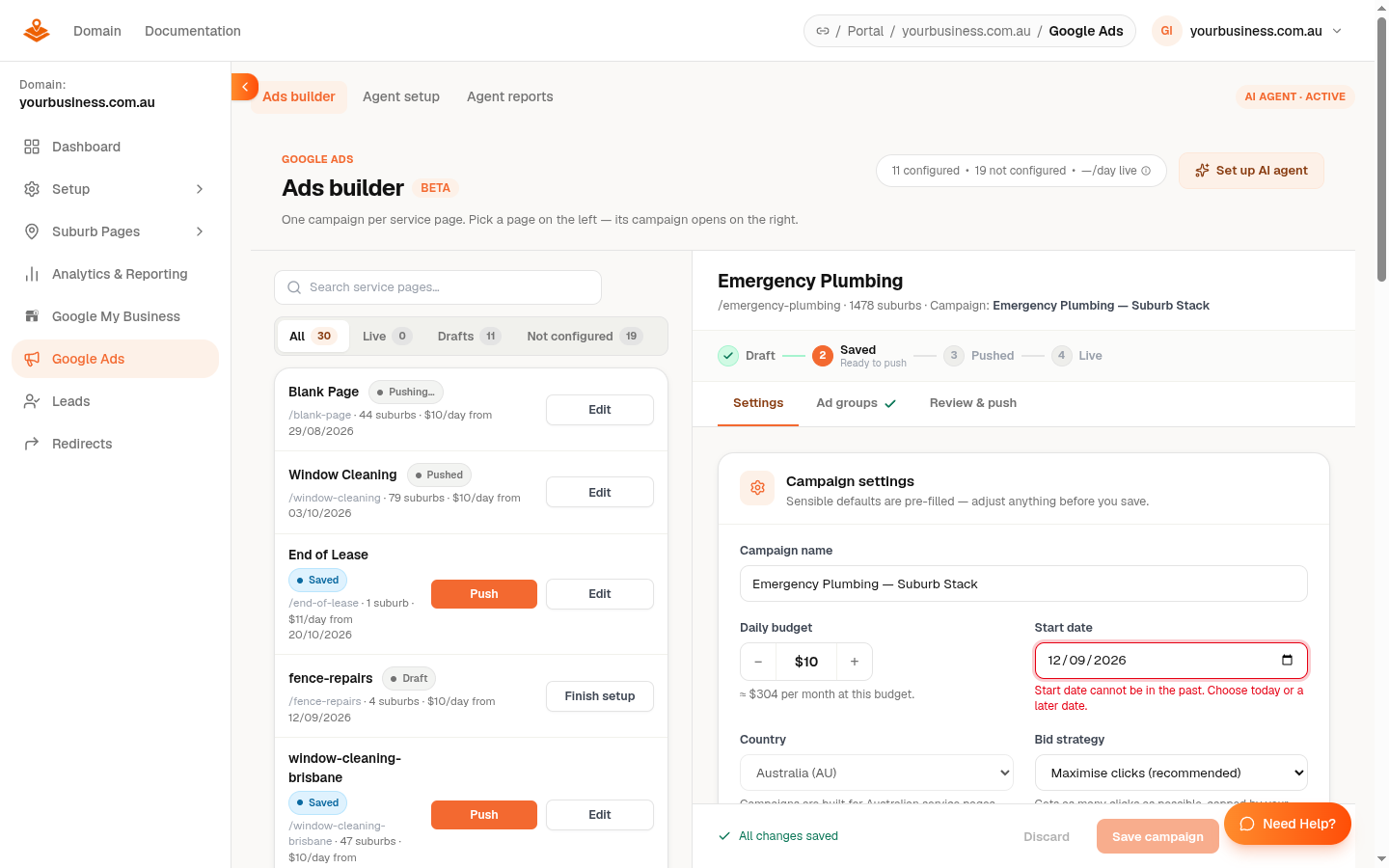
What is on the page
| Area | What it shows |
|---|---|
| Tab bar (top) | Ads builder, Agent setup and Agent reports, plus a badge with the AI agent's status (for example AI Agent · active). The tab bar only appears when the AI agent is part of your plan. |
| Summary pill | How many service pages are configured and not configured, and the total daily budget of your campaigns that are currently live (enabled) in Google Ads. It shows a dash instead of an amount when nothing is live. |
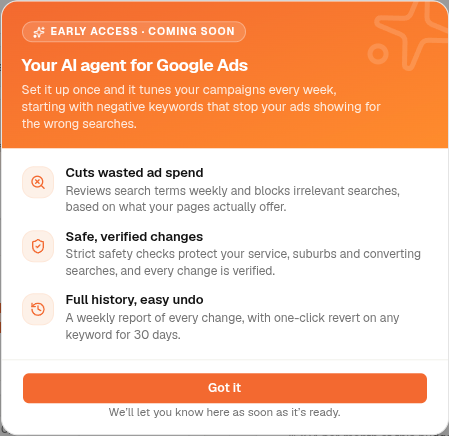
| Set up AI agent | Opens Agent setup. If the AI agent is not included for your website, it opens a short "coming soon" panel instead. Select Got it to close it. |
| Service page list (left) | One row per service page. Select a configured row to open its campaign; a row that is not configured yet offers Configure instead. |
| Campaign editor (right) | The selected campaign: its status band, its tabs and the Save campaign bar. |
On a wide screen the list and the editor sit side by side, and the first configured page opens automatically. On a narrow screen (a phone or a small window) you see the list first; select a page to open its editor, and select All pages to go back.
Find a service page
The list shows every service page on your website, whether or not it has a campaign yet.
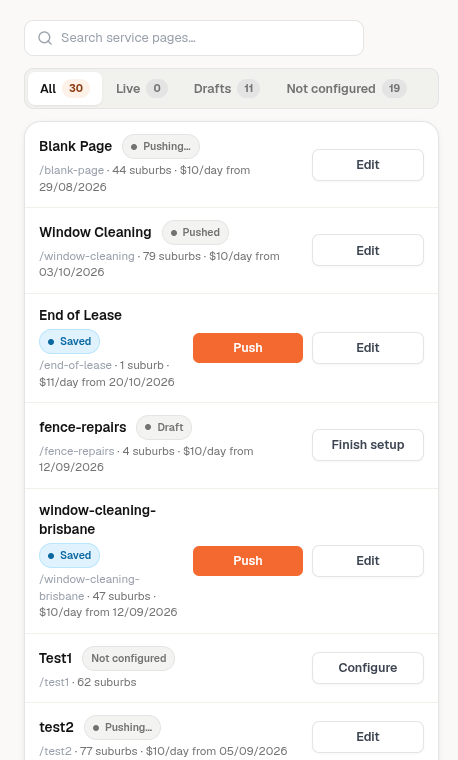
- Type in Search service pages... to filter by page name, page address or campaign name.
- Select a filter tab to narrow the list. Each tab shows a count.
| Filter | Shows |
|---|---|
| All | Every service page. |
| Live | Campaigns that are enabled (spending) in Google Ads. |
| Drafts | Every configured campaign that is not live, including ones that are pushed but paused. |
| Not configured | Service pages that do not have a campaign yet. |
Each row shows the page name, a status chip, the page address, how many suburbs the page covers and, once configured, the daily budget and start date.
| Status chip | Meaning | Row buttons |
|---|---|---|
| Not configured | No campaign exists for this page yet. | Configure |
| Draft | A campaign exists but is not complete enough to push. | Finish setup |
| Saved | The campaign is complete and saved, and nothing is in Google Ads yet. | Push, Edit |
| Pushing… | The campaign is being sent to Google Ads. | Edit |
| Pushed | The campaign exists in Google Ads, but its current state could not be read. | Edit |
| Pushed · paused | The campaign exists in Google Ads and is paused. | Edit |
| Live | The campaign is enabled in Google Ads and can spend. | Manage |
Push on a row opens that campaign straight on its Review & push tab.
If you have no service pages yet, the list says "No service pages yet". Publish a service page first (see Pages).
Create a campaign for a service page
- Find the page in the list. It shows Not configured.
- Select Configure. The button shows Configuring… for a moment.
- The new campaign opens in the editor on the Settings tab, with sensible defaults already filled in (campaign name, a daily budget and a start date).
Configuring creates a draft in Suburb Stack only. Nothing is sent to Google Ads until you push.
If no campaign exists yet, the editor explains the three steps (pick a service page, set up ad groups, push to Google Ads) and offers Configure your first page.
The campaign editor
The top of the editor shows the page name, its address, the number of suburbs and the campaign name. Below that is a status band with four steps: Draft, Saved, Pushed and Live. A small caption under the current step tells you more, for example Ready to push, Created in Google Ads or Paused in Google Ads.
The editor has these tabs:
| Tab | What you do there |
|---|---|
| Overview | Performance and on/off state. Only appears once the campaign has been pushed to Google Ads. |
| Settings | Campaign name, budget, start date, bidding, phone number and your business details. |
| Ad groups | Ad groups, their keywords and their responsive search ads. |
| Review & push | A summary, the checklist, and the button that sends the campaign to Google Ads. |
A tick next to Settings or Ad groups means that part is complete.
Saving your changes
Changes on the Settings tab, keyword templates and ad text are kept as a draft until you save. The bar at the bottom of the editor shows Unsaved changes in and the tabs you changed.

- Select Save campaign to save everything at once. You see "Campaign saved".
- Select Discard to throw the unsaved changes away.
- If a field has a problem, the bar shows the first error and Save campaign stays greyed out until you fix it.
Some actions take effect straight away and do not need Save campaign: creating, renaming, pausing or deleting an ad group, creating or deleting an ad, and uploading a logo.
If you try to open another campaign while you have unsaved changes, Suburb Stack asks first:
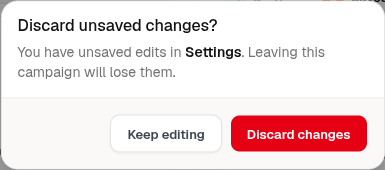
- Keep editing takes you back to the campaign with your changes.
- Discard changes throws them away and opens the other campaign.
Settings tab
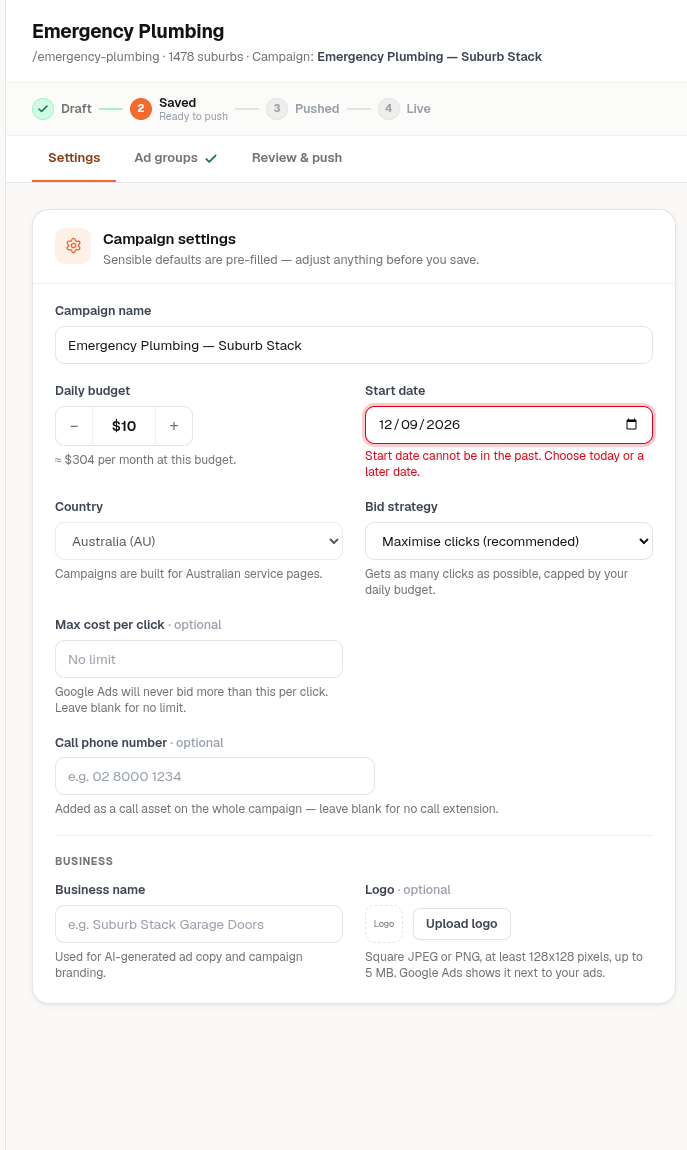
| Field | What it means |
|---|---|
| Campaign name | The name of the campaign in Google Ads. Required. |
| Daily budget | Use − and + to change it a dollar at a time. Underneath you see roughly what that adds up to per month. |
| Start date | When the campaign starts. Before the first push it must be today or later. You see "Start date cannot be in the past. Choose today or a later date." if it is not. |
| Country | Always Australia (AU). Campaigns are built for Australian service pages. |
| Bid strategy | Maximise clicks (recommended) gets as many clicks as possible within your daily budget. Maximise conversions optimises for conversions and works best once conversion tracking is set up in Google Ads (see Google Connections). |
| Max cost per click (optional) | Only with Maximise clicks. Google Ads never bids more than this per click. Leave it blank for no limit. It must be greater than zero. |
| Call phone number (optional) | Added to the whole campaign as a call extension. Leave it blank for none. |
| Business name | Used by the AI when it writes your ad copy, and for campaign branding. It is shared by every campaign on this website. It cannot be left empty once set. |
| Logo (optional) | Select Upload logo (or Change logo). Use a square JPEG or PNG, at least 128 x 128 pixels and up to 5 MB. Google Ads shows it next to your ads. The logo uploads straight away. |
Select Save campaign when you are done.
Ad groups tab
Each ad group has its own keyword template, its own generated keywords and at least two responsive search ads. The ad groups appear as buttons at the top of the tab. A green dot means the group is active; a grey dot and the word paused mean it is paused. Select a group to edit it.
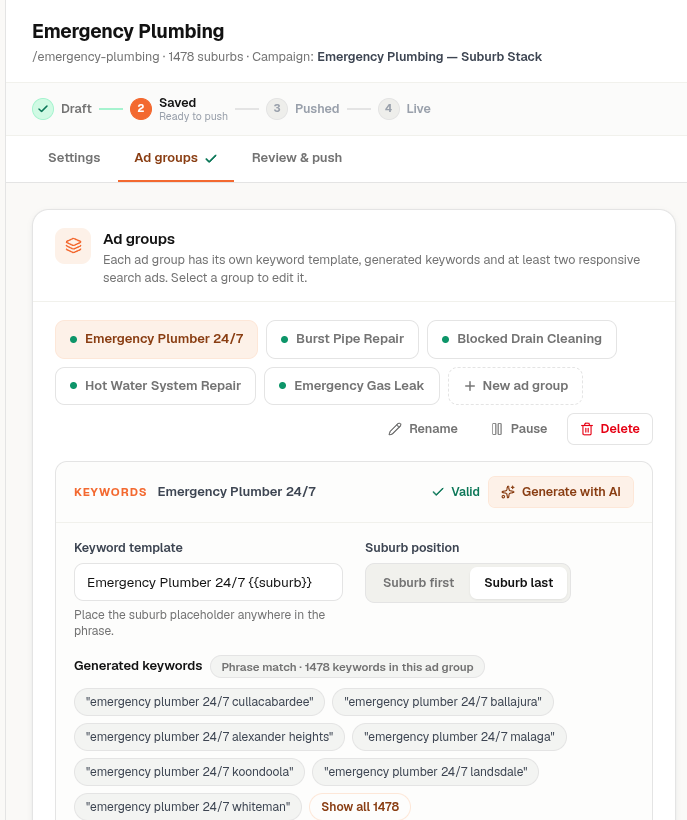
Add ad groups
- Select New ad group.
- The Create ad groups dialog opens. AI reads your service page and suggests keywords under Suggested keywords. They are all ticked to start with. Use Select all or Deselect all, or untick the ones you do not want.
- Optionally type your own name in Ad group name. It is created as an extra ad group alongside any ticked keywords.
- Select Create (or Create 3 ad groups, and so on). Each ticked keyword becomes its own ad group.
- Suburb Stack then writes two ads for each new group with AI in the background. A blue note shows "Setting up ads with AI" and how many groups are done. When it finishes, open each group to review its ads, then select Save campaign to keep the copy.
Opening the dialog asks the AI for suggestions, and Suggest different keywords asks for a new set. If no suggestions come back, type your own name instead.
Rename, pause or delete an ad group
With an ad group selected, use the buttons on the right:
- Rename opens a small dialog. Change the Ad group name and select Save, or Cancel.
- Pause pauses the ad group (and Resume turns it back on). This happens straight away.
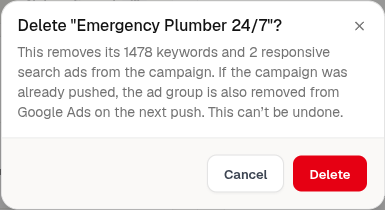
- Delete asks you to confirm. The dialog tells you how many keywords and ads go with it. If the campaign was already pushed, the ad group is also removed from Google Ads on the next push. This cannot be undone.
Keywords
The Keywords card turns one template into one phrase match keyword per suburb on the page.
- In Keyword template, type the phrase people search for and include
{{suburb}}exactly once, for exampleemergency plumber {{suburb}}. - Use Suburb first or Suburb last to move the suburb to the start or end of the phrase. You can also place
{{suburb}}anywhere by typing. - When the template is correct you see Valid, and Generated keywords lists the keywords (the first seven, then Show all to see every one).
- Select Save campaign to keep the template.
Generate with AI on this card asks the AI to write a keyword template for the group.
| Message | What to do |
|---|---|
| "Keyword template is required." | Type a template. |
| "Template must contain {{suburb}}." | Add {{suburb}} to the phrase. |
| "Template must contain exactly one {{suburb}} placeholder." | Remove the extra {{suburb}}. |
| "No suburbs are configured for this Service Page." | Add locations to the page first (see Locations). |
Responsive search ads
Below the keywords, the Responsive search ads card shows the group's ads. Use Ad 1, Ad 2 and so on to switch between them. Every ad group needs at least two ads before you can push.
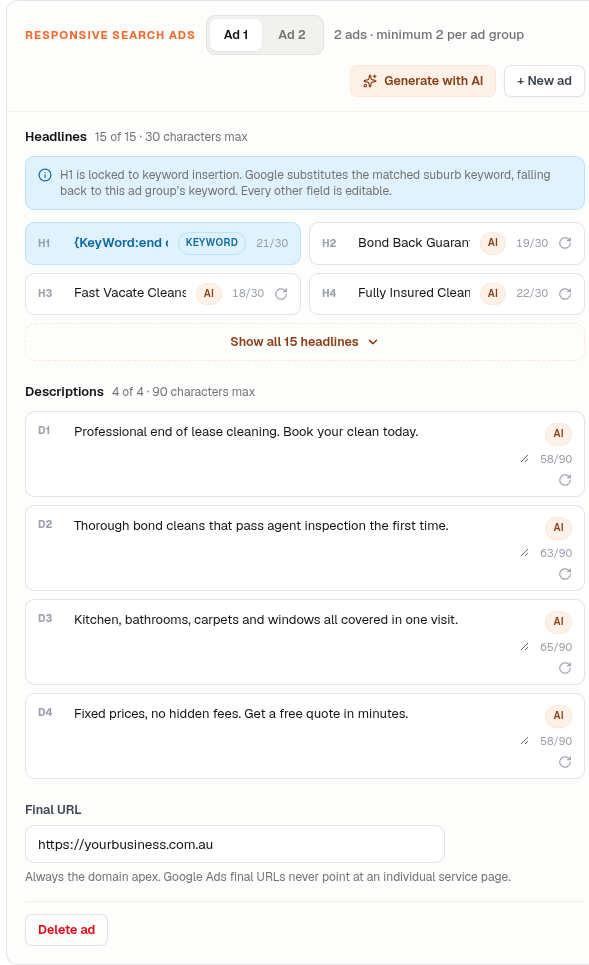
Each ad has:
- 15 headlines, up to 30 characters each. The editor shows the first four; select Show all 15 headlines to see the rest.
- 4 descriptions, up to 90 characters each.
- A Final URL, which must be your website's home address (for example
https://yourbusiness.com.au), with no page path.
Headline 1 is locked to keyword insertion (marked KEYWORD): Google puts the matched suburb keyword there, and falls back to the ad group's keyword. If the ad group's keyword is longer than 30 characters, Headline 1 unlocks (marked MANUAL, or FIX while it has a problem) and you write it yourself, or you shorten the keyword to lock it again.
The other fields are marked AI and you can edit any of them. The counter beside each field shows its length against the limit, and turns red when it is too long.
| Button | What it does |
|---|---|
| Generate with AI (card header) | If the group has fewer than two ads, creates the missing ads and fills them all with AI. Otherwise it rewrites the selected ad. |
| Circular arrow beside a field | Rewrites just that headline or description with AI. |
| + New ad | Creates another ad. If the ad group has a keyword, the AI fills it in straight away. |
| Generate ads with AI (empty group) | Creates two ads and fills them with AI. |
| Start with a single ad (empty group) | Creates one ad, filled by AI if the group has a keyword. |
| Delete ad | Asks you to confirm, then removes the ad. If the campaign was already pushed, the ad is also removed from Google Ads on the next push. |
AI-written copy goes into your unsaved changes, so select Save campaign to keep it. Discard reverts the copy (the ads themselves stay). The AI uses the ad group's keyword and your Business name, so set those first.
Review & push tab
This tab sums up the campaign and sends it to Google Ads. Pushing creates or updates a paused campaign in your Google Ads account, so nothing spends until you enable it.
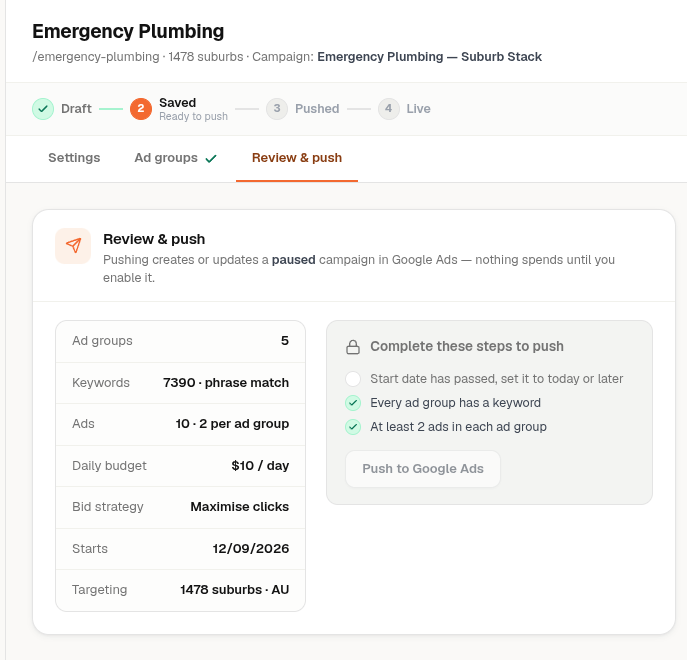
The summary on the left lists Ad groups, Keywords, Ads, Daily budget, Bid strategy, Starts and Targeting.
The card on the right depends on where you are:
| Card | What it means | What to do |
|---|---|---|
| Google Ads not connected | No Google Ads account is linked to this website. Your draft is saved in the meantime. | Select Connect Google Ads and sign in with Google. |
| Google Ads account not selected | Your Google account is linked, but no Google Ads account has been chosen. | Select Select Google Ads account. It opens Google Connections, where you choose the account. |
| Complete these steps to push | Something is still missing. Each item is ticked when done. Push to Google Ads stays greyed out. | Fix each unticked item, for example "Save your changes first", "Add at least one ad group", "Give "…" a keyword", "… needs at least 2 ads" or "Start date has passed, set it to today or later". |
| Google Ads connected | Everything is ready. It shows your Google Ads customer ID. | Select Push changes to Google Ads. |
Push to Google Ads
- Save your changes.
- Open Review & push and check the summary.
- Select Push changes to Google Ads. The button shows Pushing….
- When it finishes you see one of these:
- A message that the campaign was pushed to Google Ads and created paused. The editor moves to the Overview tab.
- A message that the campaign was pushed but some items failed. The card lists the items Google Ads did not accept.
- Push failed: the message gives the reason from Google Ads.
- Select View in Google Ads to open the campaign in Google Ads, where you enable it when you are ready.
Any "Heads up" notes after a push are for information only (for example, branding items your account cannot use yet). An amber warning above the card, such as a Business Profile location attached to your Google Ads account, has a Review in Google Ads link.
Changes made directly in Google Ads
Once a campaign has been pushed, a Google Ads changes card appears above the push button, so you see anything changed in Google Ads before you overwrite it.
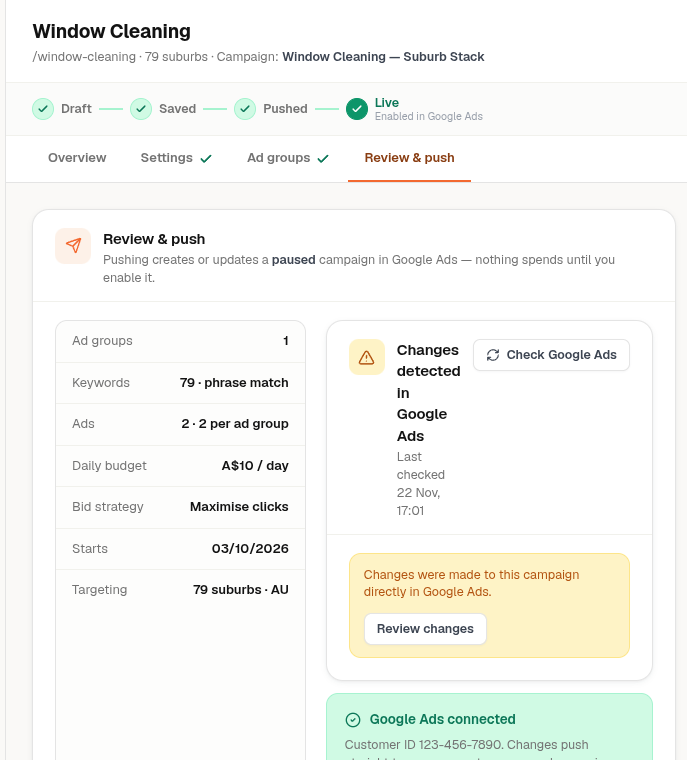
- Check Google Ads compares the campaign in Google Ads with the one here. The card shows when it last checked.
- "Google Ads matches Campaign Builder." means nothing differs.
- Changes detected in Google Ads means someone changed the campaign in Google Ads. Select Review changes to see them.
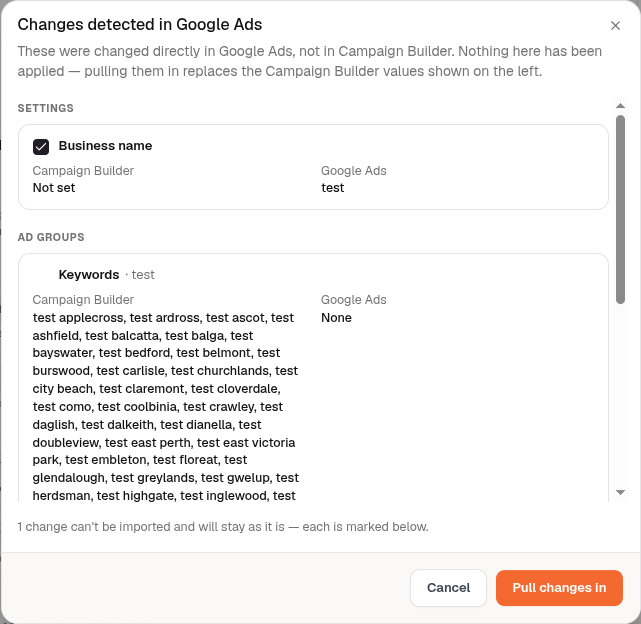
The dialog lists each difference under Campaign, Settings, Ad groups and Ads, with the value here (Campaign Builder) and the value in Google Ads. Everything that can be imported starts ticked.
- Untick anything you want to keep as it is here. Keywords added in Google Ads can be ticked one by one.
- Select Pull changes in (or Pull 2 changes in, and so on). The ticked Google Ads values replace the values here.
- Or select Cancel to leave everything as it is.
Rows marked Can't be imported stay as they are, with the reason. Items under Removed in Google Ads no longer exist there; they are kept here but are not being served.
Overview tab (pushed campaigns)
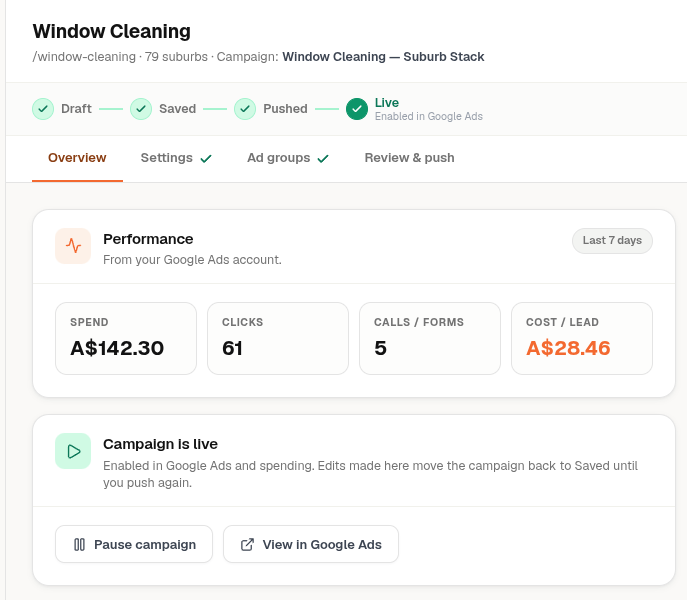
- Performance shows the last 7 days from your Google Ads account: Spend, Clicks, Calls / forms and Cost / lead. A dash means the figure is not available yet (for example, before the campaign is live).
- The status card says whether the campaign is live, paused, or could not be read from Google Ads just now.
- Pause campaign pauses a live campaign in Google Ads straight away, so it stops spending. Resume campaign turns a paused campaign back on, so it starts spending again.
- View in Google Ads opens the campaign in Google Ads.
Editing a live campaign here does not change its status: it stays Live, and your edits only reach Google Ads when you push again.
Related guides
- Google Ads AI agent: let the agent tune your campaigns every week.
- Google Connections: link your Google Ads account and set up conversion tracking.
- Pages: create and publish the service pages each campaign is built from.
- Locations: the suburbs on a page, which become your keywords.