Reports: audit, insights, posts and reviews
Four Google My Business screens report on and manage your listing: Audit scores how complete the profile is, Insights shows how customers interact with it, Posts publishes updates to it, and Reviews lets you read and reply to reviews.
How to get here: Sidebar > Google My Business, then Audit, Insights, Posts or Reviews in the screen header. Audit is the screen that opens first when a listing is connected. See Google My Business for connecting a listing.
Audit
The audit checks each part of your profile and gives an overall score with a list of fixes.
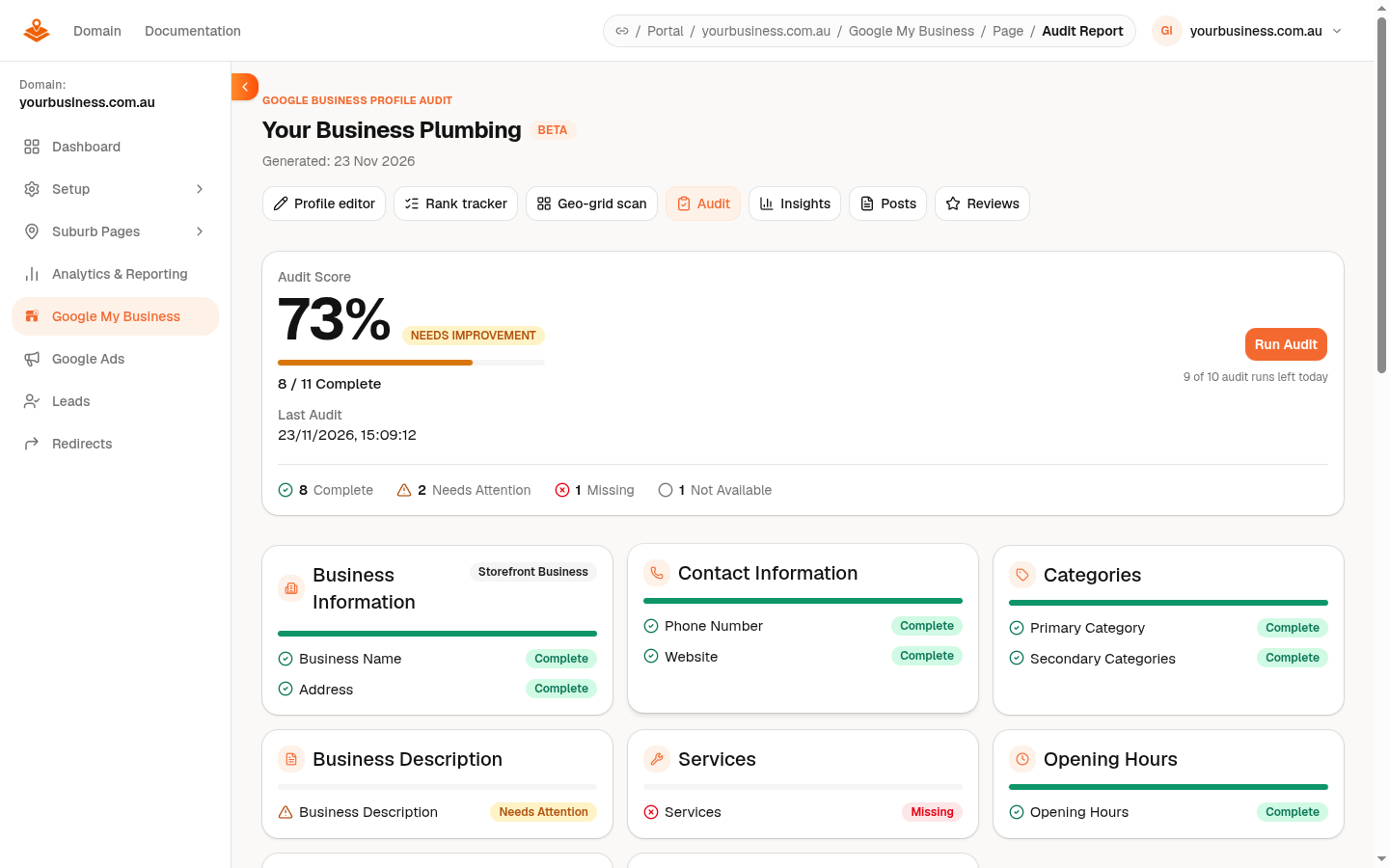
The first audit runs automatically when you connect the listing. To run a new one, select Run Audit (10 a day). If no audit has run yet, the card says "No audit has been run yet."
The score
The Audit Score is the share of checked items that are complete:
| Score | Badge |
|---|---|
| 90% and above | Excellent |
| 75% to 89% | Good |
| 50% to 74% | Needs Improvement |
| Below 50% | Poor |
Below the score you see how many items are Complete, Needs Attention, Missing or Not Available, and when the last audit ran.
Sections
Each card covers one part of the profile (Business Information, Contact Information, Categories, Business Description, Services, Opening Hours, Service Areas, Photos and Reviews), with a bar showing how complete it is and a status for each item. The Business Information card says whether the listing is a Storefront Business or a Service Area Business: storefront listings are checked for an address, service-area listings for service areas.
Items marked Not Available could not be read from Google at the time and do not count towards the score. Photos are currently always Not Available.
Reviews are Needs Attention when you have fewer than 10 reviews, an average below 4.0 stars, or no review in the last 90 days.
Recommendations
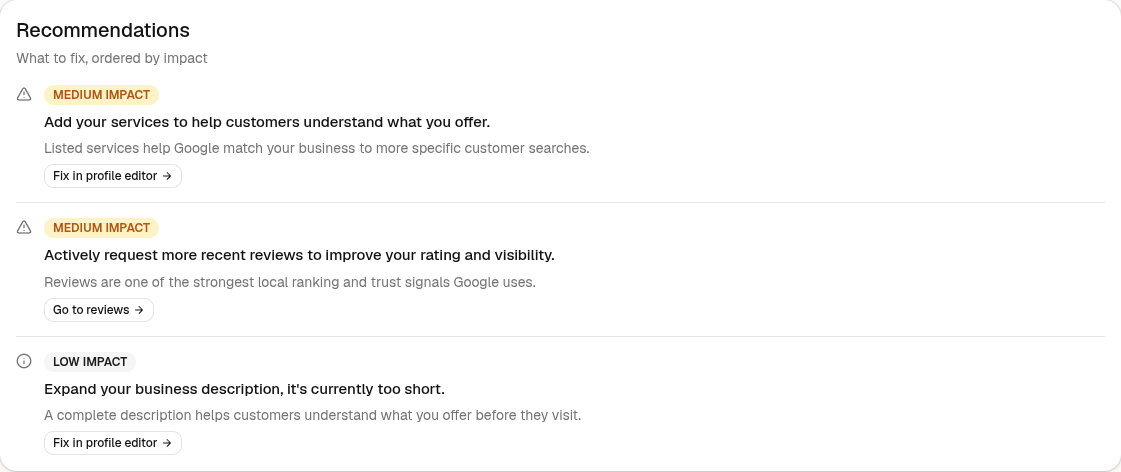
Recommendations lists what to fix, highest impact first (High Impact, Medium Impact, Low Impact), with a line on why it matters. Select Fix in profile editor to open the right section of the Profile editor, or Go to reviews to open Reviews. When nothing is left to fix, it says "Profile is fully optimized!"
Recent Reviews shows your latest Google reviews.
Audit history
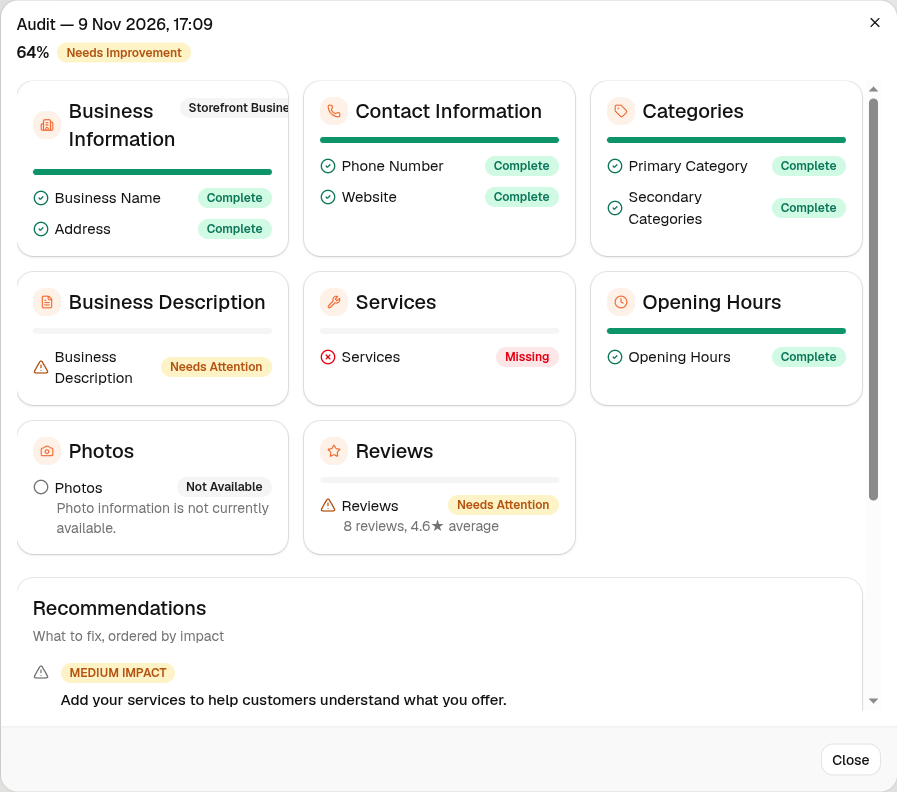
Audit History lists past audits with their date, score and badge. Select the count button to show or hide the list. Select an audit to open its full results and recommendations.
Insights
Insights shows how people found and used your listing, as reported by Google.
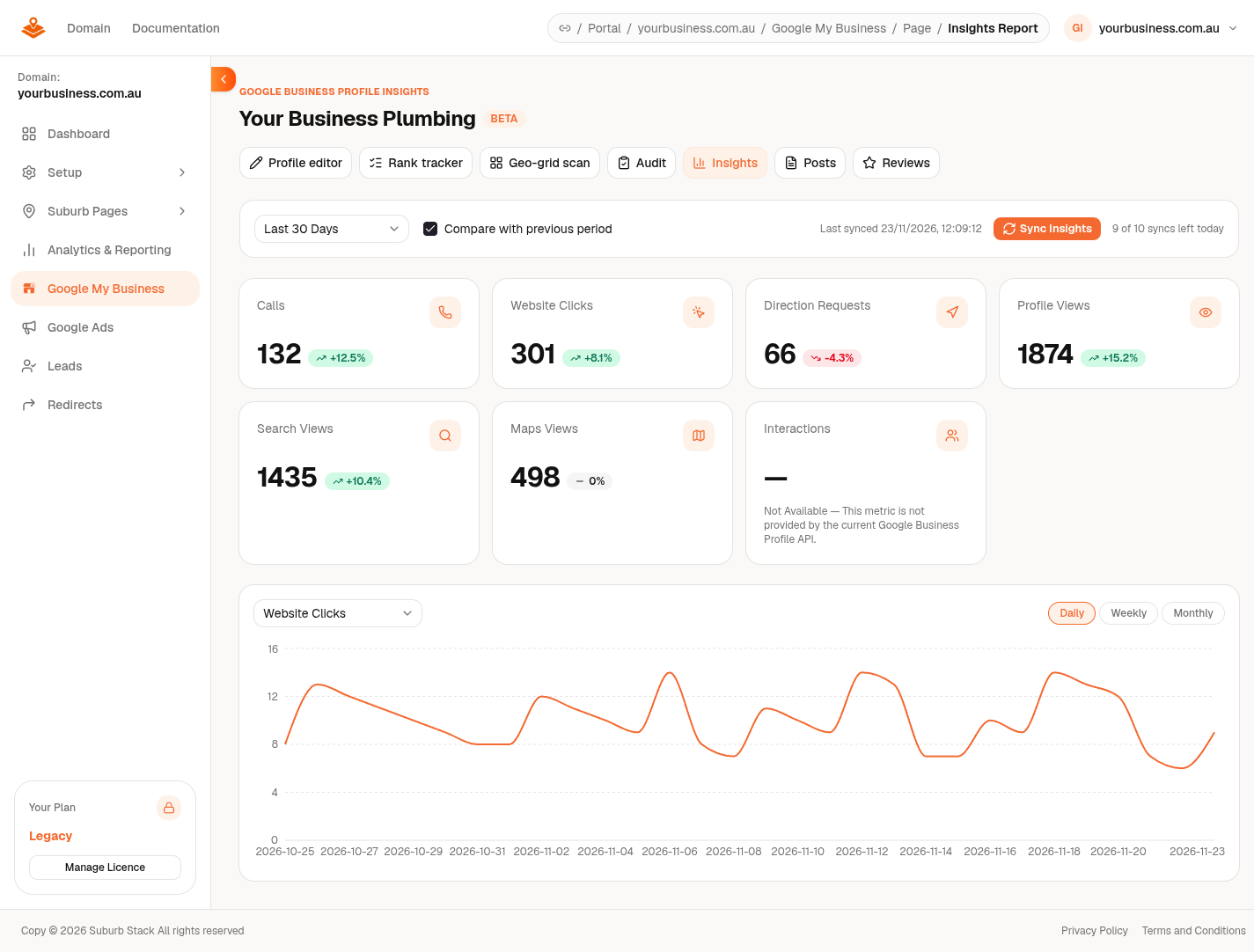
- Pick a date range: Last 7 Days, Last 30 Days, Last 90 Days, This Month, Last Month or Custom (enter a start and end date).
- Tick Compare with previous period to show the percentage change against the period before.
- Read the cards: Calls, Website Clicks, Direction Requests, Profile Views, Search Views, Maps Views and Interactions. A card showing "Not Available" is a figure Google does not currently provide.
- In the chart, pick the metric and choose Daily, Weekly or Monthly.
The figures come from the last sync ("Last synced ..."). Select Sync Insights to fetch the latest from Google (10 a day).
Before the first sync, the screen shows No insights synced yet with a Sync Insights button:
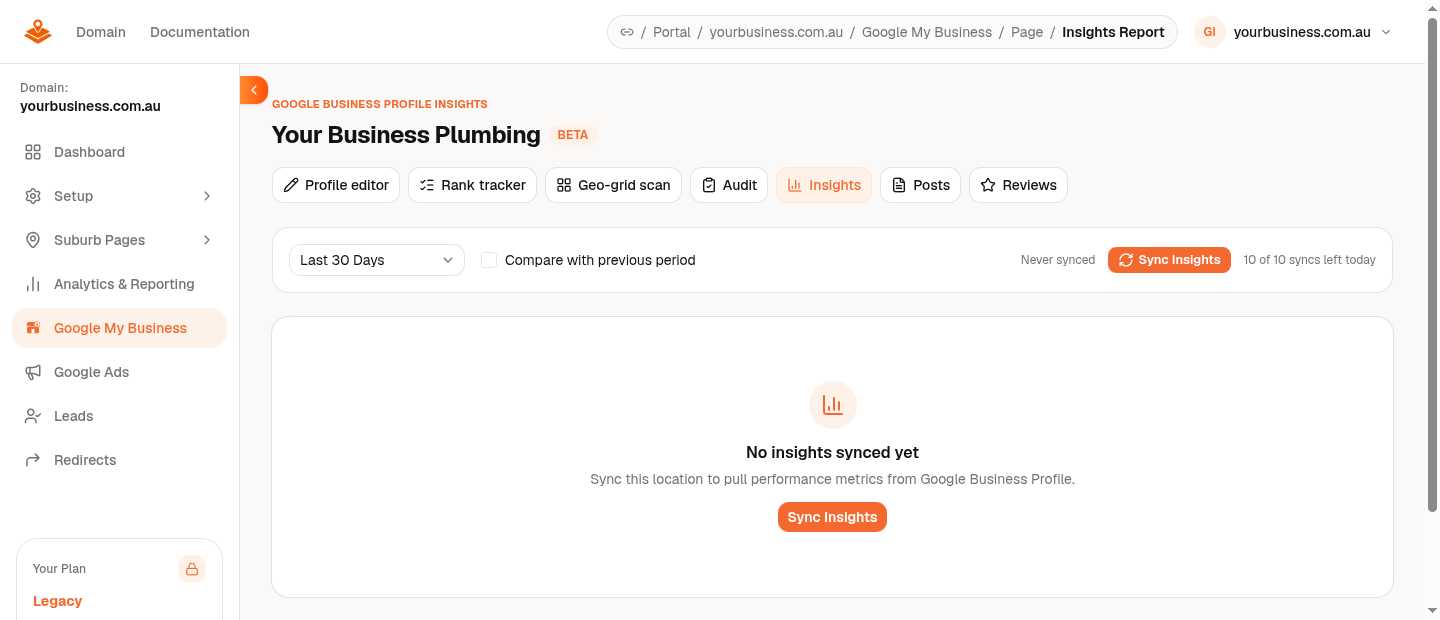
If syncing fails you may see "Your Google connection has expired. Reconnect it from Google Connections to sync insights." Reconnect on Google Connections or the Google My Business entry screen.
Posts
Posts appear in the "Updates" section of your Google listing.
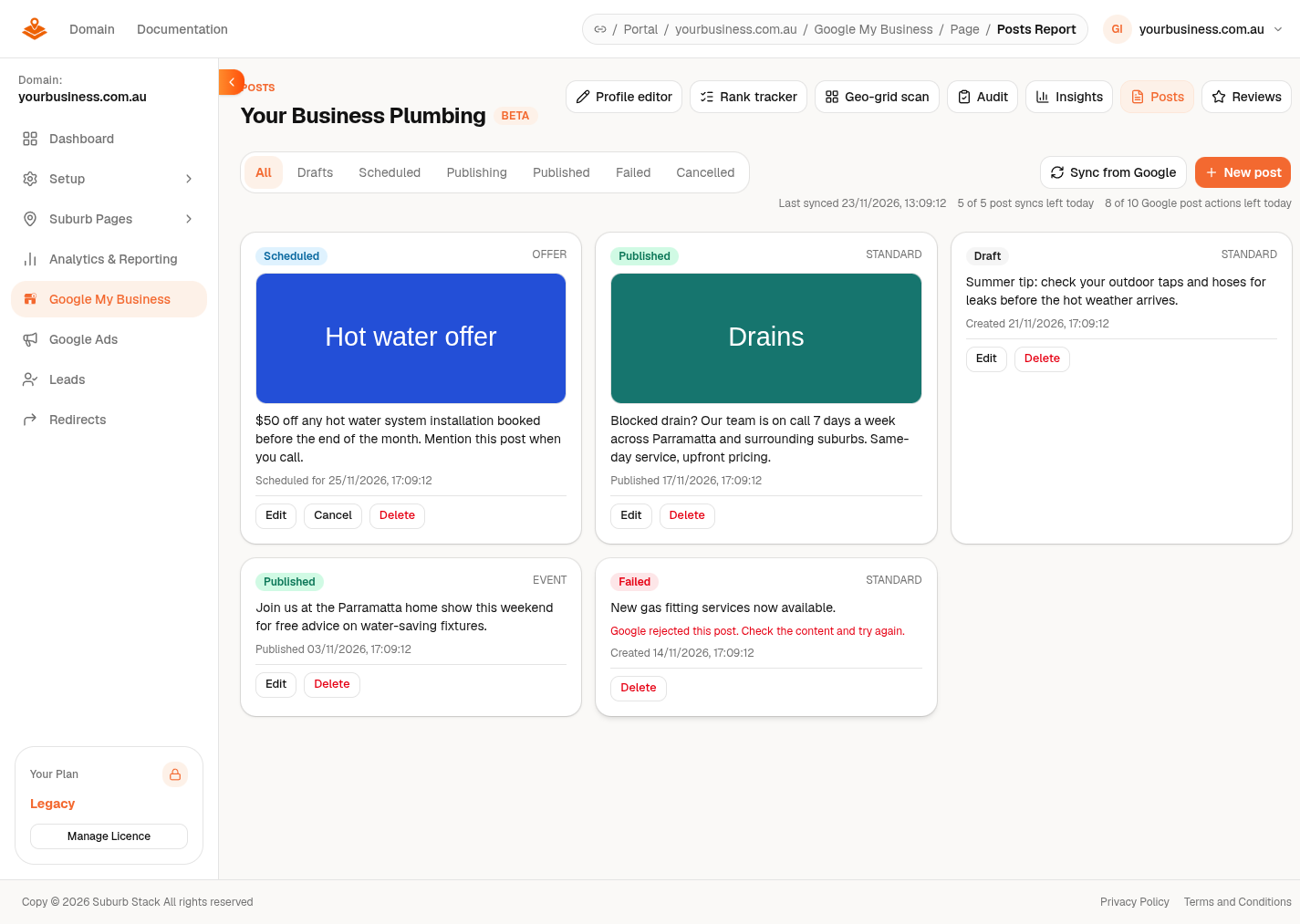
Use the tabs to filter by status:
| Status | Meaning |
|---|---|
| Drafts | Saved in Suburb Stack only. Not on Google. |
| Scheduled | Sent to Google to publish at the chosen time. |
| Publishing | Google is publishing it. The screen updates by itself. |
| Published | Live on your listing. |
| Failed | Google did not accept it. The reason shows in red on the card. |
| Cancelled | A scheduled post you cancelled. |
Select Sync from Google to bring in posts created or edited directly in Google's own dashboard (5 a day).
Create a post
- Select New post.
- Choose the Post type: Standard, Event or Offer.
- Event needs an Event title and start and end dates and times.
- Offer needs an Offer title, start and end dates and a Coupon code; Redeem online URL (optional) is optional. Google adds its own "View offer" button to offers.
- Write the Post content (up to 1,500 characters).
- Optionally use the AI writing assistant (see below).
- Optionally add an image in Image (optional) (JPEG or PNG, 10 KB to 5 MB).
- For an offer post there is no call to action field, because Google adds a View offer button itself. For other posts, optionally pick a Call to action (BOOK, ORDER, SHOP, LEARN_MORE, SIGN_UP or CALL) and its Link URL (must start with https://; CALL needs no link).
- To publish later, pick a date and time under Schedule (leave blank to publish immediately).
- Finish with one of:
- Save Draft: keeps it in Suburb Stack only.
- Schedule: sends it to Google to publish at the scheduled time (the time must be in the future).
- Publish Now: publishes it straight away.
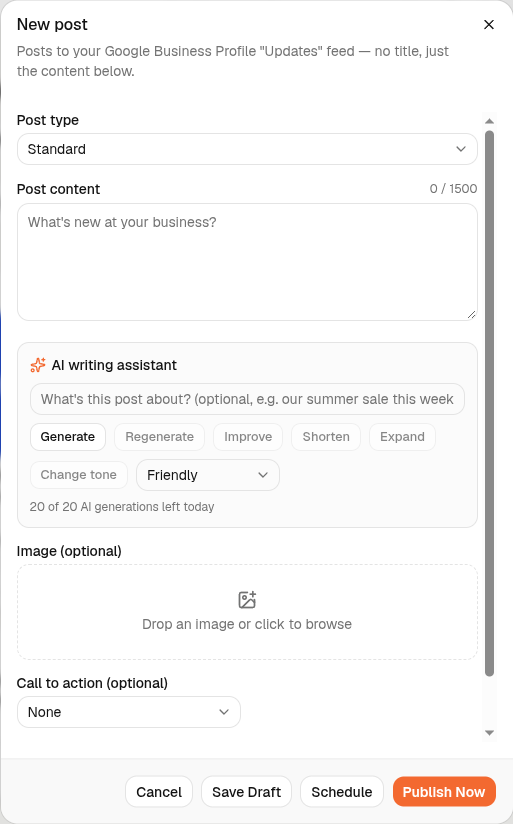
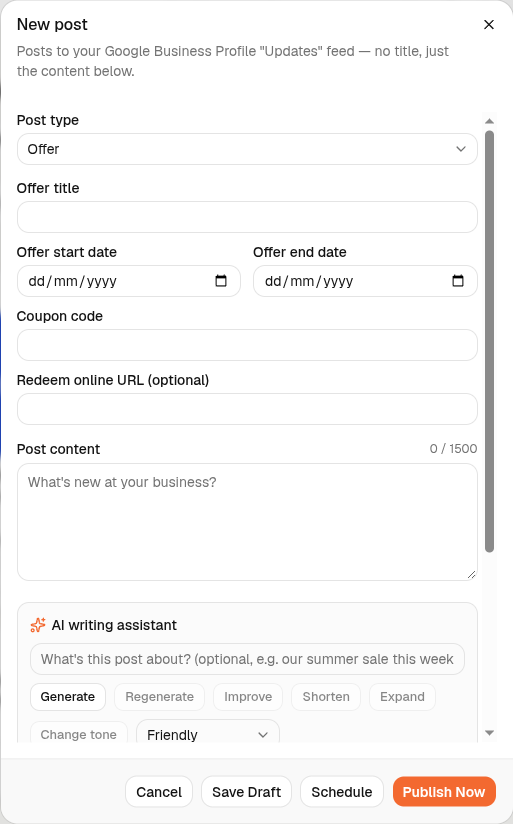
A post needs either some content or an image. Problems are listed in red at the bottom of the dialog, for example "Offer posts require a coupon code." or "A scheduled time is required to schedule a post."
AI writing assistant: optionally describe the post in the topic box, then select Generate. Once there is text, Regenerate, Improve, Shorten, Expand and Change tone (with the tone list: Friendly, Professional, Casual, Urgent, Playful) rework it. The text is only placed in the box for you to review; nothing is posted until you choose an action.
Manage posts
| Button | Available on | What it does |
|---|---|---|
| Edit | Drafts, scheduled and published posts | Opens the post. On a published post you can change the text, call to action and offer or event details, but not the post type or image (delete it and create a new one to change those). Save with Update Post. |
| Cancel | Scheduled posts | Stops it from being published, after you confirm. |
| Delete | Every post except one that is publishing | Deletes it after you confirm. A scheduled or published post is also removed from Google. |
Schedule, publish, update, cancel and delete all count towards the 10 Google post actions a day. Drafts do not.
Reviews
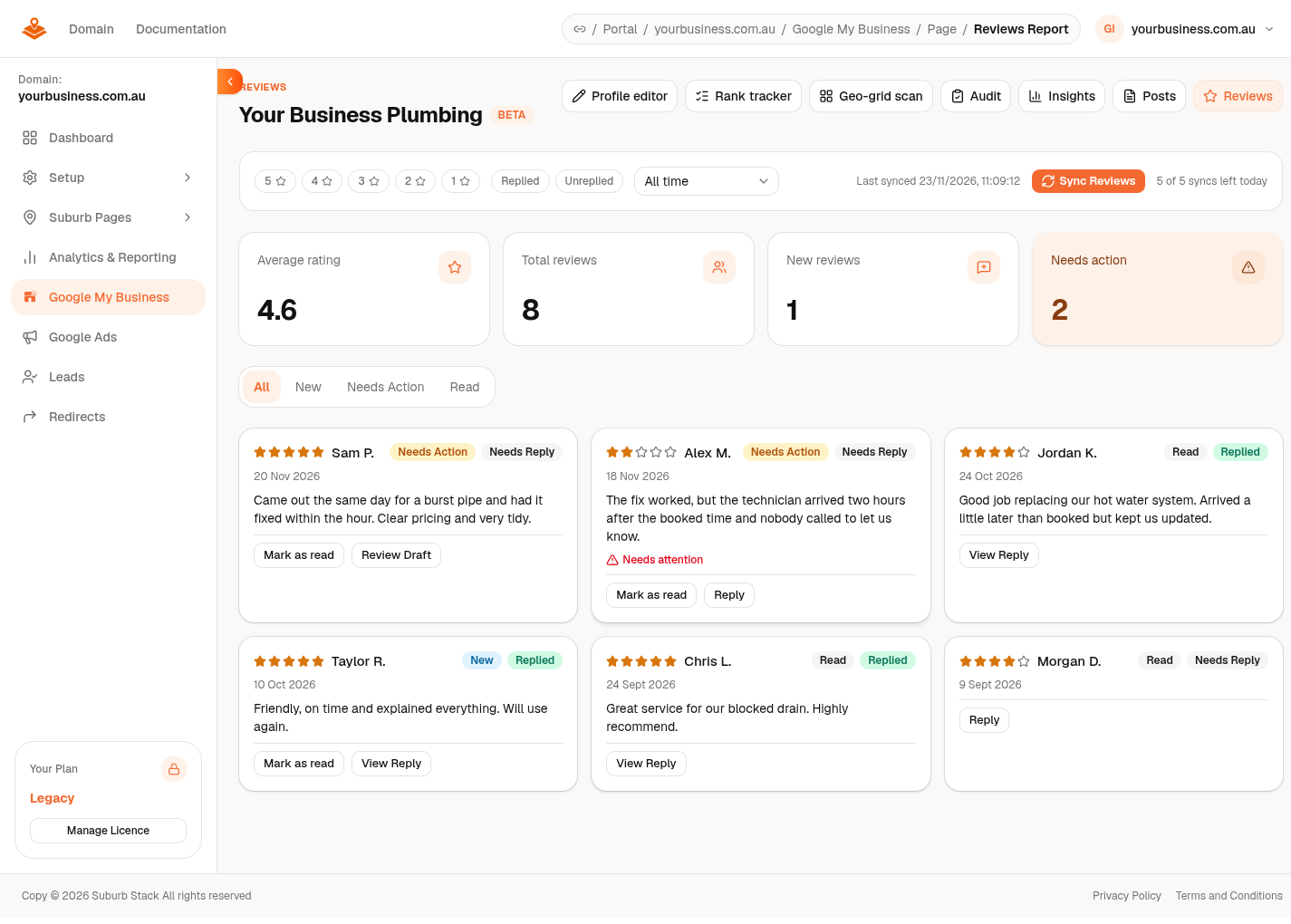
The cards at the top show the Average rating, Total reviews, New reviews and how many Needs action. Reviews are synced from Google automatically once a day; select Sync Reviews to fetch new ones now (5 a day).
Find reviews
- Select star ratings (5 to 1) to show only those ratings. You can select several.
- Select Replied or Unreplied to filter by reply. Select it again to clear it.
- Pick All time, Last 30 Days, Last 90 Days or Custom dates.
- Use the tabs All, New, Needs Action and Read.
Each review shows two badges: its status (New, Needs Action or Read) and its reply state (Replied, Needs Reply or Reply Failed). A review with no reply from you is Needs Action. Reviews of 1 or 2 stars are flagged Needs attention. Select Mark as read once you have dealt with a review. The list shows 12 reviews per page; use Previous and Next to page through.
Reply to a review
When a new review arrives, Suburb Stack writes a suggested reply for it. The button then reads Review Draft instead of Reply. The draft is never posted by itself.
- Select Reply (or Review Draft).
- Write or edit the reply. You can:
- select a saved template under Templates to fill it in (the cross deletes a template),
- select Generate AI Reply for a suggestion (20 a day),
- select Save as template to reuse the text later.
- Select Post Reply. The reply is published on Google under your business name.
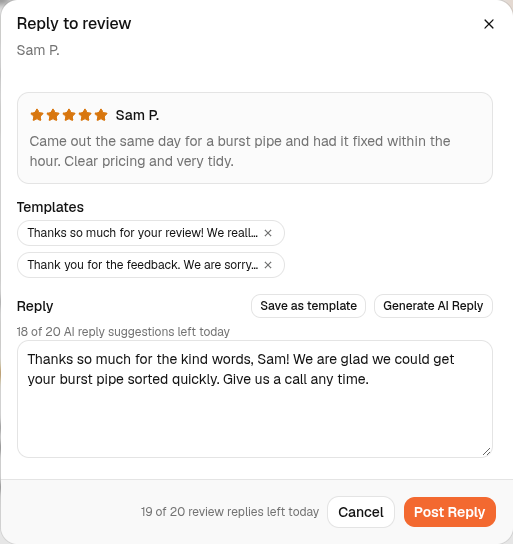
You can post, edit or delete up to 20 replies a day.
Change or delete a reply
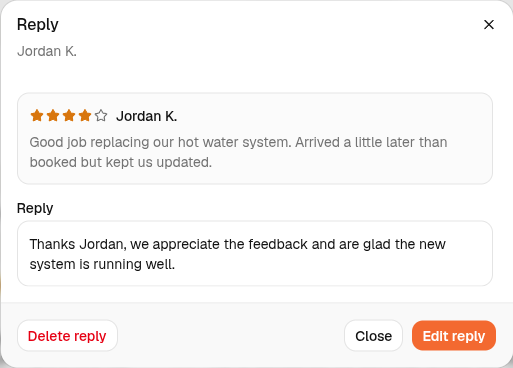
- Select View Reply on a replied review.
- Select Edit reply, change the text and select Save Reply, or select Delete reply and confirm to remove it from Google. The review then becomes unreplied and you can reply again.
Related guides
- Google My Business: connecting a listing and daily limits.
- Profile editor: fix the gaps the audit finds.
- Rank tracker and Geo-grid scan: how visible the listing is.
- Google Connections: reconnect Google when a sync says the connection has expired.