Location Management
Location Management is where you choose the suburbs a page targets. You add one or more target areas (a centre point and a radius inside one state), and Suburb Stack creates a suburb page for every suburb in those areas.
How to get here: Sidebar > Suburb Pages > select a page. Location Management is the card at the bottom of the page's detail screen (see Page details). Static, blog, home and error pages show a Page Info card here instead (see Page URL).
The Location Management card
The card lists every target area set on this page.
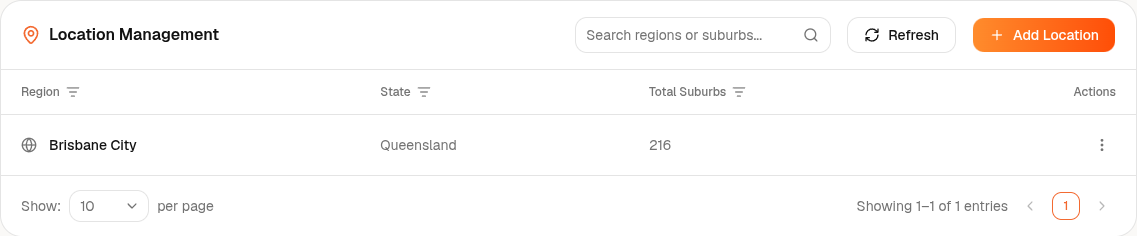
| Column | What it shows |
|---|---|
| Region | The name you gave the target area. |
| State | The state the area sits in. |
| Total Suburbs | How many suburbs the area includes. Hover over the number to see up to the first 15 suburbs, written as they appear in page addresses (for example fortitude-valley). |
| Actions | The row menu (the three dots) for that area. |
Above the table:
- Search regions or suburbs... filters the list by area name, state or suburb name.
- Refresh reloads the areas, for example after a teammate has changed them.
- Add Location opens the dialog to add a new target area.
If the page has no areas yet, the table reads "No regions selected for this page yet."
The row menu
Select the three dots at the end of a row to open its menu.
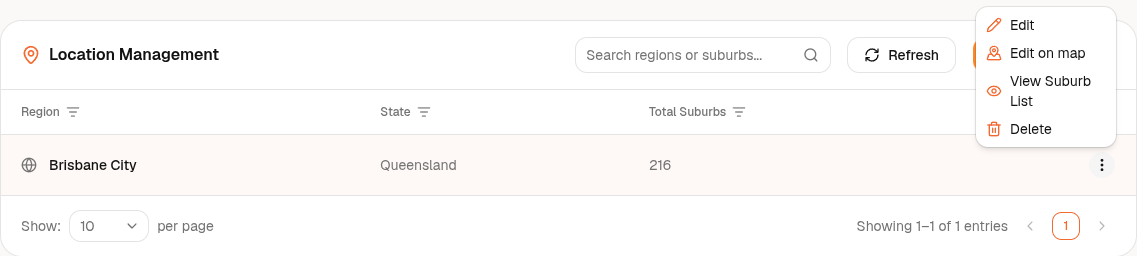
| Menu item | What it does |
|---|---|
| Edit | Opens the area in the location dialog so you can change its name, radius, centre and suburbs. |
| Edit on map | Opens the area straight in the suburb-by-suburb map (see Advanced area select). |
| View Suburb List | Lists every suburb in the area and lets you remove some of them. |
| Delete | Removes the whole area, after you confirm. |
Add a location
- Select Add Location. The Add Service Area Location dialog opens. It has three columns: the area's details on the left, the map in the middle and the page's current areas on the right.
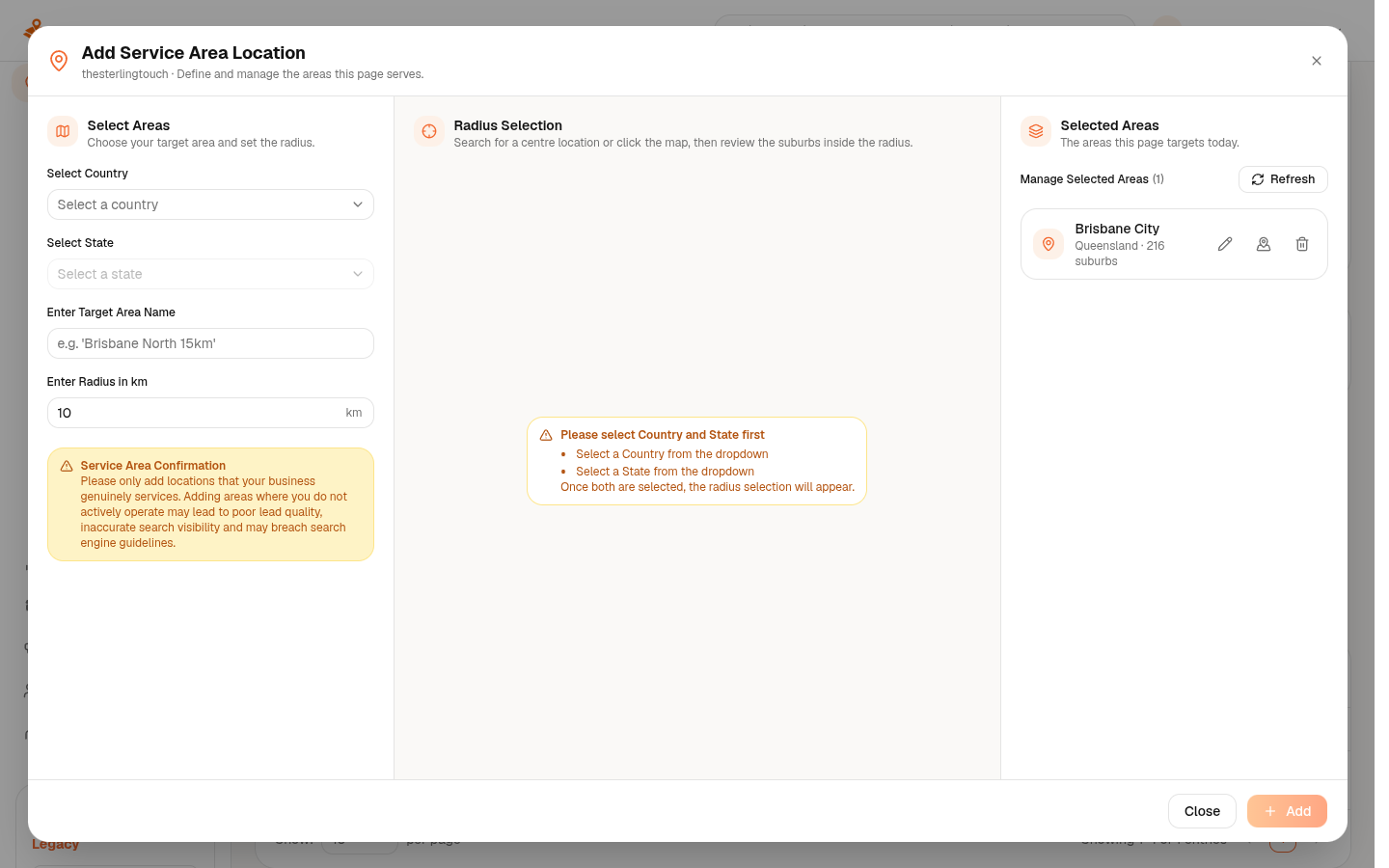
- Under Select Country, choose the country.
- Under Select State, choose the state. If the state already has areas on your website, the list says so (for example "Queensland · 2 areas already"). The map and centre search appear once both are chosen.
- In Enter Target Area Name, type a name that tells you what the area is, for example "Brisbane North 8km". Two areas in the same state cannot share a name.
- In Enter Radius in km, type how far from the centre the area should reach. If your plan limits the radius, the line under the box says "Your plan allows up to 25 km" (or your plan's figure), and a larger number is brought back down to that limit.
- In Center Location (type to search), start typing a suburb, postcode or address. Suggestions appear after a moment. Use the arrow keys and Enter, or select a suggestion with the mouse.
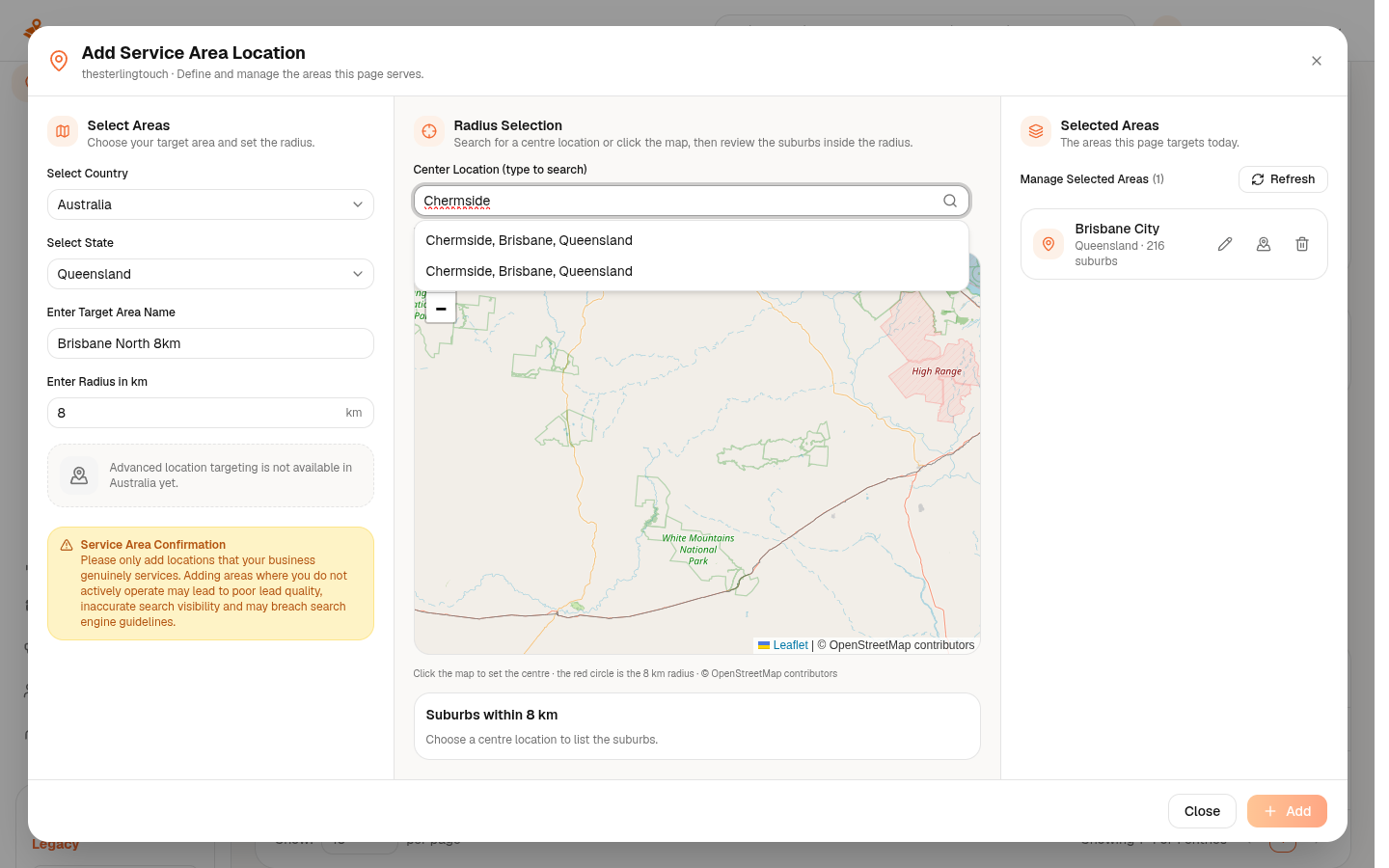
You can also type coordinates as "lat, lng" (for example -27.3858, 153.0351), or simply click the map where the centre should be.
- The map shows a pin at the centre and a red circle for the radius. Below it, Suburbs within 8 km lists every suburb Suburb Stack found inside the circle.
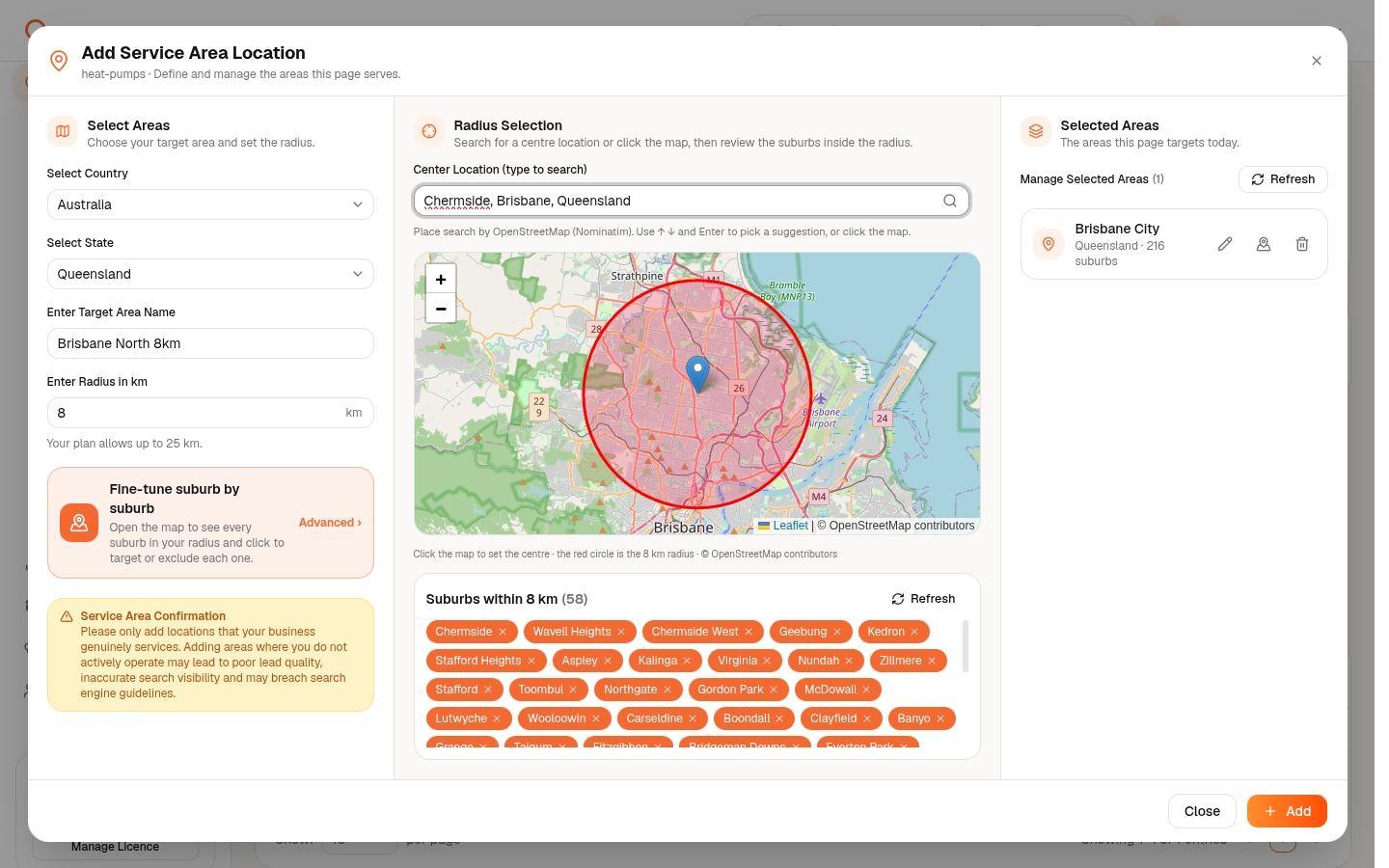
- Remove any suburb your business does not service by selecting the x on its tag. If you change the radius, click out of the radius box and the list is searched again. Refresh next to the list searches again with the current centre and radius.
- Select Add. The Confirm your ads and redirects box opens (see Confirm your ads and redirects below).
- Tick I have updated my ads and checked my redirects. and select Confirm and save.
The footer then says, for example, "Brisbane North 8km" added with 58 suburbs, and the new area appears under Selected Areas on the right and in the Location Management card. The form clears so you can add another area. Select Close when you are done.
The Add button stays greyed out until you have chosen a country and state, named the area, chosen a centre and have at least one suburb in the list. Hover over it to see what is still missing.
Only add areas you really service. The yellow Service Area Confirmation note in the dialog is there for a reason: pages for suburbs you do not work in bring poor quality leads and can breach search engine guidelines.
Fine-tune suburb by suburb
Under the radius you will see one of two things:
- Fine-tune suburb by suburb: select it to open the full-screen map where you click each suburb to target or exclude it. See Advanced area select.
- "Advanced location targeting is not available in ... yet." (with the country you chose): suburb-by-suburb selection is not offered for that country yet. Use the radius and the suburb list instead.
Confirm your ads and redirects
Every time you add or save an area, Suburb Stack asks you to confirm first. An area's suburbs decide which suburb pages exist: a suburb added gets a page, and a suburb taken out no longer has one.
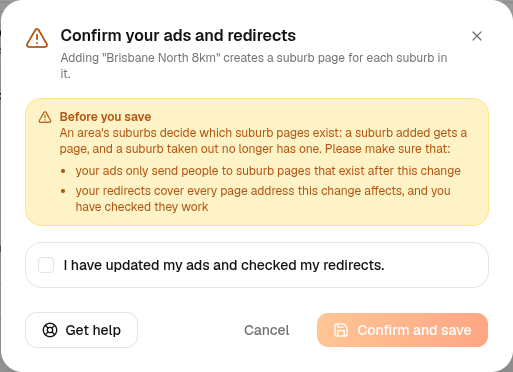
Before you tick the box, make sure that:
- your ads only send people to suburb pages that will exist after this change
- your redirects cover every page address this change affects, and you have checked they work (see Redirects)
Confirm and save stays greyed out until the box is ticked. Cancel takes you back to the dialog with nothing changed. Get help opens the support panel; your dialog comes back, as you left it, when you close the panel.
Edit a location
- In the Location Management card, open the row menu and select Edit. (Inside the location dialog you can also select the pencil icon on an area under Selected Areas.)
- The dialog title changes to Edit Service Area Location and the area is loaded into the form. The area being edited is outlined on the right.
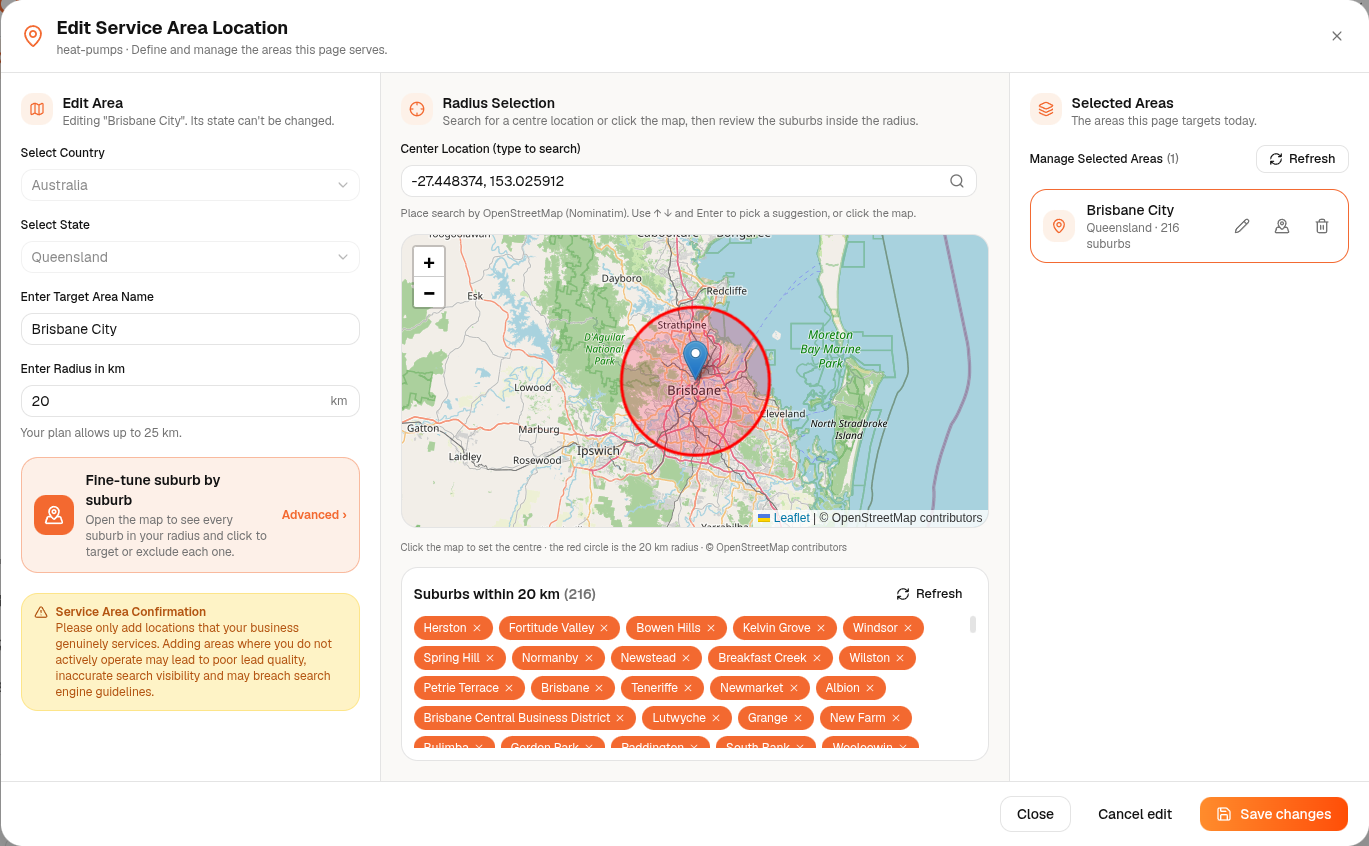
- Change the name, radius, centre or suburbs as you would when adding. The country and state cannot be changed. To move an area to another state, add a new area there instead.
- Select Save changes, then confirm your ads and redirects as above.
Cancel edit goes back to adding a new area without saving. If the area has suburbs that were excluded on the map, a line under the suburb list says how many are kept out of the area. They stay out when you search the radius again; change them on the map.
An area is shared. If the same area is set on several of your pages, saving it changes it on every one of them. The confirmation box says so: "Saving ... changes it on every page it is set on."
View or remove suburbs in an area
- Open the row menu and select View Suburb List. The Suburbs List dialog shows how many suburbs are in the area and lists them.
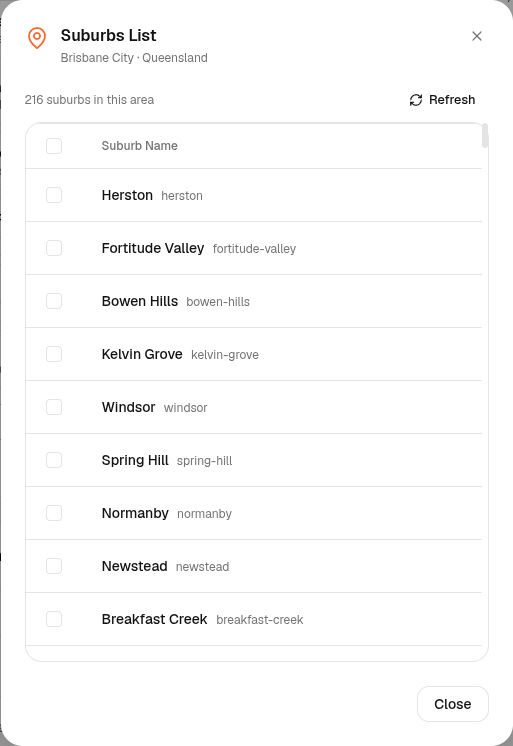
- Tick the suburbs you want to remove, or tick the box in the header to select them all.
- Select Delete Selected. The footer asks "Are you sure you want to delete N cities?".
- Select Delete to remove them, or Cancel to keep them.
Removing suburbs here removes their suburb pages, so check your ads and redirects afterwards.
Delete a location
- Open the row menu and select Delete. A red bar appears at the top of the card with the area's name, its number of suburbs and the warning "Are you sure you want to delete this state? If you delete this it will also be deleted from the pages it is set on."
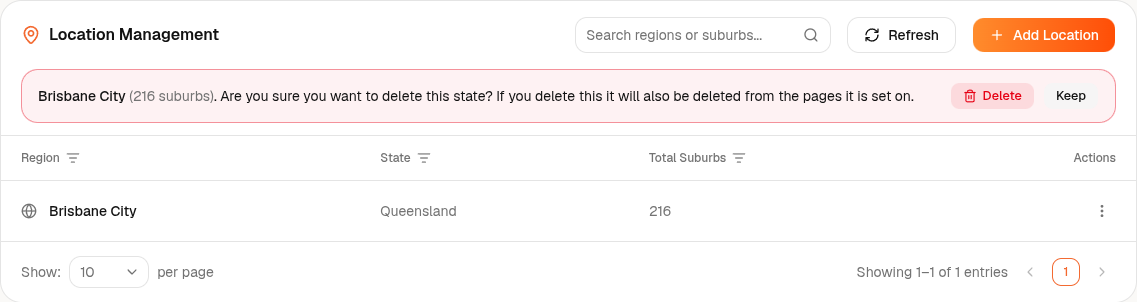
- Select Delete to remove the area, or Keep to leave it.
When it is done, the card says the area was removed. Deleting an area removes it from every page it is set on, not only this one, and all of its suburb pages go with it. You can also delete an area from inside the location dialog with the bin icon under Selected Areas.
Limits and messages
| Message or situation | What it means and what to do |
|---|---|
| "Your plan allows up to N km." | The widest radius your plan allows. A larger number is reduced to it. To go further, upgrade your plan (see Billing). |
| "Couldn't add the area: Area limit reached Please Upgrade" | Your plan allows a set number of areas per page and this page has reached it. Remove an area or upgrade your plan. |
| "State name already exists" | Another area in the same state already has this name. Choose a different name. |
| "Location not found. Please try a different search term." | The centre search found nothing for what you typed. Try another spelling, a postcode, or click the map. |
| "Place search failed. Try another spelling." | The place search did not answer. Try again, or click the map. |
| "No suburbs found in this radius. Try a larger one." | Nothing is inside the circle. Increase the radius or move the centre. |
| "Couldn't add the area: ..." / "Couldn't save the area: ..." | The save did not go through. The rest of the message says why. Nothing was changed. |
| "Couldn't load regions: ..." with Retry | The areas did not load. Select Retry. |
Related guides
- Page details: the screen this card sits on.
- Advanced area select: target or exclude suburbs one by one on the map.
- Redirects: keep old suburb page addresses working after you change an area.
- Go Live: publish the page once its locations are set.
- Billing: plans, radius limits and area limits.