Code Snippets
The Code Snippets (header & body) dialog adds your own scripts, such as Google tags or a Meta Pixel, to a page. Scripts added here load on every suburb page of that page.
How to get here: Sidebar > Suburb Pages (or another page type) > select a page > Actions > Code Snippets (Header & Body). See Page details.
Add or change a script
- Select Code Snippets (Header & Body).
- Paste the code into the right box:
- Header Script: code that belongs inside the page's
<head>. Most tracking tags go here. - Body Script: code that belongs at the start of the
<body>. Use it when a provider's instructions say to place code just after the opening<body>tag. - Select Save.
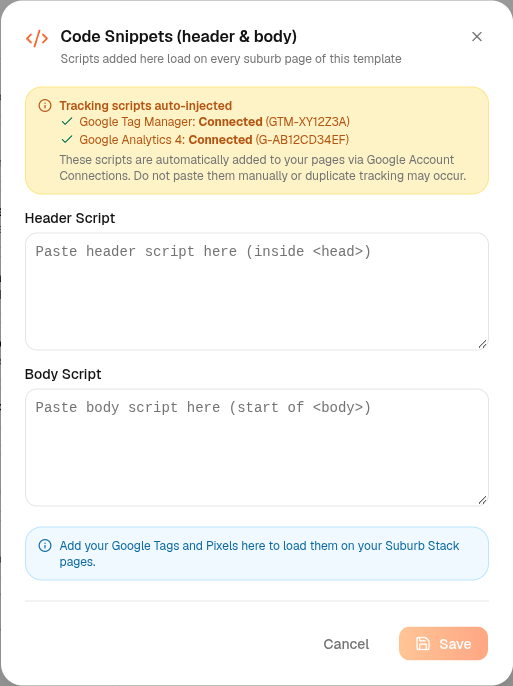
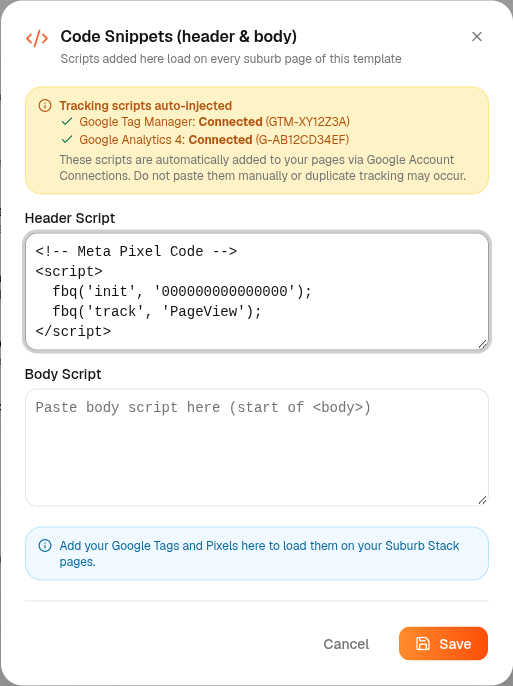
Paste the whole snippet exactly as the provider gives it, including its <script> tags. Each box holds all of the code for that position, so to add a second script, paste it below the first one in the same box.
To remove a script, delete its code from the box and select Save. Save stays unavailable until you change something. Cancel or the close button discards your changes.
The scripts apply to this page only. Add them to each page that needs them.
Tracking scripts auto-injected
If you have connected Google Tag Manager or Google Analytics 4 in Google Connections, a Tracking scripts auto-injected box at the top lists them, for example Google Tag Manager: Connected (GTM-...) and Google Analytics 4: Connected (G-...).
These are already added to your pages for you. Do not paste the same Tag Manager or Analytics code here, or visits may be counted twice. The box does not appear when nothing is connected.
Messages you may see
| Message | What it means |
|---|---|
| Couldn't load the current scripts: | Your saved scripts could not be loaded. Select Retry |
| Couldn't save: | The change was not saved. The dialog stays open with your code so you can try again |
Related guides
- Page details: the other page actions.
- Google Connections: connect Google Tag Manager and Google Analytics so their scripts are added automatically.
- Form Settings: send form enquiries to other systems with webhooks.