Dashboard
The dashboard is the home screen of a website. It shows how many pages you have, how they perform in Google, where the pages are published, and what needs your attention, with shortcuts into the rest of the app.
How to get here: Sidebar > Dashboard. The dashboard also opens after you sign in or switch website (see Getting started), and when you select the logo in the top bar.
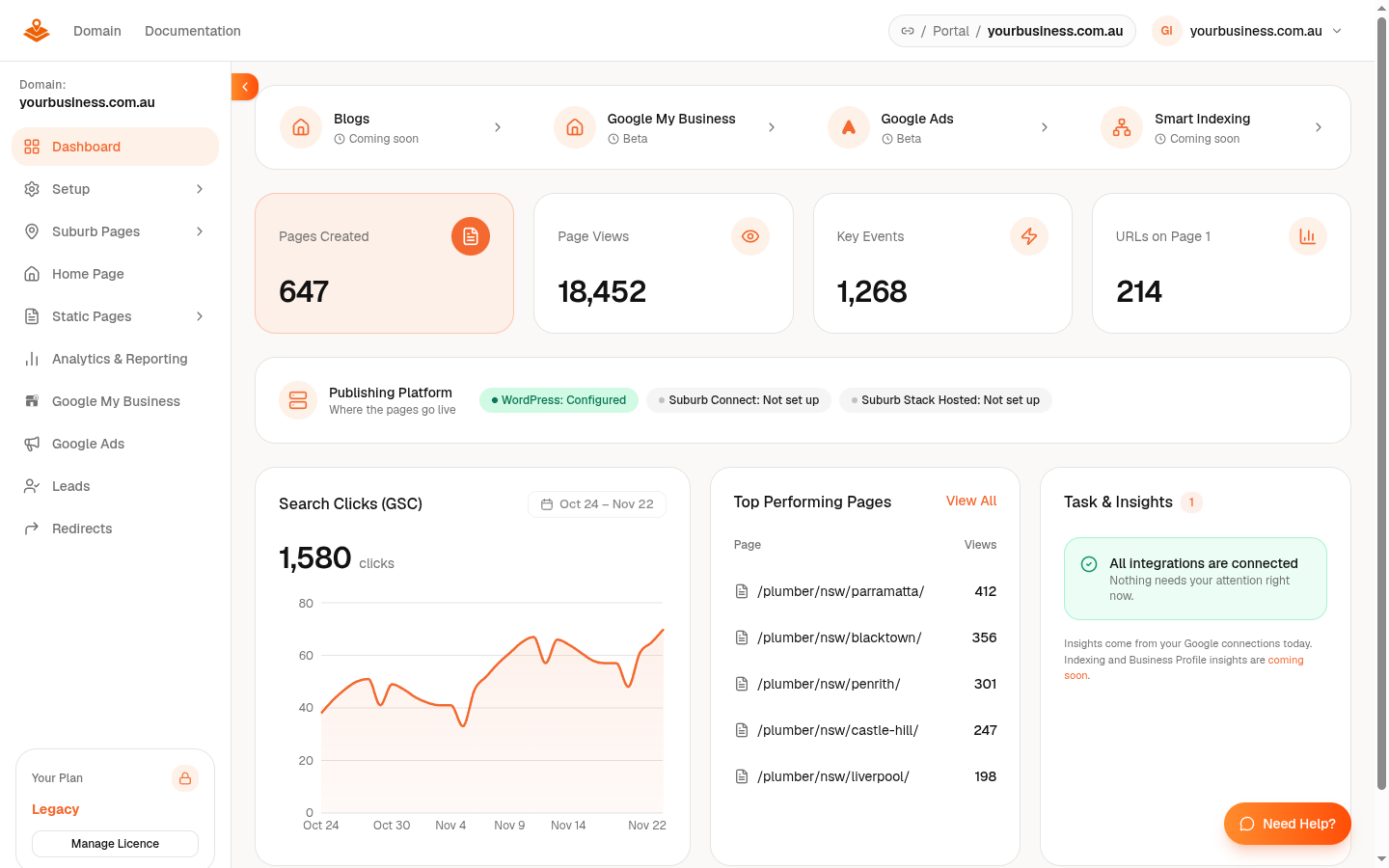
The screenshots in this guide use example figures. A website that is not yet connected to Google shows the empty states described under each section.
Shortcuts
The row at the top links to add-on modules.

| Tile | Status | Where it goes |
|---|---|---|
| Blogs | Coming soon | Not available yet. |
| Google My Business | Beta | Google My Business |
| Google Ads | Beta | Google Ads |
| Smart Indexing | Coming soon | Not available yet. |
Stat cards
Four cards show this website's headline numbers.

| Card | What it counts | Comes from |
|---|---|---|
| Pages Created | Every page generated for this website across all your services and suburbs. | Suburb Stack |
| Page Views | Views of your pages. | Google Analytics 4 |
| Key Events | Key events (for example enquiries) recorded on your pages. | Google Analytics 4 |
| URLs on Page 1 | How many of your page addresses appear on the first page of Google results. | Google Search Console |
When a figure is not available, the card shows Missing Data. If the reason is a missing connection, the Key Events and URLs on Page 1 cards say so in orange, for example Google Analytics 4 not connected or Search Console not connected; Page Views shows only Missing Data. Connect the service on Google Connections and the figures appear once Google reports them.
Publishing Platform
This card shows where your pages can go live.

There is one pill for each platform: WordPress, Suburb Connect and Suburb Stack Hosted. Each one reads:
| Pill | Meaning |
|---|---|
| Configured (green) | The platform is set up and ready to publish to. |
| Setup incomplete (amber) | Setup was started but not finished. Pages cannot go live until it is. |
| Not set up (grey) | This platform is not in use. (Recommended) marks the one suggested for your website. |
The line under the heading summarises the state: Where the pages go live, Platform setup not finished yet or No platform configured yet. To set up WordPress, see Website setup. The DNS based platforms are set up when you take a page live, see Go Live.
Search Clicks (GSC)
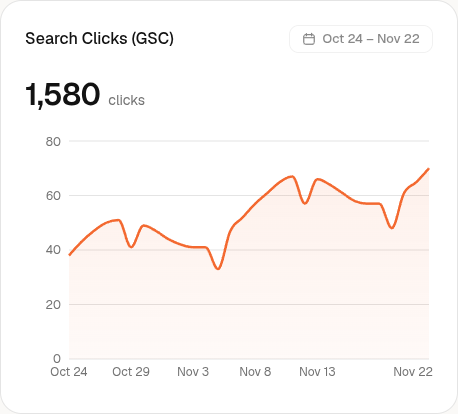
The chart shows how many clicks your pages received from Google search each day, with the total for the period and the date range at the top right. Hover the chart to see the figure for a day.
| What you see | Meaning |
|---|---|
| No clicks recorded yet | Search Console is not connected, or Google has not reported any clicks yet. |
| Chart data is being refreshed | The report is being prepared. Check back shortly. |
| Chart data is unavailable | The report could not be loaded. Select Try again. |
When Google Analytics 4 is not connected, an Unlock deeper insights card appears under the chart. Connect GA4 takes you to Google Connections.
Top Performing Pages
Your five most viewed pages, by page address, with their number of views.
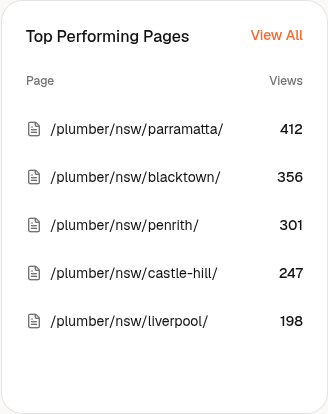
Select View All to open Analytics & Reporting for the full list. Until Google Analytics 4 reports traffic, the card shows No page views recorded yet.
Task & Insights
This card lists what needs your attention on this website. The number next to the heading is how many items there are.
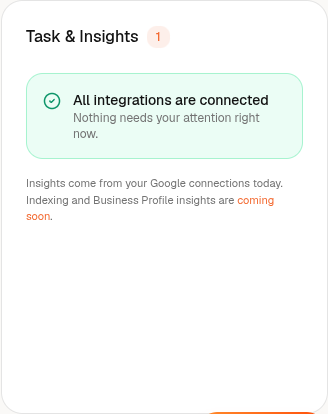
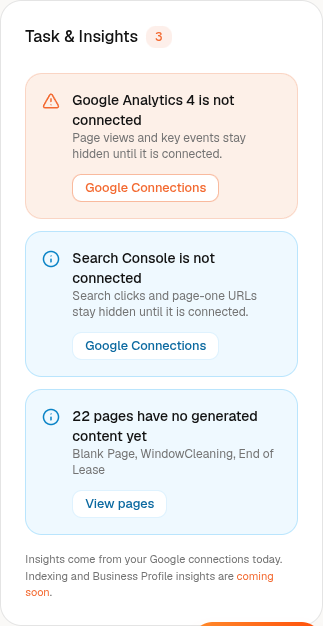
| Item | What to do |
|---|---|
| Google Analytics 4 is not connected | Select Google Connections to connect it. See Google Connections. |
| Search Console is not connected | Select Google Connections. |
| Google Ads is not connected | Select Google Connections. |
| Publishing platform setup is not finished | Finish the platform setup. See Website setup or Go Live. |
| ... pages have no generated content yet | The names of up to three such pages are listed. Select View pages to open the Pages list, or generate content with the Page Generator. |
| All integrations are connected | Nothing needs your attention right now. |
Your Plan card
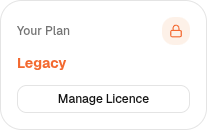
The Your Plan card at the bottom of the sidebar shows the licence on this website, and a usage bar when one is available. Select Manage Licence to assign, switch or buy a licence for this website without leaving it. See Websites and licences and Billing.
Where to go next
Everything else in the website starts from the sidebar:
- Setup: Page Generator, Branding, Google Connections
- Page groups (Suburb Pages, Home Page, Static Pages and others): Pages and Page details
- Blocks: Blocks
- Analytics & Reporting: Analytics & Reporting
- Google My Business: Google My Business
- Google Ads: Google Ads and the Google Ads AI agent
- Leads: Leads
- Redirects: Redirects
Related guides
- Getting started: the layout, switching websites and adding a website.
- Google Connections: connect Google Analytics 4, Search Console and Google Ads to fill in the figures.
- Analytics & Reporting: the full reports behind these cards.
- Websites and licences: all your websites and their licences.