Pages
The Pages list shows every page on your website. From here you open a page to manage it, or create a new page from a starter template.
How to get here: Sidebar > Suburb Pages (or another page type) > select a page, then select Pages in the breadcrumb at the top of the screen (shown on wider screens). You also land here after you delete a page, and from the View pages link that the Dashboard's Task & Insights list shows when some pages have no generated content yet.
The Pages list
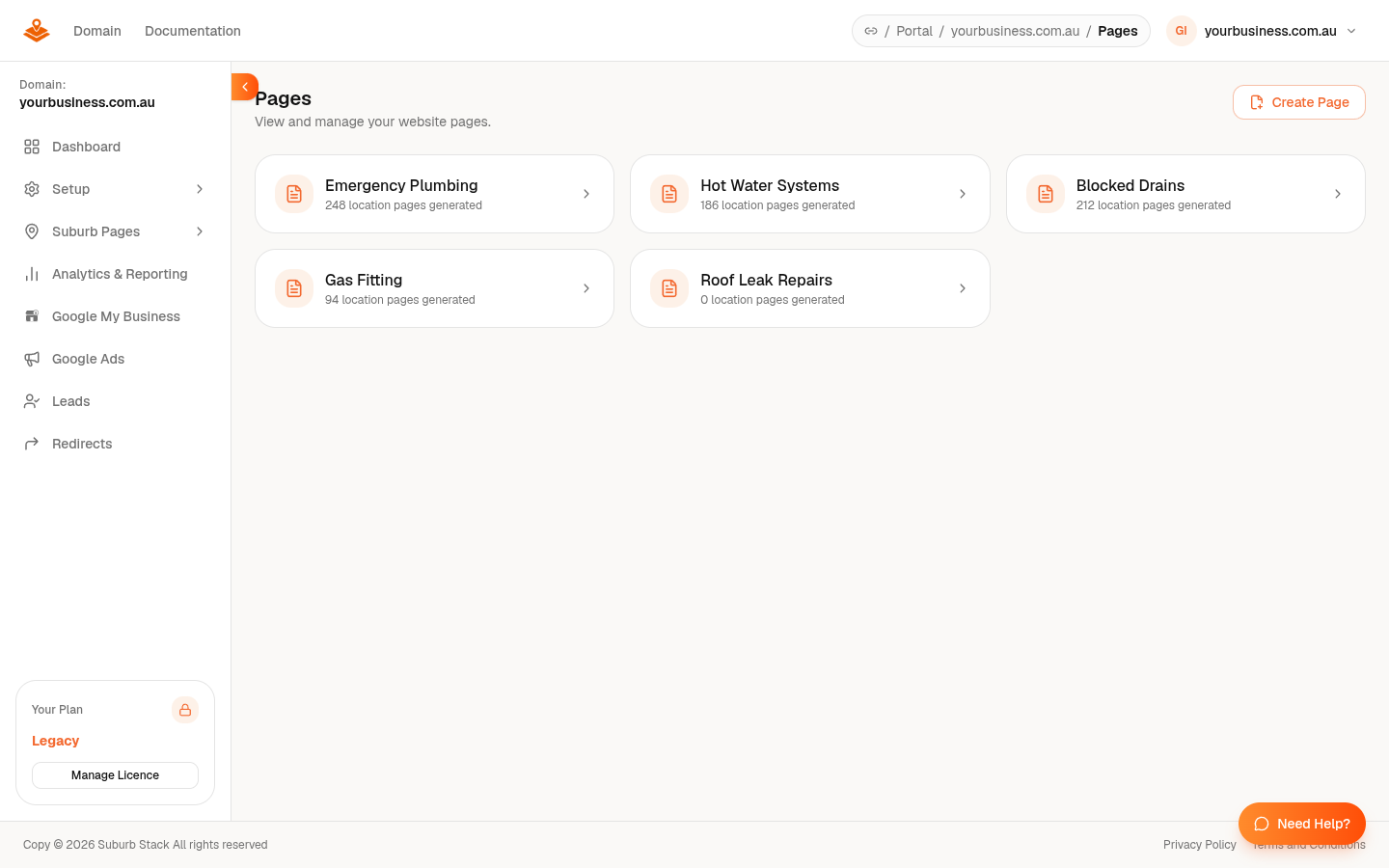
Each page appears as a card with its name and a short line underneath. Select a card to open the page's detail screen (see Page details).
| Page type | What the line under the name shows |
|---|---|
| Suburb page | How many location pages have been generated, for example "248 location pages generated" |
| Home, static, blog or error page | The page's URL path, for example "/about-us", or "URL not set" |
A suburb page is one template that is published once for every suburb in its target areas. "0 location pages generated" means the page exists but no suburb pages have been generated from it yet. Add a target area to it (see Location Management).
If the list cannot load, a message appears with a Try again button. If your website has no pages yet, the list says No pages yet. Create a page from a starter template (below) or use the Page Generator under Setup.
Page types and groups
Some accounts can create other kinds of page as well as suburb pages:
| Type | What it is |
|---|---|
| Suburb Pages | One template published for every suburb in its target areas |
| Home Page | Your website's home page, always at /. A website has one home page |
| Static Pages | A single page at one fixed URL, for example /about-us |
| Blog Pages | A single blog article at one fixed URL |
| Error Pages | The page visitors see for an error such as 404 (page not found) |
When your account has these page types, the Pages list is split into a section for each type that has at least one page, and each home, static, blog or error page shows a small badge (Home, Static, Blog or Error).
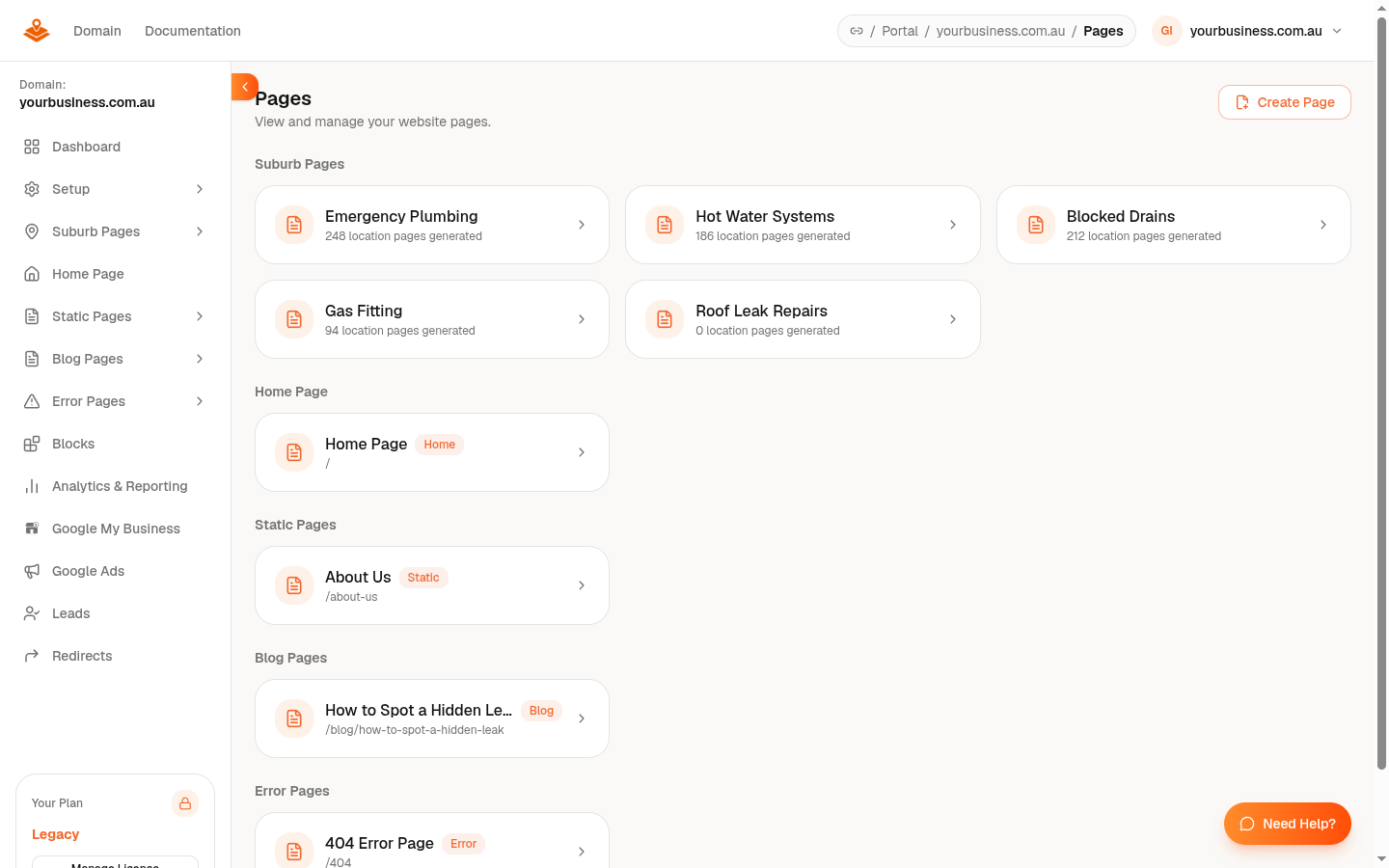
If you only see suburb pages and no sections, these page types are not included in your plan. Contact support.
Pages in the sidebar
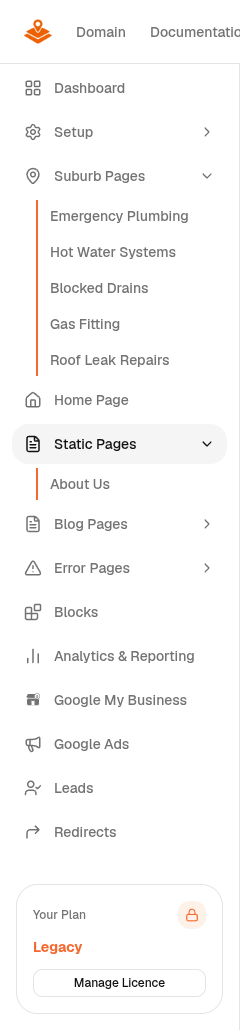
The sidebar has one item for each page type your website has, labelled by type: Suburb Pages, Home Page, Static Pages, Blog Pages and Error Pages. A website with only suburb pages shows just Suburb Pages.
- Select a type to expand it and see the names of its pages, then select a page name to open it.
- Home Page has no list under it. Selecting it opens your home page directly.
- The type that holds the page you are viewing is highlighted.
Create a page from a starter template
Use Create Page to start a page from a ready-made starter template instead of the AI Page Generator.
- On the Pages list, select Create Page (top right).
- If your account has several page types, choose one under Page Type: Suburb Page, Blog, Static Page, Home Page or Error Page. Otherwise the new page is a suburb page.
- Fill in the fields for that type (see the table below).
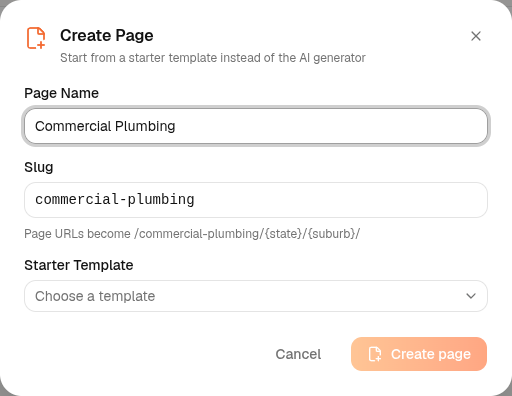
- Under Starter Template, open the list and choose a template. Select Preview this template (when it appears) to see the template in a new tab.
- Select Create page.
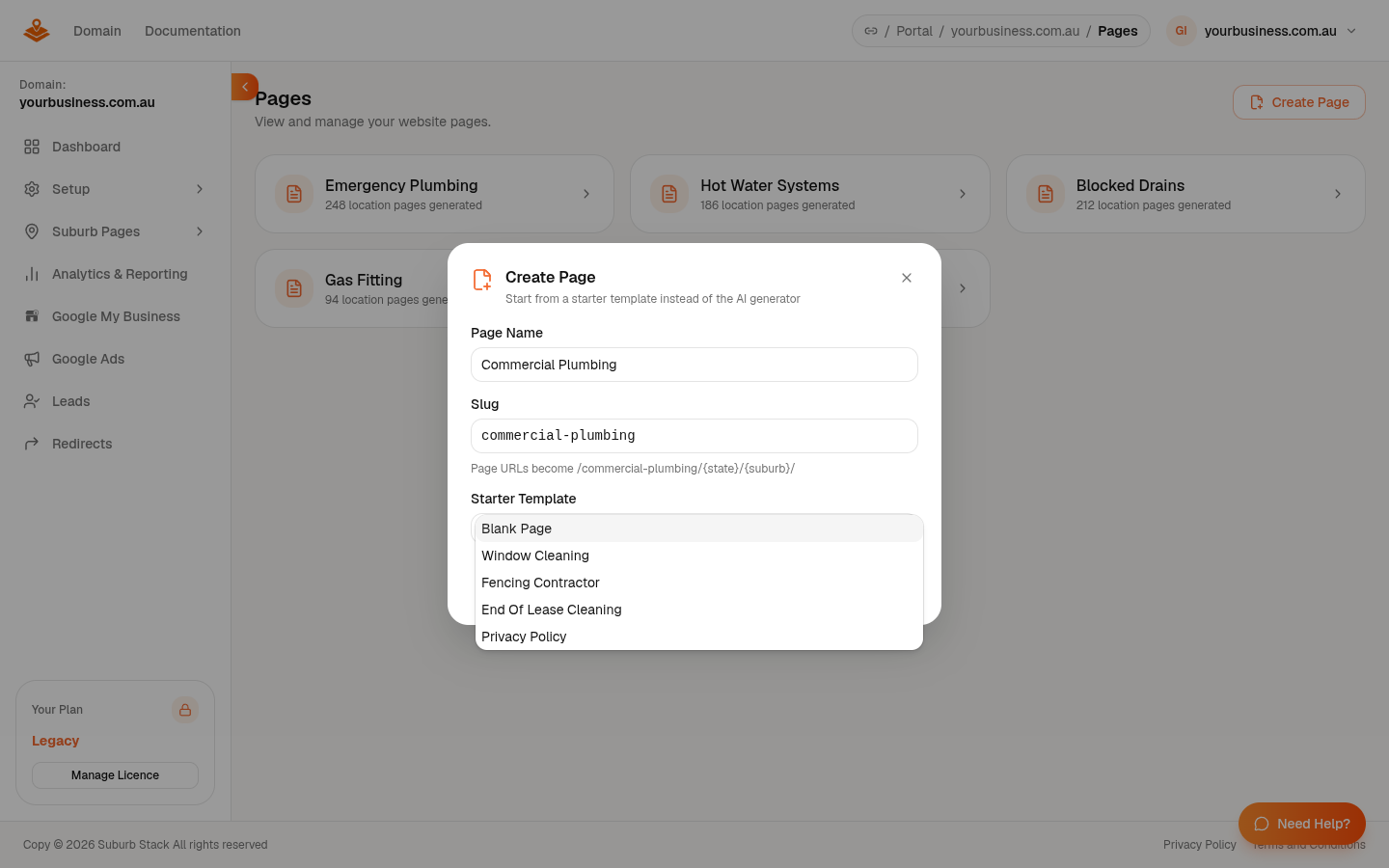
| Field | Shown for | What to enter |
|---|---|---|
| Page Name | Every type except error pages | The name you see in Suburb Stack, for example "End Of Lease Cleaning". For the home page it is fixed as "Home Page" |
| Slug | Suburb pages | The service part of the page's URLs. It fills in from the name as you type, using lowercase letters, numbers and hyphens. The hint under it shows the result, for example /end-of-lease-cleaning/{state}/{suburb}/ |
| Page URL | Static and blog pages | The path the page is served at, without the leading /, for example about-us. It also fills in from the name |
| Page URL | Home page | Always /. You cannot change it |
| Error Code | Error pages | Which error the page is shown for: 404, 500, 403, 400, 502 or 503. The page is served at that code, for example /404 |
| Starter Template | Every type | The design and content the new page starts from |
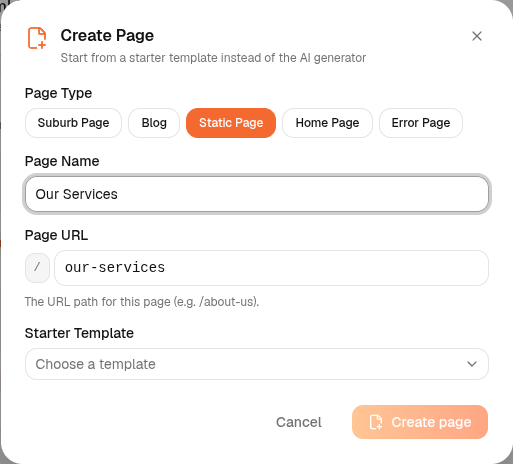
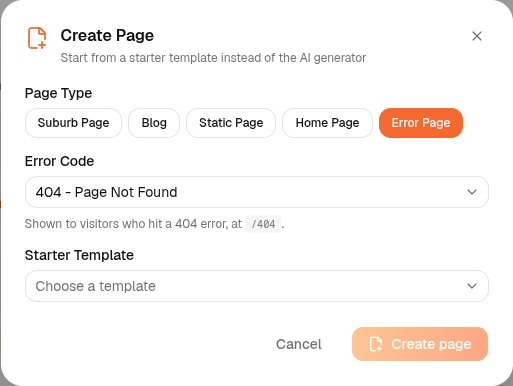
Create page stays unavailable until every field for the chosen type is filled in and a template is chosen.
Checks on a static or blog page URL
As you type a static or blog page URL, it is checked straight away. Messages you may see under the field:
| Message | What to do |
|---|---|
| Checking… | Wait a moment |
| URL available | The path is free. You can create the page |
| URL must be between 2 and 128 characters | Make the path longer or shorter |
| URL can only contain lowercase letters, numbers, hyphens, and slashes | Capitals become lowercase and other characters are dropped as you type. The path must also start with a letter or number, not a hyphen or slash |
| URL conflicts with a reserved path (...) | Suburb Stack uses paths that start with words such as sitemap, robots, favicon, api or portal. Choose a different path |
| Another reason, for example the URL is already used | Choose a different path |
The same rules apply when you change the URL later. See Page URL.
After you select Create page
While the page is built you see Building "..."… you'll be taken to the new page as soon as it's ready. This usually takes a few seconds. When it is ready, its Page details screen opens.
If building takes longer than usual, the dialog says the page has been created and is still being built in the background. It is already in your Pages list: select Go to Pages and open it from there. For a suburb page, the next step is to add its target areas (see Location Management) and edit its content.
If creation fails, the dialog shows Couldn't create the page: followed by the reason. If the template list cannot load, you see Couldn't load templates: with a Retry link.
Related guides
- Page details: everything you can do with one page.
- Page Generator: create pages with AI from a scan of your website.
- Location Management: add the suburbs a suburb page is published for.
- Page URL: change a page's URL after you create it.
- Getting started: the sidebar, top bar and switching between websites.