Branding
The Branding page is where you set your website's favicon: the small icon shown in browser tabs and bookmarks. It also previews a home page builder that is coming soon.
How to get here: Sidebar > Setup > Branding. See Getting started for the layout of the app.
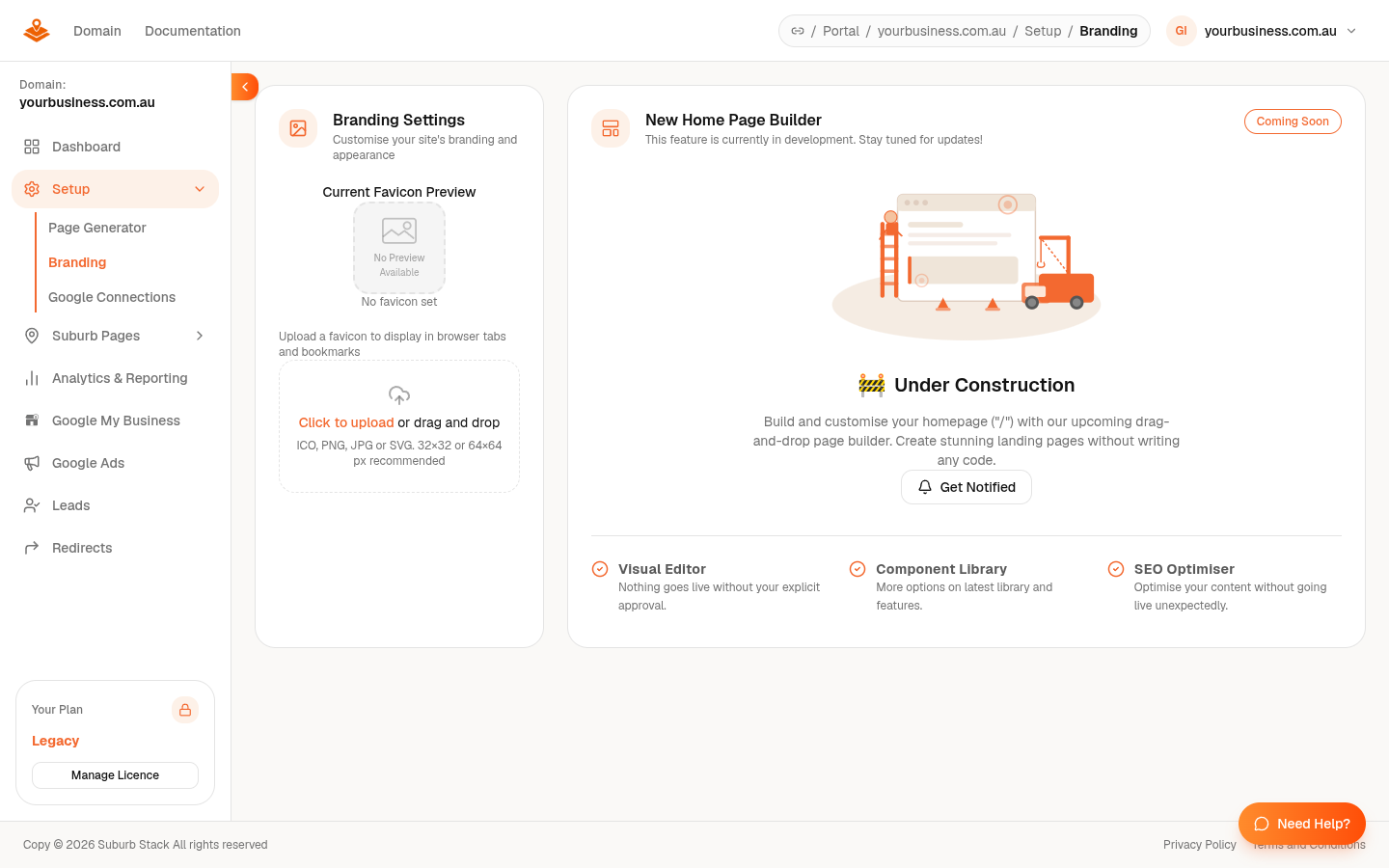
Upload a favicon
The Branding Settings card shows your Current Favicon Preview. If you have not set one, it shows No Preview Available and No favicon set.
- Select Click to upload, or drag your file onto the upload box.
- Wait while Uploading… shows.
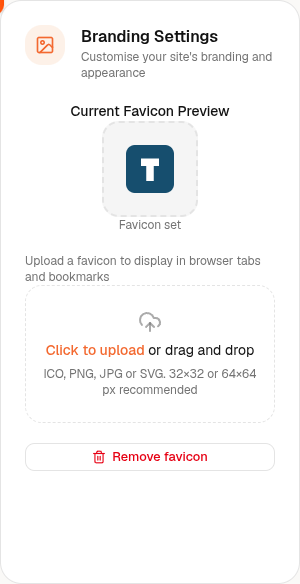
- When it is done you see Favicon uploaded., the preview shows your icon and the caption changes to Favicon set.
| Limit | Detail |
|---|---|
| File types | ICO, PNG, JPG (or JPEG) or SVG |
| Recommended size | 32×32 or 64×64 pixels, square |
| One favicon per website | Uploading a new file replaces the current favicon. |
If the upload fails you see "Couldn't upload the favicon:" followed by the reason. A file of the wrong type is refused with "Invalid file type. Allowed: .ico, .png, .jpg, .jpeg, .svg". Choose a file of one of those types and try again.
Remove the favicon
- Select Remove favicon (it only shows when a favicon is set).
- When it is done you see Favicon removed. and the preview shows No favicon set again.
There is no confirmation step, so make sure you have a copy of the file if you want it again later. If it fails you see "Couldn't remove the favicon:" with the reason.
New Home Page Builder (coming soon)
The right-hand card, marked Coming Soon, describes an upcoming drag-and-drop builder for your home page ("/"). It is not available yet, and there is nothing to set up here for now.
To build a home page today, use the CMS Pages option in the Page Generator (on plans that include it), or create one with Create Page Manually if it offers the Home Page type (see Pages).
Related guides
- Page Generator: your logo, brand colours and fonts are set in the business profile review.
- Pages: create a page from a starter template.
- Google Connections: the next item under Setup.